
Tutorials & How-to Guides
Windows 11 Running Slow After Update? Here Are the Fixes That Actually Worked (Not the Useless Ones)

Quick Summary — What You Need to Know
- Windows 11 slowing down after updates is a real and widely reported problem — not your imagination
- The single most common culprit is Widgets.exe — killing it takes under 2 minutes
- AMD users face specific additional issues with iGPU drivers after updates
- 8GB RAM users will feel this more severely — there is a specific fix for you below
- Fixes are ordered easiest to hardest — most people are fixed by Fix 2 or Fix 3
- Specific update KB5021255 and the 24H2 release caused widespread slowdowns
Your Windows 11 was running perfectly. Then an update arrived — and now everything feels off. The right-click menu has a delay. File Explorer feels sluggish. Desktop icons blink after you refresh. Photos take 10 seconds to open. Scrolling, typing, even clicking the Start button feels slow. You are not imagining it.
This is a real problem that has affected thousands of Windows 11 users across different hardware setups. People with brand new laptops, people with high-end desktops, people with older machines — all reporting the same thing after specific updates.
What makes this guide different from others is that every fix here comes directly from real user reports — people who faced the exact same situation and found what actually worked. No generic troubleshooting steps that sound helpful but do nothing. Real fixes, in plain English, ordered from fastest to try first.
Why Does Windows 11 Get Slow After Updates?
Before jumping to fixes, it helps to understand what is actually happening. Windows 11 slowdowns after updates usually come from one of these causes — and knowing which one affects you points you to the right fix faster.
Background indexing right after the update: For the first hour after an update, Windows quietly runs background tasks — reindexing files, optimizing the drive, applying settings. This is normal and usually settles on its own. If your PC is still slow the next day, something else is the problem.
Widgets.exe running out of control: The Windows 11 Widgets service runs constantly in the background even when you never open it. After certain updates, this process can spike in memory and CPU usage and never calm back down. This is the single most reported cause across Reddit and Microsoft’s own support forums.
Explorer bugs and memory leaks: Multiple users reported Explorer bugs that cause memory leaks after updates — where File Explorer gradually consumes more and more RAM over time until the whole system slows down. This was specifically reported as a common Windows 11 problem across different hardware.
Driver conflicts: Updates sometimes conflict with existing GPU, audio, or network drivers — causing choppy animations, display lag, and even display settings disappearing entirely. AMD users are particularly affected by this after Windows updates.
Known buggy updates: Specific Windows 11 updates have been officially acknowledged as problematic. The cumulative update KB5021255 caused widespread reports of choppy and laggy behavior across scrolling, typing, and clicking. The 24H2 release caused significant problems for many users — particularly those on AMD hardware.
Everything became super choppy and laggy. Scrolling, typing, even selecting and clicking. Memory usage is normal, CPU usage is normal. Plenty of space in storage. Every setting was the same, nothing changed. But this is what happened after the update KB5021255.
— Real user report, Reddit r/Windows11
Check This First — Takes 60 Seconds
Before running any fix, spend 60 seconds finding out what is actually causing the slowdown. This tells you which fix to jump to directly.
- Press
Ctrl + Shift + Escto open Task Manager - Click the CPU column to sort by highest usage first
- Look at what appears at the top of the list
- Also check the Memory column for anything using over 500MB unexpectedly
- Specifically look for: Widgets, SearchHost, MsMpEng, or anything unfamiliar
Open Task Manager and sort by CPU to quickly find what is consuming your resources.
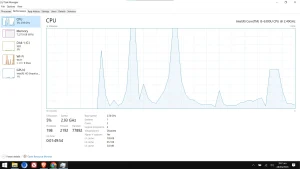
Here is what each common culprit means:
Widgets or Widgets.exe high → Go to Fix 1 immediately. This is your problem.
SearchHost or SearchIndexer high → Wait 30–60 minutes. If it is still high, go to Fix 5 (Clean Boot).
MsMpEng (Windows Defender) high → Normal for 1–2 hours after an update. Leave it and check again later.
An app you do not recognise → Right-click it → Search online. Then go to Fix 5.
Nothing obvious but PC still slow → Go to Fix 3 (Visual Effects) or Fix 7 (Corrupted Files).
Fix 1 — Start Here
Disable Widgets — The Most Commonly Reported Fix
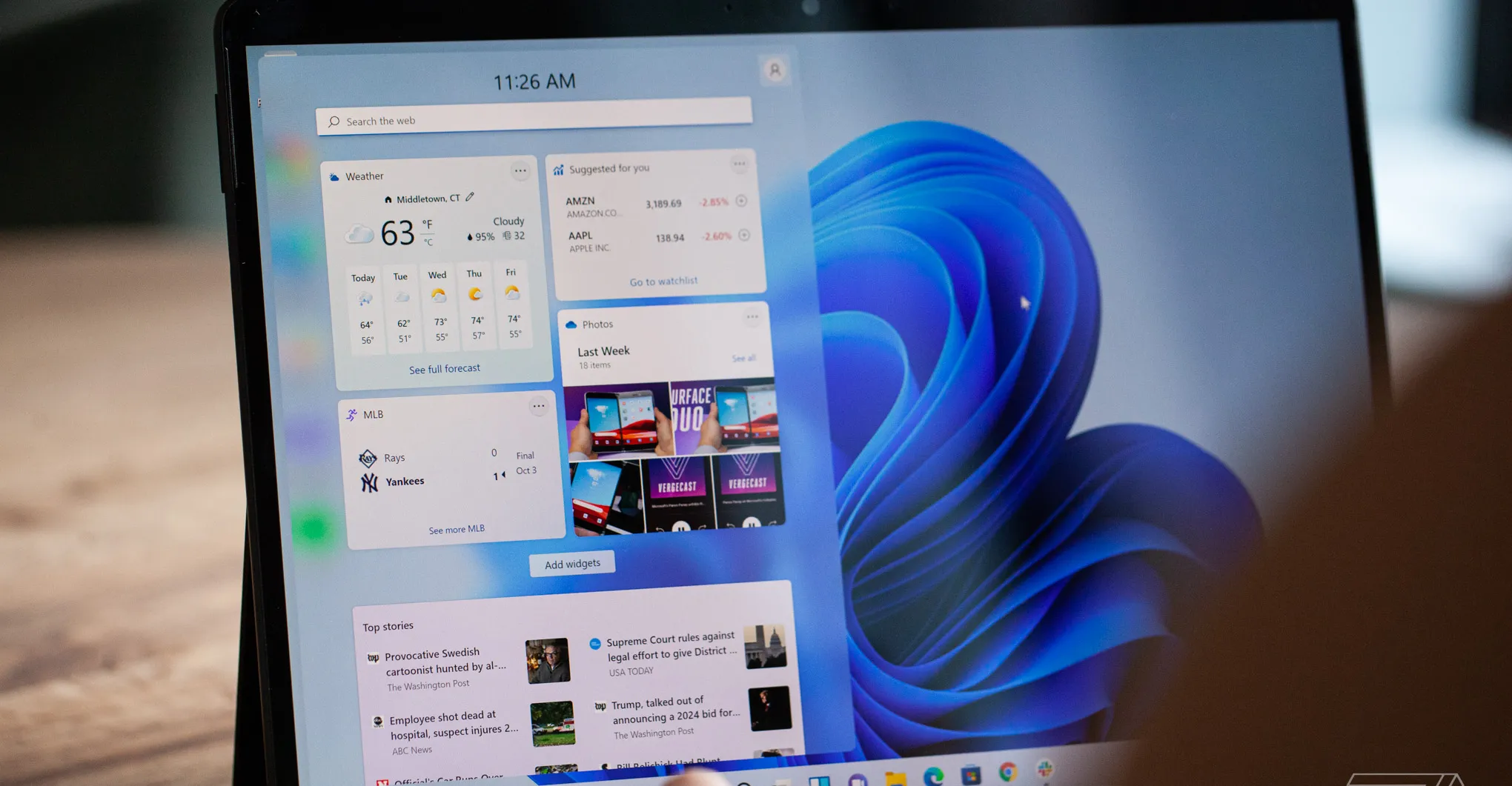
If there is one thing to try before anything else, this is it. The Widgets feature in Windows 11 runs a background process constantly — and after certain updates, it spikes and never settles. Multiple users confirmed that ending this process immediately fixed their slowdown.
Try killing widgets.exe in Task Manager. I had a very similar issue — had to uninstall Widgets in the end. It completely fixed the choppiness.
— Confirmed working fix, Reddit r/Windows11
Step 1 — Test it right now (30 seconds)
- Press
Ctrl + Shift + Escto open Task Manager - In the search box, type Widgets
- Right-click on Widgets or Widgets.exe
- Click End Task
- Wait 30 seconds and check if your PC feels faster
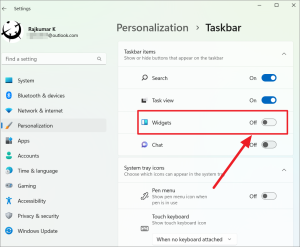
Step 2 — Permanently disable Widgets
- Press the Windows key and open Settings
- Go to Personalization
- Click Taskbar
- Find Widgets and toggle it OFF
- Restart your PC
Fix 2
Clean Up Startup Programs — Especially After Updates
Windows updates sometimes quietly re-enable startup programs that you previously turned off, or install new background services without asking. These all launch the moment your PC boots, fighting each other for resources before you have even opened your first app.
One user specifically reported their boot time jumped from 15 seconds to nearly a minute after an update. Cleaning startup programs brought it straight back.
- Press
Ctrl + Shift + Escto open Task Manager - Click the Startup apps tab at the top
- Look at the Startup impact column — find items marked High
- Right-click on programs you do not need immediately at startup
- Select Disable
- Restart your PC and test
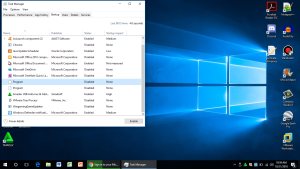
Safe to disable: Teams, Discord, Spotify, OneDrive, Steam, Epic Games Launcher, and any game clients. These all open perfectly when you launch them manually.
Fix 3
Turn Off Visual Effects — Instant Difference on Most PCs
Several users specifically described the problem as animations feeling “off” after the update — right-click menus had a noticeable delay, desktop icons blinked and refreshed slowly, windows took a beat to appear. One user described it perfectly: “it kinda blinks — sorry for being a potato in explaining things.”
That description matches exactly what happens when Windows 11 visual effects are too demanding for the system after an update resets some performance settings.
- Press the Windows key and type Adjust the appearance and performance of Windows
- Click the result that appears
- Select “Adjust for best performance”
- Click Apply then OK
- Notice the immediate difference in responsiveness
If “Adjust for best performance” makes Windows look too plain for your taste, select Custom instead and keep only these two checked: “Smooth edges of screen fonts” and “Show thumbnails instead of icons.” This gives you a good balance between looks and speed.
Fix 4 — AMD Users
Update Your iGPU Drivers — AMD-Specific Problem
This fix is specifically for people running AMD processors — Ryzen 5, Ryzen 7, or any AMD CPU with integrated graphics. Multiple reports in this specific situation mentioned that after Windows updates, the iGPU (integrated GPU inside the processor) drivers were not updated alongside the rest of the system, causing animation lag, desktop stutters, and choppy right-click menus.
Something in the new update is causing these issues — also try to update iGPU drivers. Both GPU and iGPU drivers need to be updated together, not just one.
— Real user fix, Reddit r/Windows11
- Go to amd.com/support
- Click Download Now under AMD Software: Adrenalin Edition
- Let AMD’s tool automatically detect your hardware
- Install ALL available driver updates — not just the main GPU driver
- Importantly: also update the chipset driver from the same page
- Restart your PC after installation
Fix 5
Run a Clean Boot — Find Exactly What Is Causing the Problem
Sometimes the slowdown is not caused by Windows itself but by a third-party app that conflicts with the new update. A clean boot starts Windows with only Microsoft’s own services running — no third-party apps, no background software. If your PC runs fast in a clean boot, a third-party program is your culprit.
This is the diagnostic approach recommended by Microsoft’s own support team, and it works by elimination.
- Press
Windows key + R, typemsconfig, press Enter - Go to the Services tab
- Check the box: “Hide all Microsoft services”
- Click Disable all
- Go to the Startup tab → click Open Task Manager
- In Task Manager, disable every startup item one by one
- Close Task Manager → click OK in msconfig
- Restart your PC and test the speed
After testing: If the PC is fast in clean boot, re-enable services in groups of five, restarting each time, until you find what causes slowdown again. Then leave that disabled or uninstall it.
Fix 6
Update GPU Drivers the Right Way Using DDU
This fix is specifically for people experiencing visual stutters, animation lag, right-click menu delays, or display settings that disappeared after an update — like losing the refresh rate option, HDR, or the brightness slider.
The critical thing real users discovered: simply clicking “Update driver” in Device Manager often does not fix corrupted or conflicting drivers. You need to completely remove the old driver first using a tool called DDU, then install fresh.
I no longer had the option for changing the refresh rate, turning on HDR, or even a brightness slider after the update. Updating the drivers normally did nothing. Reinstalling fully with DDU first fixed it completely.
— Real user fix, Reddit r/Windows11
- Download Display Driver Uninstaller (DDU) from guru3d.com — this is the only official source
- Download your GPU’s latest drivers:
→ NVIDIA: nvidia.com/drivers
→ AMD: amd.com/support
→ Intel: intel.com/support/detect
- Boot into Safe Mode: Settings → System → Recovery → Advanced startup → Troubleshoot → Advanced options → Startup Settings → Restart → Press 4
- In Safe Mode, run DDU → select your GPU brand → click “Clean and restart”
- After restart (in normal mode), install the fresh driver you downloaded
- Restart one final time
Fix 7
Scan for Corrupted System Files — Automatic, Takes 10 Minutes
Updates occasionally corrupt existing system files — especially if the installation was interrupted or something went wrong mid-update. Windows has a built-in scanner that finds and repairs these automatically. You just need to run it.
- Press the Windows key and type cmd
- Right-click Command Prompt → select “Run as administrator”
- Type exactly:
sfc /scannowand press Enter - Wait — this takes 10 to 15 minutes. Do not close the window.
- If it finds and repairs files, restart your PC
DISM /Online /Cleanup-Image /RestoreHealth — this downloads clean system files from Microsoft to repair the damage. Then run sfc /scannow again.Fix 8 — 8GB RAM Users
If You Have 8GB RAM — This Is Why You Struggle More
One user described their experience perfectly: “I got a Ryzen 7, GTX 1650 and 8GB memory. I have no games, 500GB available in storage. Minimum 40% memory left while normal use. Why this much stutter and lag? Feels like a 5-year-old pentium laptop.”
This is a real and specific problem. Windows 11 itself uses significantly more RAM than Windows 10, and after updates, additional background services start running. On 8GB systems, this leaves almost nothing for your actual apps.
What you can do right now
- Open Task Manager → Performance tab → click Memory
- Check how much RAM is being used just at idle with no apps open
- If it shows 4GB+ used at idle — Windows 11 is consuming too much for your system
- Apply Fix 1 (Widgets), Fix 2 (Startup programs), and Fix 3 (Visual effects) — all three together
- Also: right-click the desktop → Display settings → lower your resolution temporarily and check if performance improves. If yes, your RAM was being stressed by rendering.
Fix 9 — Last Resort
Roll Back the Specific Update That Caused This
If you have tried everything above and your PC is still slow, the update itself is likely buggy on your specific hardware. Microsoft does release patches to fix these — but sometimes waiting is not an option. Rolling back is safe and legitimate.
When 24H2 came out I had big time issues. Went back to the previous version. It was probably the worst Windows build I experienced in a while on my rig. I’m back on 24H2 now after Microsoft pushed fixes.
— Real user, Reddit r/Windows11
How to uninstall a recent update
- Go to Settings → Windows Update
- Click Update history
- Scroll to the bottom and click Uninstall updates
- Find the most recent update (check the date against when your problems started)
- Click Uninstall next to it
- Restart your PC
Most Windows 11 slowdowns after updates can be fixed without reinstalling — patience and the right fix matter
What Fixes Actually Worked — Honest Summary
Based on real reports across Reddit, Microsoft Answers, and tech forums — here is what worked versus what did not:
| Fix | Result | Best For |
|---|---|---|
| Disable Widgets.exe | ✅ Works | Most users — this is the number one fix |
| Disable startup programs | ✅ Works | Slow boot times, general background slowness |
| Turn off visual effects | ✅ Works | Animation lag, right-click delays, blinking icons |
| Update AMD iGPU drivers | ✅ Works | AMD Ryzen users with specific visual stutters |
| Clean boot diagnosis | ✅ Works | Finding which third-party app is the culprit |
| DDU + fresh GPU drivers | ✅ Works | Missing display settings, visual glitches |
| sfc /scannow | ✅ Works | Post-update corruption, random app crashes |
| Roll back the update | ✅ Works | When nothing else helps and hardware conflict is confirmed |
| Just restarting the PC | ⚠️ Sometimes | Only if background indexing was the temporary cause |
| Updating drivers via Device Manager | ⚠️ Sometimes | Unreliable — use manufacturer’s website instead |
| Generic “troubleshooter” in Windows Settings | ❌ Rarely | Almost never identifies real causes — skip this |
How to Prevent This After Future Updates
The most practical advice from experienced Windows 11 users who have dealt with this repeatedly:
Pause updates for 2 weeks after major releases. This is genuinely good practice. Let other users discover the bugs first. If an update is causing widespread problems, it becomes known within days. Go to Settings → Windows Update → Advanced options → Pause updates, and set it for 2–4 weeks. This one habit saves hours of troubleshooting.
Always update GPU drivers from the manufacturer’s website, not Windows Update. Windows Update frequently installs outdated or generic display drivers. Make it a rule to always go to NVIDIA, AMD, or Intel directly for driver updates.
Check Widgets after every major update. It takes 30 seconds. Open Task Manager, search Widgets, check if CPU or memory usage looks abnormal. If it does — end the task immediately.
Create a restore point before large updates. Press the Windows key, search “Create a restore point,” click Create. Takes 2 minutes and gives you a genuine safety net.
If you are experiencing consistent performance problems and wondering whether Windows 11 is simply too demanding for your current hardware, we have a detailed look at why Windows 11 feels slower than Windows 10 and what you can realistically do about it.
“If your PC is showing a complete black screen after an update rather than just running slow, we cover all the fixes in our guide on Windows 11 black screen after update.”
Related Guides on TechBasics101
The Bottom Line
Windows 11 slowing down after an update is frustrating — but it is almost always fixable without reinstalling Windows from scratch. Start with Fix 1 (Widgets) — it solves the problem for the majority of users in under 2 minutes. Work through Fixes 2 and 3 next. If you are on AMD hardware, do not skip Fix 4. Most people never need to go past Fix 5. Take it one step at a time and you will get there.
Frequently Asked Questions
Is it normal for Windows 11 to be slow right after an update?
Will disabling Widgets break anything important?
My desktop icons blink and refresh slowly after the update. Is that a separate problem?
Photos are taking 10 seconds to open after the update. How do I fix this?
My wallpaper engine and mouse are lagging randomly on the desktop. What is happening?
Should I switch back to Windows 10 if Windows 11 keeps doing this?
How do I know which specific update caused my slowdown?
Written by Arslan Ahmad · TechBasics101.com · April 2026
Every fix in this guide is based on real user reports, not generic troubleshooting theory.
Found a fix that worked for you and is not listed? Your experience could help someone else.


