Acer Nitro CPU Stuck at 0.79GHz Low Speed Fix: Simple Tutorial to Restore FPS

Games dropping to 10–20 FPS, Windows feeling heavy, fans spinning, and the CPU stuck around 0.79 GHz. Many Acer Nitro users hit this wall and think the laptop is dying.
This guide focuses on Acer Nitro CPU Stuck at 0.79GHz Low Speed Fix in clear, practical steps. It is written for gamers, students, and everyday users who want results, not theory.
Yes, this guide will help fix the issue, starting with simple power settings, then cooling and cleaning, followed by driver and BIOS work, and finally, advanced tools and hardware checks.
Acer Nitro CPU Stuck at 0.79GHz Low Speed Fix: What This Guide Will Do for You
If your Acer Nitro suddenly feels slower than an old office laptop, this guide is built to walk you from confused to confident. You will not just get a list of random tips. You will get a clear path that shows what to do first, what to try next, and when to stop and ask for help.
Here is what you can expect as you read:
-
\t
- You will confirm the real problem, so you know the CPU is truly locked at low speed and not just saving power when idle.
- You will start with safe, simple fixes, like checking your charger, power plan, Battery Saver, and performance modes in Windows and NitroSense.
- You will learn how to spot overheating, check for thermal throttling, and clean your Nitro so it can breathe properly again.
- You will update the correct drivers and BIOS, using only official sources, so power management bugs have less chance to keep the CPU at 0.79 GHz.
- You will see advanced options explained in plain language, so you understand what tools like ThrottleStop or Intel XTU can do, and when they are not worth the risk.
- You will know when hardware is likely at fault, for example, a weak charger, a tired battery, or a fan that no longer spins as it should.
\t
\t
\t
\t
\t
By the end of this tutorial, you should have a clear idea of:
-
\t
- Why has your Acer Nitro slowed down?
- Which exact steps changed things?
- And what habits will keep the CPU from getting stuck at 0.79 GHz again?
\t
\t
This is a practical, real‑world walkthrough, written to feel like a friend guiding you, not a manual complete of vague terms and guesswork.
What It Means When Your Acer Nitro CPU Is Stuck at 0.79 GHz
When a CPU is locked to 0.79 GHz or 0.40 GHz under load, the laptop feels like an old machine. Apps open slowly, games crawl, and even moving a window can stutter.
On a healthy Acer Nitro, the CPU speed fluctuates. At idle, it may sit low to save power. During a game, it should climb to several gigahertz, then drop again when the load ends. When the speed stays stuck low even in a game or benchmark, something is wrong.
This usually shows as:
-
\t
- Sudden FPS drops in titles that used to run fine
- Heavy stutter when alt‑tabbing or opening menus
- Audio crackling when the system is under a light load
\t
\t
CPU speed and GHz explained in simple terms
Think of the CPU as the brain of the laptop. GHz is the speed at which the brain works. A higher GHz number means it can process more work each second.
Most modern gaming CPUs in Nitro laptops run around:
-
\t
- Base speed: about 2.0–3.0 GHz
- Boost speed: often 3.5–4.5 GHz or more under load
\t
So, if the laptop is playing a game or editing video, sitting at 0.79 GHz is far below normal. It is like trying to play a new game on “slow motion” mode.
Why 0.79 GHz or 0.40 GHz is too low for an Acer Nitro
Low locked speed affects real use in clear ways:
-
\t
- Games that once held 60 FPS fall to 10–20 FPS
- Web browsers take several seconds to open a tab
- Even the mouse pointer feels slightly delayed
\t
\t
A short dip to 0.79 GHz when the system is idle is normal. The problem is when the CPU stays there during a match in Valorant or a stress test.
Most common reasons an Acer Nitro CPU gets stuck at low speed
In practice, most cases trace back to a few causes:
-
\t
- Thermal throttling, due to overheating, dust, blocked vents, or old thermal paste
- Windows power plans, set to Power saver or similar low power modes
- Battery Saver and performance sliders, limiting CPU speed when on battery or low charge
- Faulty or weak chargers or batteries, which restrict power delivery
- BIOS bugs or wrong BIOS settings, which cap CPU frequency
- Outdated chipset and power drivers, which break power management
- Rare hardware faults, such as a damaged motherboard or CPU
\t
\t
\t
\t
\t
\t
Many online tips jump straight to risky utilities. Acer community threads, like this discussion about processor speed stuck at 0.79 GHz on an Acer Nitro 5, show mixed advice. This guide follows a safer, tested order.
Before You Start: Safety, Tools, and How to Confirm the 0.79 GHz Problem
A short preparation step prevents confusion later.
Useful tools:
-
\t
- Windows Task Manager
- HWMonitor or CPU‑Z
- A small Phillips screwdriver (only if opening the laptop later)
- A can of compressed air for dust cleaning
\t
\t
\t
Basic safety:
-
\t
- Back up important files before BIOS updates or major changes
- Keep the charger plugged in while updating BIOS or drivers
- If you open the laptop, power it off, unplug it, and avoid touching the contacts with your bare fingers
\t
\t
How to check your Acer Nitro CPU speed with Task Manager
-
\t
- Press Ctrl + Shift + Esc to open Task Manager.
- Click the Performance tab.
- Select CPU on the left.
- Look at the Speed value near the top right.
\t
\t
\t
Now put some load on the system:
-
\t
- Start a game,
- Or open a browser and play a 1080p YouTube video,
- Or run a simple CPU benchmark.
\t
\t
If the speed stays around 0.79 GHz or 0.40 GHz even while the game or benchmark runs, the lock is confirmed.
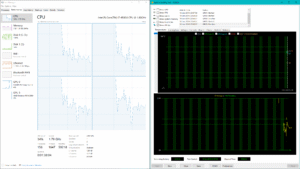
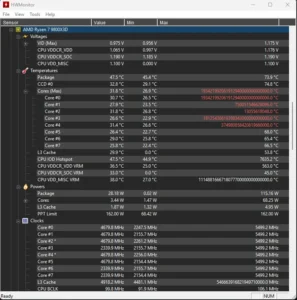
Using HWMonitor or CPU‑Z to watch CPU frequency and temps
Download from official sources:
-
\t
- HWMonitor from CPUID
- CPU‑Z from CPUID
\t
These tools show:
-
\t
- Current CPU frequency, often per core
- Temperature readings, usually in °C
\t
Simple ranges:
-
\t
- Under 85°C under load: generally acceptable
- Around 90–95°C or higher: very hot, likely to trigger throttling
\t
If the CPU hits high temperatures, then the clock drops to 0.79 GHz while the game stutters, that pattern suggests thermal throttling. If temps stay low but speed is stuck, power or BIOS settings are more likely.
Basic safety tips before changing settings or opening your laptop
-
\t
- Save and back up active work
- For BIOS updates, keep the charger connected and do not move the laptop
- If opening the case, touch a metal part of the chassis first to discharge static
\t
\t
Any change you make is at your own risk. If a step feels unsafe, it is reasonable to stop and contact Acer support or a trusted technician.
Easy Software Fixes: Power Plans, Battery Saver, and Windows Settings
These steps solve a large share of cases. After each change, test CPU speed again under load.
Step 1: Plug in the right Acer charger and check the power status
Using a fake or weak charger can force the CPU to slow down.
-
\t
- Connect the original Acer adapter, or a correctly rated replacement.
- Check the battery icon in the taskbar.
- It should read “Plugged in”.
\t
\t
If the system senses limited power, it may throttle the CPU to around 0.79 GHz to avoid drawing more power than the charger can supply. Some reports, such as a Superuser thread on CPU speed stuck near 0.78 GHz, link odd power behavior to the charger and power state resets.
If possible, test once with another known good Acer charger.
Step 2: Set Windows power plan to High performance or Best performance
On Windows 10 and 11:
-
\t
- Open Control Panel, then Power Options.
- Choose High performance or Balanced, not Power saver.
- Click Change plan settings next to the active plan.
- Click Change advanced power settings.
- Expand Processor power management.
- Set Minimum processor state (Plugged in) to 100%.
- Set Maximum processor state (Plugged in) to 100%.
\t
\t
\t
\t
\t
\t
This tells Windows not to keep the CPU running when the laptop is powered by AC.
In Windows Settings:
-
\t
- Open Settings > System > Power & battery.
- Under Power mode, choose Best performance or Best power efficiency depending on need, but test with Best performance while troubleshooting.
\t
Step 3: Turn off Battery Saver and performance limit sliders
Battery Saver can cap CPU speed.
In Windows 10 and 11:
-
\t
- Click the battery icon in the taskbar.
- Turn Battery Saver off if it is enabled.
- Set the performance slider to Best performance when plugged in.
\t
\t
Some Acer Nitro models also include NitroSense or vendor utilities with their own profiles:
-
\t
- Open NitroSense.
- Pick High performance or Gaming mode.
\t
After this, recheck CPU speed in Task Manager under load.
Step 4: Close heavy background apps and check for high CPU usage bugs
Background apps can confuse power management and raise system temperatures.
-
\t
- Open Task Manager > Processes.
- Sort by CPU.
- Close game launchers, browser tabs, or updaters that use high CPU when not needed.
\t
\t
If a single process is stuck at high CPU usage, it can trigger strange throttling behavior. Microsoft’s own support thread on CPU speed stuck to 0.79 GHz shows cases where simple resets and power changes helped.
Fix Overheating and Thermal Throttling on Acer Nitro Laptops
Thermal throttling is a safety feature. When the CPU gets too hot, it slows down to cool itself instead of burning out.
How to tell if your Acer Nitro is thermal throttling
Use HWMonitor or similar while a game or stress test runs:
-
\t
- Watch the temperature column and core clock values.
- If temps climb to 90–100°C, then the clocks suddenly drop to 0.79 GHz, followed by FPS drops, which is classic thermal throttling.
- If temperatures are low but speed is stuck low, focus on power and BIOS instead.
\t
\t
Community reports, such as a Reddit thread on Acer Predator CPUs stuck at 0.79 GHz, describe the same pattern across several gaming laptops.
Clean dust from vents and fans without breaking anything
Dust blocks airflow and raises temperatures.
-
\t
- Shut the laptop down and unplug it.
- Move to a clean, stable table.
- Use compressed air to blow through the side and rear vents in short bursts.
- If you see the fan spinning too fast in the air, gently hold the blades still with a toothpick or similar tool.
\t
\t
\t
Avoid using the laptop on beds, sofas, or carpets. Soft surfaces at the bottom block vents and trap heat.
Improve airflow with cooling pads and better placement
Small airflow improvements can prevent throttling:
-
\t
- Use a laptop cooling pad under the Nitro.
- Place the machine on a hard, flat surface.
- Keep vents clear of walls and other obstacles.
\t
\t
Reference data, such as a Quora discussion on safe laptop temperatures, shows that high idle temperatures often indicate poor airflow or dust buildup.
Advanced: Replacing thermal paste or opening your Acer Nitro
Thermal paste sits between the CPU and heatsink and helps move heat away. Over time, or if the factory application is weak, the paste can dry or perform poorly.
Basic outline:
-
\t
- Remove the bottom cover using a Phillips screwdriver.
- Carefully disconnect the battery if needed.
- Unscrew the heatsink, lift it gently, clean old paste, and apply new quality thermal paste.
\t
\t
Risks:
-
\t
- Possible warranty loss
- Broken connectors or screws
- Incorrect reassembly
\t
\t
Most users should ask a professional for this work, especially on newer laptops.
Update Drivers and BIOS to Fix CPU Speed Bugs on Acer Nitro
Power management depends heavily on drivers and firmware.
The guidance here reflects personal opinions based on testing and user reports. Similar to posts on the Acer community, the authors’ opinions are personal and not official views of Acer or its brands.
Update chipset, graphics, and power drivers from safe sources
Steps:
-
\t
- Open Device Manager.
- Expand System devices to see chipset‑related entries.
- Visit the official Acer support site for your exact Nitro model.
- Download and install the latest chipset, Intel Management Engine, and power management drivers.
- Update GPU drivers directly from NVIDIA, AMD, or Intel, depending on your model.
\t
\t
\t
\t
After installing, reboot and test CPU speed under load again.
General threads like “CPU stuck at 0.79 GHz on Acer” on the Acer community show that driver and BIOS updates often resolve stubborn throttling or locked speeds.
Find and install the correct BIOS update for your Acer Nitro
BIOS (or UEFI) is the low-level software that starts the laptop and controls hardware features, including power limits.
Steps:
-
\t
- Find your full model code on a sticker under the laptop or in Settings > System > About.
- Go to Acer’s support site and enter this exact model.
- Download the latest BIOS listed for your system.
- Plug in the charger.
- Close other apps.
- Run the BIOS update tool and follow the on‑screen steps without interrupting power.
\t
\t
\t
\t
\t
Wrong BIOS files or shutdowns during flash can make the laptop unbootable. If unsure, consider skipping this step or asking a technician.
Reset BIOS settings and check CPU related options
On most Acer Nitro laptops:
-
\t
- Turn the laptop off.
- Turn it on, then repeatedly tap F2 (or the key listed in your manual) to enter the BIOS.
- Look for menus related to Performance, CPU features, or Power.
- If you see options like Intel SpeedStep, Turbo Boost, or power limits but do not understand them, use Load Optimized Defaults or a similar option.
- Save and exit.
\t
\t
\t
\t
If a wrong setting locked the CPU at a low speed, restoring defaults can remove that cap.
Advanced Software Tools: ThrottleStop, Intel XTU, and Power Limits
This section is optional and aimed at advanced or curious users. Most readers should fix the issue earlier.
Power limits, often called PL1 and PL2, tell the CPU how much power it may draw over short and long windows. BD PROCHOT is a signal that tells other parts of the laptop to slow down.
The comments here are personal opinions based on testing and on reading Acer community style reports, not official guidance from Acer brands.
What ThrottleStop can do for a CPU stuck at 0.79 GHz
ThrottleStop is a Windows utility that shows hidden CPU throttling reasons and some power settings.
Typical uses:
-
\t
- See if BD PROCHOT is active.
- In some cases, users uncheck BD PROCHOT to stop a faulty sensor from forcing low speed.
\t
This is only reasonable if temperatures are safe. Lots of Acer Nitro users mention this in informal posts, but, as with opinions expressed in the Acer community, these are the authors’ personal opinions, not advice from Acer itself.
Anyone who tries ThrottleStop must research their exact CPU, apply small changes, and oversee temperatures.
Using Intel XTU or similar tools to reduce temps without killing performance
Intel XTU and similar utilities allow:
-
\t
- Light undervolting, which lowers CPU voltage so it runs cooler
- Adjusting some power limits in supported systems
\t
Used well, undervolting can reduce throttling by cutting heat output. Poorly used, it causes crashes and instability.
Safe practice:
-
\t
- Make small changes
- Stress test after each step
- Revert if blue screens or random restarts appear
\t
\t
Again, this is optional. Safer steps are power plans, cleaning, driver and BIOS updates.
When to stop tweaking and ask a pro for help
Signs that it is time to stop:
-
\t
- Frequent blue screen errors
- Laptop failing to boot after BIOS or advanced tool changes
- Very high temperatures, even at idle
- CPU still stuck at 0.79 GHz after going through power, temp, driver, and BIOS checks
\t
\t
\t
At that point, contact Acer support or a local repair shop. Some hardware faults require replacing a battery, fan, or motherboard.
Hardware Problems: When Your Acer Nitro Needs Repair Instead of Tweaks
If software and cleaning changes do not help, hardware may be the cause.
Common issues:
-
\t
- A weak or damaged charger that cannot supply enough power
- A battery with a high wear level or charging faults
- Fans that no longer spin correctly
- Rare motherboard defects
\t
\t
\t
How to test your Acer Nitro charger and battery health
Basic checks:
-
\t
- Inspect the power plug and port for damage or looseness.
- Test with another genuine Acer charger if possible.
- Watch for messages like “Plugged in, not charging,” or sudden battery drops.
\t
\t
Battery health:
-
\t
- Generate a Windows battery report with
powercfg /batteryreportfrom a Command Prompt, then open the report file in a browser. - Large gaps between design capacity and full charge capacity signal wear.
\t
If the system runs slowly on battery but runs fine on AC, the battery is likely the issue.
Signs of fan, heatsink, or motherboard failure
Warning signs:
-
\t
- Fans that grind or do not spin at high load
- Very hot spots on the keyboard or palm rest
- Frequent thermal shutdowns
- CPU speed acting randomly across reboots, with no pattern to power or temp
\t
\t
\t
Motherboard faults are rare but possible. Most users will need professional repair in these cases.
What a Successful Fix Looks Like: Real‑World Results and Examples
Once fixed, the laptop should behave differently:
-
\t
- CPU speed climbs to normal values (often 3.0 GHz or more) during games
- FPS returns to expected levels for the hardware
- Stutter drops sharply, and Windows feels responsive again
\t
\t
Example 1: Power plan and Battery Saver were the only problems
A typical case:
-
\t
- Acer Nitro 5 owner reports CPU locked at 0.79 GHz and poor game performance.
- Task Manager shows low speed even while a game runs, but temperatures are normal.
- Power plan is set to Power saver, Battery Saver is on, and the performance slider is in the middle.
\t
\t
After switching to High performance, setting the processor minimum and maximum to 100% on AC, and turning Battery Saver off, the CPU begins boosting above 3 GHz under load. FPS in games rises back to normal, and the machine feels new again.
Example 2: Overheating, dust, and old drivers are causing constant throttling
Another case:
-
\t
- User reports loud fans, high temps near 95°C, and CPU dropping to 0.79 GHz a few minutes into each game.
- HWMonitor confirms high temperature spikes followed by sharp clock drops.
- Drivers and BIOS are several versions behind.
\t
\t
Steps taken:
-
\t
- Cleaned vents and fans with compressed air.
- Added a laptop cooling pad.
- Updated chipset and GPU drivers, then updated BIOS from the Acer support page.
- Reset BIOS settings to defaults.
\t
\t
\t
Results:
-
\t
- Load temperatures dropped a few degrees, into the high 80s rather than the mid-90s.
- CPU now stays above 3 GHz most of the time during games.
- Throttling events became rare and far less severe.
\t
\t
Extra Tips, Common Mistakes, and How to Prevent CPU Throttling in the Future
The following advice reflects personal opinions and experience, similar to what appears in Acer community posts. These are not official statements from Acer brands.
Simple habits to keep your Acer Nitro running fast
Good habits:
-
\t
- Clean vents every few months with compressed air
- Use the laptop on a hard surface, not beds or couches
- Keep Windows, GPU, and chipset drivers reasonably up to date
- Check temperatures sometimes with HWMonitor during long gaming sessions
- Avoid gaming in very hot rooms or inside closed cabinets
\t
\t
\t
\t
These steps reduce the chance that the CPU ever gets stuck at 0.79 GHz again.
Common mistakes that keep the CPU stuck at low speed
Frequent errors:
-
\t
- Using cheap third‑party chargers that cannot deliver enough power
- Ignoring very high temperatures and loud fans for months
- Blocking vents with blankets, walls, or clutter
- Installing random “tuning” apps from untrusted sites
- Going straight into aggressive undervolting or registry edits without understanding them
\t
\t
\t
\t
The safer approach is the ordered path in this guide: power, temps, drivers, BIOS, then advanced tools only if needed.
Comparison table: Safe basic fixes vs risky advanced tweaks
| Step | Difficulty | Risk level | When to try it |
|---|---|---|---|
| Change Windows power plan | Easy | Low | First, for any low-speed issue |
| Turn off Battery Saver, set Best performance | Easy | Low | Together with the power plan changes |
| Clean vents and improve airflow | Easy | Low | Early, if temps are high or fans are loud |
| Update GPU and chipset drivers | Medium | Low | After power and basic cooling checks |
| Update BIOS from the Acer site | Medium | Medium | If the problem persists after the earlier steps |
| Use ThrottleStop to adjust BD PROCHOT | Hard | High | Only after research and stable temperatures |
| Undervolt with Intel XTU | Hard | High | Optional for advanced users, not required |
FAQs About Acer Nitro CPU Stuck at 0.79 GHz and Low Speed
Why is my Acer Nitro CPU stuck at 0.79 GHz?
Common reasons include:
-
\t
- Power plan set to Power saver or a similar low power mode
- Battery Saver or performance sliders limiting speed
- Overheating and thermal throttling
- Outdated or buggy drivers
- Wrong BIOS settings or firmware issues
- Power problems from a bad charger or battery
\t
\t
\t
\t
\t
The earlier sections give a step‑by‑step path to check each cause.
Is 0.79 GHz normal for an Acer Nitro laptop?
It can be normal at light idle when nothing important is running and the system saves power. It is not normal during gaming, streaming, or heavy apps. If the CPU never rises above 0.79 GHz under load, something is wrong.
Can a stuck CPU speed damage my laptop if I ignore it?
The low speed itself does not hurt hardware. It is a symptom. The real risk lies in the cause, such as high temperatures or power faults. Ignoring those can shorten component life and lead to shutdowns or failures.
Will a BIOS update fix my Acer Nitro CPU speed problem?
Sometimes, yes. Some BIOS versions fix power or thermal bugs that keep CPUs at low speeds. In other cases, the issue comes from power plan settings, heat, or hardware. Try power and temperature fixes first, then consider a careful BIOS update from the official Acer site.
How can I tell if my charger or battery is causing the low CPU speed?
Signs include:
-
\t
- System slows only on battery, runs better on AC
- Battery not charging correctly, or “Plugged in, not charging” messages
- Speed improves when using a different genuine Acer charger
\t
\t
Battery reports and charger tests, as described earlier, help confirm this.
Is it safe to use ThrottleStop or Intel XTU on my Acer Nitro?
Many users, including people posting on the Acer community, use these tools successfully. However, they are advanced and can cause crashes or overheating if poorly used. The opinions in this guide about these tools are personal, similar to the authors’ opinions in community threads, not official views of Acer or its brands. Beginners should focus on safer steps first.
How can I stop my Acer Nitro CPU from throttling again in the future?
Key steps:
-
\t
- Keep vents clean and fans clear of dust
- Use proper Acer chargers, avoid cheap replacements
- Do not block airflow
- Use balanced or high-performance power modes when plugged in
- Watch temperatures occasionally, especially after big changes or new games
\t
\t
\t
\t
The extra tips section above provides more detail.
Wrap Up: Fast, Safe Steps to Fix Acer Nitro CPU Stuck at 0.79 GHz
In most cases, a locked low CPU speed on Acer Nitro laptops stems from three areas: power settings, temperature, and firmware.
The practical path:
-
\t
- Confirm the problem in Task Manager and HWMonitor
- Plug in a proper Acer charger, then set High performance and turn off Battery Saver
- Clean vents, improve airflow, and watch temperatures while gaming
- Update chipset, GPU drivers, and BIOS from official sources
- Only then consider advanced tools like ThrottleStop or Intel XTU
- If nothing helps, test the charger and battery, and consider professional repair
\t
\t
\t
\t
\t
Quick checklist of the most effective fixes
-
\t
- Check CPU speed under load in Task Manager
- Plug in a genuine Acer charger and confirm “Plugged in.”
- Set the Windows power plan to High performance
- Turn off Battery Saver and set Best performance
- Clean vents and fans, avoid soft surfaces
- Monitor temperatures during games
- Update chipset, GPU drivers, and BIOS from Acer and chip vendors
- If still stuck, test with another charger and check battery health
- Use advanced tools or seek hardware repair only after basic steps
\t
\t
\t
\t
\t
\t
\t
\t
Conclusion
Most users can solve the acer nitro cpu stuck at 0.79ghz low speed fix problem with careful, safe steps. Power plans, Battery Saver settings, basic cleaning, driver and BIOS updates, and simple temperature checks solve the issue in a large share of real cases.
Taking the process one step at a time reduces stress and lowers the risk of making things worse. If any stage feels too risky, stopping and contacting a professional is a wise choice, not a failure.
For readers who want broader tuning advice, guides on topics like speeding up Windows, improving gaming performance, or fixing high CPU usage can provide helpful next steps. With the proper settings and maintenance, the Acer Nitro can return to smooth gaming, faster apps, and a system that feels like it should.
SEE ALSO: Fixing ModuleNotFoundError in Python (Beginner-Friendly Guide)

Related Articles