Mac Mini vs MacBook Air for Video Editing: Real‑World Guide for YouTubers, Students, and Creators
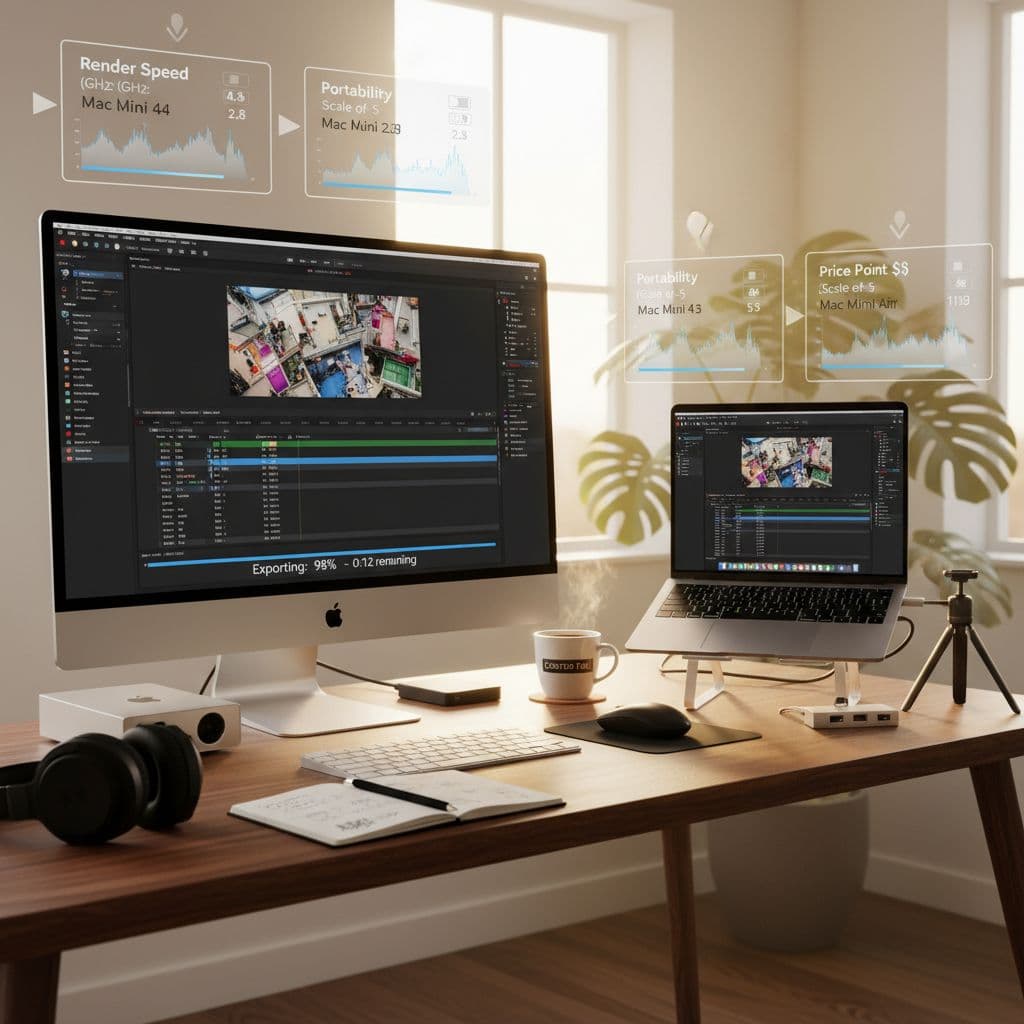
Mac Mini vs MacBook Air for video editing is one of the most common questions among new YouTubers and content creators, especially for 4K editing. Both machines run modern Apple Silicon chips, both look fast in ads, and both can handle popular apps like Final Cut Pro, Premiere Pro, and DaVinci Resolve.
A fast verdict helps. Mac Mini is better for heavier 4K work at a desk, long exports, and a stable workstation. MacBook Air is better if portability and battery life matter more than raw power. The rest of this guide breaks down real 4K timelines, ports, screens, storage, cost, and workflow, so the choice feels clear instead of risky.
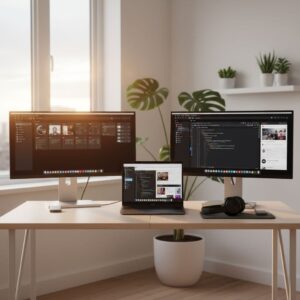
What the Mac Mini and MacBook Air Actually Are (In Plain English)
The comparison makes more sense after defining both machines in simple terms.
The Mac Mini is a small desktop box. It must stay plugged into power. It does not include a monitor, keyboard, mouse, or speakers. It sits on a desk and connects to whatever screen and accessories are available. For a video editor, it behaves like a tiny studio brain that never moves.
The MacBook Air is a thin laptop with a built‑in screen, battery, trackpad, keyboard, and speakers. It folds into a bag and runs on battery for hours. For an editor, it is a complete mobile kit that works on a couch, plane, or in a coffee shop.
Both now use Apple Silicon M‑series chips, including the M4 generation. The names and core counts can be confusing, but for video editing, performance breaks down in simple ways.
-
\t
- 1080p timelines play smoothly on both in most cases.
- Simple 4K edits with a few layers also work on both.
- Heavy 4K with many tracks, effects, and color grades favors the system with better cooling and more ports.
\t
\t
Editors often run into the same problems across machines:
-
\t
- Laptops are getting hot, then slowing down during exports.
- Tiny 13 to 15-inch screens make it hard to see a complete timeline and scopes.
- Not enough ports for SSDs, card readers, and monitors at the same time.
- Small internal storage is filling up fast with 4K camera files.
\t
\t
\t
A YouTuber cutting talking‑head clips with B‑roll will feel these limits much faster on a small, fanless laptop than on a cooled desktop box.
Mac Mini basics for video editors
The Mac Mini is a compact desktop computer that stays on a desk. It always needs:
-
\t
- A monitor
- A keyboard
- A mouse or trackpad
- Often speakers or headphones
\t
\t
\t
In return, it delivers stronger desktop performance than many thin laptops in the same price range. It has active cooling, a higher power envelope, and more physical space for heat to move away from the chip. That matters for long exports, heavy color grading, and multi‑layer timelines.
Recent Mac Mini M4 and M4 Pro models are strong enough for serious 4K editing in Final Cut Pro, Premiere Pro, and DaVinci Resolve. Active cooling helps them hold top speed during:
-
\t
- Long 4K exports
- Projects with several tracks of 4K footage
- Noise reduction and advanced color grading
- Complex motion graphics or titles
\t
\t
\t
User discussions, such as those in an Apple Support thread on which M4 Mac Mini to buy for photo and some video editing, often highlight this strength for creative workloads.
In practice, the Mac Mini feels like a small studio box rather than a casual family computer.
MacBook Air basics for video editors
The MacBook Air is a thin, light laptop with:
-
\t
- Built‑in Retina display
- Keyboard and trackpad
- Speakers and microphone
- Long battery life
\t
\t
\t
It suits students, travel vloggers, and editors who move between home, school, co‑working spaces, client offices, or sets. For this group, a complete system in one piece of hardware has clear value.
The MacBook Air M4 has strong processing power for its size, but it uses a fanless design. Under heavy 4K workloads and long renders, the body heats up and the chip may lower its speed to stay safe. For simple 4K and most 1080p work, this is not a problem. For long, complex sessions, it matters.
In short:
-
\t
- Very good for 1080p and basic 4K edits.
- Not ideal as a full‑time pro workstation for huge timelines and many effects.
\t
Community posts, such as discussions in Final Cut user groups about whether a MacBook Air M2, M3, or M4 is worth it for 4K editing, often reach the same conclusion: fine for lighter work, less ideal for large commercial projects.
How This Guide Compares the Mac Mini vs MacBook Air for Video Editing
To keep the decision clear, this guide compares Mac Mini and MacBook Air across the following points:
-
\t
- Desktop performance and thermal management
- Portability and user mobility
- Screen size and external monitor options
- Processing power and graphics capabilities for 4K
- Battery life vs always‑plugged‑in use
- Upgradability and hardware expandability
- Price comparison, cost‑efficiency, and full setup cost
- Workflow flexibility at home, on set, and while traveling
\t
\t
\t
\t
\t
\t
\t
Real‑world video editing tasks are the reference: timeline scrubbing, basic and advanced color grading, background rendering, and exporting final files to YouTube or clients.
Mac Mini vs MacBook Air for Video Editing: Quick Verdict and Best Use Cases
For searchers comparing the Mac mini vs MacBook Air for 4K video editing, the verdict is clear.
-
\t
- Mac Mini fits heavier 4K work, long exports, multi‑monitor setups, and editors who sit at a desk most of the time.
- MacBook Air fits light to medium projects and editors who care more about portability and battery life than maximum power.
\t
By skill level and workflow:
-
\t
- Beginners on a tight budget, working mostly in 1080p: either machine works, but the MacBook Air offers a simple all‑in‑one start.
- Growing YouTubers in 4K, editing at a desk: the Mac Mini gives better long‑term comfort, desktop performance, and value.
- Freelancers, moving between locations: the MacBook Air as a main machine can be enough for many projects, with a monitor at home for comfort.
\t
\t
In Final Cut Pro, both machines feel fast on small and medium projects. The Mac Mini is more comfortable for large 4K timelines and future upgrades in demands.
For Premiere Pro, users often ask, is Mac Mini better than MacBook Air for Premiere Pro? In most 2025 workflows, the answer is yes. Premiere tends to push machines harder and for longer periods. The Mac Mini holds top performance longer, thanks to better thermal management and more ports for external SSDs.
For Final Cut in 2025, many creators ask about the best Mac for Final Cut Pro 2025 Mac Mini or MacBook Air. For most desk‑based editors, the Mac Mini is the stronger and more future‑resistant choice. The MacBook Air is still appealing when travel and mobility matter as much as performance.
DaVinci Resolve adds another angle. Tasks like temporal noise reduction and heavy grading are GPU intensive and run better on a cooled desktop such as the Mac Mini. For lighter grades and simpler timelines, the Air remains usable.
A recent guide from Zeera Wireless on the M4 Mac Mini vs. M4 MacBook Air, which breaks down the pros and cons of each, echoes this balance between speed and mobility.
Performance and Thermal Management for Real‑World Video Editing
Performance on paper matters less than how the machine feels during a real editing day.
The Mac Mini, with a fan and more room for cooling, is better suited to long sessions. It keeps the CPU and GPU closer to their peak speed while exporting a 4K YouTube video or rendering a complex project.
The MacBook Air can reach high speeds in short bursts. During a long export, its fanless body warms up, then the chip slows slightly to protect itself. In a timeline, there can appear to be small delays when applying effects or scrubbing through dense footage.
Processing power and graphics for editing 1080p and 4K
Both the M4 Mac Mini and M4 MacBook Air handle 1080p editing very well. In most cases, editors see:
-
\t
- Smooth timeline scrubbing
- Stable playback at full resolution
- Quick rendering of transitions and simple effects
\t
\t
For 4K editing, both machines remain capable, but the experience starts to separate.
Typical pattern:
-
\t
- Simple 4K talking‑head timeline, with a few cuts and basic color correction, runs well on both.
- 4K with multiple camera angles, B‑roll, heavy color grades, and stacked adjustment layers feels more stable on the Mac Mini.
\t
In Final Cut Pro, optimized media and background rendering help on both systems, but the Mini handles more layers before stutters appear. In Premiere Pro and DaVinci Resolve, caching and optimized media play similar roles, again resulting in smoother performance on a cooled desktop.
User comments from discussions such as the Reddit thread on new M4 MacBook Air vs M4 Mac Mini baseline models often mention the same reality: same chip on paper, but different behavior once heat builds up.
How each Mac handles long exports, background renders, and heavy effects
A common 4K workflow for YouTube:
-
\t
- Edit a 10 to 20 minute video with talking head and B‑roll.
- Add color grading, noise reduction, and motion graphics titles.
- Export a high‑quality 4K file for upload.
\t
\t
On a Mac Mini:
-
\t
- Background rendering or caching stays quick even as the session gets long.
- Exports hold near maximum speed for most of the render.
- Heavy effects like noise reduction feel less punishing.
\t
\t
On a MacBook Air:
-
\t
- Short sessions feel almost as fast at first.
- During long exports, the machine gets hot, then slows down slightly.
- Heavy color grades and stacked plugins may cause minor delays.
\t
\t
This slowing process is called thermal throttling. In plain terms, the chip slows down to stay cool enough to avoid damage.
Final Cut Pro, Premiere Pro, and DaVinci Resolve all benefit from cooling. When the system can push more heat away, it keeps background rendering and exports moving at full pace for longer.
Mac Mini vs MacBook Air for video editing 4K: where each one struggles
When comparing Mac Mini vs MacBook Air for video editing 4K, it is helpful in see clear limits.
Where the MacBook Air can struggle:
-
\t
- Very heavy 4K timelines with many adjustment layers.
- Multi‑cam edits using several 4K angles at once.
- Long export marathons or batch exports.
- Advanced color grading plus noise reduction on top.
\t
\t
\t
Where the Mac Mini can struggle:
-
\t
- Very high resolutions above 4K, such as 6K or 8K, with heavy grades.
- Extremely complex motion graphics or VFX projects.
\t
In real use, most beginner and intermediate editors hit the MacBook Air limits faster than the Mac Mini limits.
Simple workarounds for both:
-
\t
- Use proxy media for smoother editing.
- Limit the number of real‑time effects on each clip.
- Close other apps while exporting.
- At purchase, pick enough RAM and storage to avoid early slowdowns.
\t
\t
\t
On the MacBook Air in particular, a higher RAM configuration is helpful for 4K editing and multitasking.
Portability, Screen Size, and Workflow Flexibility
Performance is only part of the choice. Daily routines often matter more.
Some editors work in one fixed place. Others move from home to campus, to client offices, to sets. Portability, user mobility, and overall workflow flexibility shape which Mac fits best.
The Mac Mini is tied to a desk and power outlet, but offers comfort. The MacBook Air is easy to carry, but it has a smaller screen and fewer ports.
If a reader is still new to editing and wants to improve basic technique, a separate guide on video editing tips for beginners would pair well with either system.
Editing anywhere with the MacBook Air: mobility and battery life
The main upside of the MacBook Air is mobility.
Editors can:
-
\t
- Cut footage on a couch, in a cafe, or on a train.
- Review dailies on set, right after a shoot.
- Work on class projects at school, then finish in a dorm.
\t
\t
Battery life is strong for this class of laptop, especially with Apple Silicon. This makes quick edits and rough cuts possible without hunting for a wall outlet.
For video editing on Mac while traveling, many creators keep a small kit in their bag:
-
\t
- MacBook Air
- Compact USB‑C hub
- External SSD for video editing
- SD card reader if the hub lacks one
- Light headphones
\t
\t
\t
\t
The main compromise is screen size. A 13 to 15 inch screen can feel cramped when trying to:
-
\t
- See a long timeline
- Keep the viewer, bins, and scopes open
- Color grade for skin tones and exposure accurately
\t
\t
At home, some Air owners connect an external monitor for comfort, turning it into a hybrid laptop-and-desktop setup.
Building a Mac Mini workstation: comfort, big screen, and focus
A Mac Mini setup has a different feel. Users build a fixed workstation:
-
\t
- A 24 to 32 inch monitor, often color‑accurate
- Full‑size keyboard
- Mouse, trackball, or drawing tablet
- Studio monitors or good headphones
\t
\t
\t
This setup favors comfort and focus. Editors can sit at one place, with the timeline clearly visible, scopes open, and room for bins and tools. Desktop performance also feels steady, since the machine stays cool and plugged into power.
Multi‑cam timelines, detailed color grading, and long client projects are easier to manage on a large screen. For those building a home workstation, a separate guide on choosing a monitor for video editing would help sort out size, color, and refresh rate questions.
The main trade‑off is zero mobility. The Mac Mini:
-
\t
- Must always be near a power outlet.
- Does nothing without its monitor and input devices.
- It’s harder to use on set or while traveling.
\t
\t
Screen size, external monitors, and why your eyes will thank you
Screen size affects day‑to‑day editing more than many buyers expect.
On a MacBook Air:
-
\t
- The 13 to 15-inch screen is fine for quick edits and rough cuts.
- Long sessions can feel crowded and involve constant window-shuffling.
- Reading tiny fonts and UI elements for hours can cause eye strain.
\t
\t
On a Mac Mini with a larger monitor:
-
\t
- There is room to see the full timeline, viewer, audio waveform, and scopes.
- Color grading is easier when the image is physically larger.
- Audio sync and fine cuts are easier to check at a glance.
\t
\t
The MacBook Air can connect to an external display too, but it has fewer ports. That often means a dock or hub, and one more device to carry.
Comfort, posture, and eye health matter. Editors who spend hours in front of a screen each day generally benefit from larger, adjustable displays, regardless of which computer drives them.
Ports, Storage, and Upgrades: What Editors Actually Need
For video editors, ports and storage matter as much as raw CPU numbers. Real projects live on external SSDs, memory cards, and network drives.
The Mac Mini offers more ports and better connectivity options out of the box. The MacBook Air provides enough for basic use, but often needs adapters.
Editors commonly use:
-
\t
- External SSDs for live video projects
- SD or CFexpress card readers
- USB microphones and audio interfaces
- HDMI or DisplayPort for monitors
- Wired Ethernet for fast transfers or NAS access
\t
\t
\t
\t
Ports and connectivity options for pro video workflows
Port lists change slightly by model and generation, but the pattern is consistent.
Mac Mini typically offers:
-
\t
- More Thunderbolt / USB‑C ports
- HDMI output for at least one monitor
- USB‑A ports for older gear
- Ethernet port for wired networks
- Headphone jack
\t
\t
\t
\t
MacBook Air typically offers:
-
\t
- Two USB‑C / Thunderbolt ports
- Headphone jack
- No built‑in HDMI on many models
- No Ethernet port
\t
\t
\t
For real workflows, that means:
-
\t
- Thunderbolt ports are used for fast external SSDs and docks.
- HDMI and extra USB ports are important for clean desk setups.
- Ethernet improves large file transfers, backups, and network storage.
\t
\t
On a Mac Mini, editors can often connect everything directly, with fewer dongles. On a MacBook Air, a hub or dock becomes almost mandatory if several devices are used at once.
A Facebook discussion on using Mac Mini M4 for video editing and external storage highlights how Thunderbolt ports and Ethernet help with fast SSDs and shared drives.
Storage choices, external SSDs, and working with big video files
Modern video cameras create large files, especially in 4K. For most editors, 256 GB internal storage is not enough.
Practical baseline choices:
-
\t
- 512 GB internal storage for light work.
- 1 TB or more if many apps and some media are stored internally.
\t
A simple, safe storage workflow:
-
\t
- Keep the operating system and apps on the internal drive.
- Store active projects and media on a fast external SSD.
- Move old projects to slower external storage for archiving.
\t
\t
Both the Mac Mini and MacBook Air work well with this method. The Mac Mini makes it easier to leave SSDs and hubs permanently wired and neatly routed on a desk.
Upgradability, hardware expandability, and long‑term value
Modern Apple Silicon Macs have very limited internal upgradability. RAM and internal storage are fixed after purchase, both on Mac Mini and MacBook Air models in most cases.
This means:
-
\t
- Choose RAM and storage carefully at checkout.
- Upgrading from 8 GB to 16 GB RAM is a smart move for video editing.
- Choosing 1 TB storage is wise for editors with many apps and plug‑ins.
\t
\t
Hardware expandability on the Mac Mini comes from the outside. Multiple monitors, many external drives, audio interfaces, and docks can all plug in and stay connected. Over a 3- to 5-year period, this often delivers better cost‑efficiency, since the core machine stays useful while external gear can be swapped or added.
The MacBook Air also accepts external gear, but its limited ports and lower performance ceiling can shorten the useful life for heavy 4K work.
Price Comparison and the True Cost of a Video Editing Setup
Sticker price can be misleading. The true cost includes everything needed for an editing setup.
A MacBook Air often works as a complete starter kit. A Mac Mini needs extra gear to turn into a workstation.
Mac Mini vs MacBook Air: base price vs real‑world setup cost
A typical Mac Mini scenario:
-
\t
- Mac Mini with enough RAM and 512 GB to 1 TB storage
- 24 to 27-inch monitor
- Keyboard and mouse
- Speakers or headphones
- Possibly an external SSD for project storage
\t
\t
\t
\t
A typical MacBook Air scenario:
-
\t
- MacBook Air with enough RAM and 512 GB to 1 TB storage
- Small USB‑C hub
- External SSD for projects
- Optional external monitor for home use
\t
\t
\t
In rough terms, a Mac Mini tower alone may look cheaper than a MacBook Air. Once a good monitor and input devices are included, the total price often lands near or above a similarly specced MacBook Air.
The trade‑off is not only money, but also daily experience:
-
\t
- Mac Mini setup costs a bit more, but offers a more comfortable workstation.
- The MacBook Air offers a complete editor in one package, with mobility, at a lower cost.
\t
When comparing, it helps to think about where editing time is spent. Editors who live at a desk usually get more value from a Mini workstation. Those who split time across many locations often gain more value from a laptop.
Which gives better value for YouTubers and freelance editors?
For a home‑based YouTuber shooting 4K and mainly editing at a desk, the Mac Mini usually provides better long‑term value:
-
\t
- Stronger 4K performance
- More comfortable large‑screen editing
- Extra ports for audio gear, cameras, and SSDs
\t
\t
For a freelance editor or creator who works at client locations, on set, or while traveling, the MacBook Air can be more useful:
-
\t
- Lighter bag
- No need for a separate travel computer
- Same machine for rough cuts on site and final edits at home
\t
\t
In both cases, workflow flexibility and cost‑efficiency matter. Creators building a full home studio may also benefit from a dedicated guide to choosing a monitor for video editing, to avoid buying one that limits color work.
Common Questions About Mac Mini and MacBook Air for Editing
Is the Mac mini good enough for video editing?
The Mac Mini is more than good enough for most beginner and intermediate editors.
Strengths:
-
\t
- Strong performance for 1080p and normal 4K projects
- Better thermal management for long sessions
- More ports for drives, monitors, and audio gear
- Easy use with big, color‑accurate monitors
\t
\t
\t
Weaknesses:
-
\t
- No portability
- Needs a separate monitor, keyboard, and mouse
\t
For longer YouTube videos, client promos, wedding films, and multi‑angle edits, a higher‑end configuration with 16 GB or more RAM is recommended. Using Pro versions of the chip also helps with heavy plugins, noise reduction, and intensive DaVinci Resolve work.
Which Mac is best for most people for video editing?
There is no single winner for everyone. In real use:
-
\t
- For comfort and performance at a desk, the Mac Mini usually edges out the MacBook Air.
- For people who edit in different places and travel often, the MacBook Air may be the best Mac for daily video editing.
\t
More powerful options like the MacBook Pro or Mac Studio exist, but for beginners choosing between the Mac Mini and the MacBook Air, this guide focuses on which one fits their budget and workflow better.
What is the main disadvantage of a Mac mini for editors?
The main disadvantage is the lack of portability.
The Mac Mini:
-
\t
- Must be plugged into power.
- Needs a monitor, keyboard, and mouse to work.
- Is not practical on set or during travel.
\t
\t
Other minor issues:
-
\t
- Requires buying a good monitor for accurate color work.
- Means more cables on the desk.
- Offers a less flexible setup for editors who frequently move around.
\t
\t
These trade‑offs are the price of strong desktop performance at a relatively low base cost.
Can I use a Mac mini M2 or M4 for video editing?
Yes. Mac Mini models with Apple Silicon, whether M2, M2 Pro, M4, or M4 Pro, are skillful for video editing on Mac.
Simple guidance:
-
\t
- Base chips (M2 or M4) are strong for 1080p and light 4K work in Final Cut Pro, Premiere Pro, and DaVinci Resolve.
- Pro chips are better for heavy 4K projects, color grading, noise reduction, and multiple 4K streams at once.
\t
For creators unsure about the exact chip, community posts such as those discussing M4 Mac Mini performance for editing offer real user reports that confirm strong results for most 4K workflows.
Side‑by‑Side Comparison Table: Mac Mini vs MacBook Air for Video Editing
| Feature | Mac Mini | MacBook Air |
|---|---|---|
| Performance in 1080p editing | Very smooth, suitable for long sessions | Very smooth for most projects |
| Performance in 4K editing | Better for heavy 4K, multi‑layer timelines | Good for simple 4K, weaker for complex long projects |
| Thermal management | Active cooling, holds peak speed longer | Fanless, may slow during long exports |
| Portability and user mobility | Fixed to desk, no portability | Very portable, ideal for travel and campus |
| Screen size and external monitor options | Depends on monitor choice, easy multi‑monitor use | 13–15 inch built‑in screen, can add one external |
| Ports and connectivity | More Thunderbolt, HDMI, Ethernet, often USB‑A | Fewer USB‑C ports, relies more on hubs |
| Upgradability and hardware expandability | Limited internal, strong external expandability | Limited internal, fewer external expansion options |
| Battery life | None, always plugged in | Strong battery life for mobile editing |
| Best for which type of user | Desk‑based YouTubers, freelancers, heavier 4K work | Students, travel vloggers, light to medium 4K edits |
Real‑Life Scenarios: If This Sounds Like You, Here’s the Right Mac
Home YouTuber editing 4K videos and streaming at a desk
A home YouTuber records 4K talking‑head videos with B‑roll, adds titles and overlays, and sometimes streams or records screen tutorials. Most work happens at one desk, with a microphone, camera, and lights nearby.
For this user, a Mac Mini workstation is usually the better fit:
-
\t
- Stronger 4K performance and smoother color grading.
- Easy connection to a large, color‑accurate monitor.
- More ports for cameras, USB audio interfaces, and SSDs.
\t
\t
Exports finish faster, timelines feel more responsive, and the whole setup feels like a small studio.
Student or travel vlogger editing on the go
A student or travel creator shoots 1080p and simple 4K clips on a mirrorless camera or phone. Editing happens in dorm rooms, cafes, trains, and sometimes at home. The creator values a light bag and a simple setup.
If you are a student who also edits video, you might like this more detailed guide to choosing between Mac Mini and MacBook Air for students, which breaks down study use, note‑taking, and everyday tasks alongside creative work.
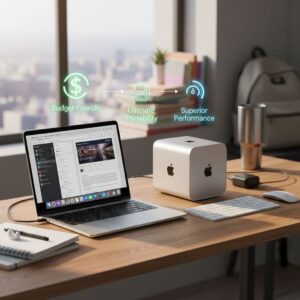
For this profile, the MacBook Air is usually the best choice:
-
\t
- Light and compact, easy to carry all day.
- Strong enough for 1080p and simple 4K projects in Final Cut Pro.
- It can be plugged into an external monitor at home for greater comfort.
\t
\t
The ability to edit anywhere often outweighs the performance gains of a desktop system.
Freelance editor splitting time between home office and client locations
A freelance editor works on client videos, social media content, or branded projects. Some work happens in a home office, some in client spaces or on set. The editor needs both speed and flexibility.
Two realistic setups:
-
\t
- If most heavy editing is at home: Mac Mini as the main workstation, plus a cheaper laptop or tablet for meetings and quick reviews.
- If a lot of editing happens on site: MacBook Air (or, if budget allows, a MacBook Pro) as the main machine, with an external monitor at home.
\t
This group must balance raw performance with real workflow flexibility. A MacBook Air can be enough for many freelance jobs, but those focused on high‑end grading and multi‑cam 4K should strongly consider a desktop.
Quick FAQ: Short Answers Before You Buy
Can you comfortably edit a 4K video on a MacBook Air?
Yes, 4K editing on a MacBook Air is possible and comfortable for simple projects. One or two 4K streams with light effects run well, especially in Final Cut Pro.
Complex timelines with many effects or very long exports may slow the machine. To keep things smooth:
-
\t
- Use proxy files for heavy footage.
- Close other apps during editing.
- Plug into power and, if possible, an external monitor for big sessions.
\t
\t
Is 8 GB RAM enough for video editing on Mac Mini or MacBook Air?
8 GB RAM works for very light editing, short 1080p projects, and basic timelines with few effects. For most video editors, especially for 4K, 16 GB RAM is a much safer choice.
More RAM helps when:
-
\t
- Running Final Cut Pro, Premiere Pro, or DaVinci Resolve.
- Using plugins, transitions, and LUTs.
- Keeping several apps open alongside the editor.
\t
\t
It is a smart long‑term move to pick 16 GB if the budget allows it.
Do I need an external SSD for video editing on these Macs?
An external SSD is not mandatory, but it is one of the best upgrades for video editing.
Benefits:
-
\t
- Keeps the internal drive from filling up quickly.
- Makes projects portable between machines.
- Improves load times and export speeds when using a fast USB‑C or Thunderbolt SSD.
\t
\t
A simple setup is to store the system and apps on the internal drive, and keep all video projects and media on the external SSD. Backups to a second drive or cloud storage remain important for both Mac Mini and MacBook Air workflows.
Is the Mac Mini future‑proof for video editing in the next few years?
No computer is future‑proof forever, but a modern Mac Mini with at least 16 GB RAM and solid storage should stay helpful for several years of 1080p and 4K editing.
As cameras move toward higher resolutions and bitrates, and as projects grow in complexity, the Mac Mini’s:
-
\t
- Extra performance headroom
- Better thermal management
- Richer port selection
- Ability to drive big monitors
\t
\t
\t
It will generally age better than a MacBook Air for heavy editing. For growing YouTube channels and small studios, it provides a stable base for a home or office editing setup.
Conclusion
Mac Mini vs MacBook Air for video editing is less about which machine is “best” and more about where and how editing happens. For editors who mainly work at a desk and want stronger 4K performance, better thermal management, more ports, and a big‑screen workstation, the Mac Mini is the better primary choice. For creators who care more about portability, battery life, and the ability to edit in different places, and whose projects are lighter, the MacBook Air is the smarter pick.
If building a home studio on a budget, a Mac Mini paired with a good monitor, an external SSD, and a simple audio setup is a strong path. If editing on the go every day, carrying a MacBook Air with a small hub and SSD usually makes more sense.
Either machine can start a solid journey with video editing on Mac. Over time, the setup can grow with more external SSDs, better monitors, audio gear, and refined workflows. The key is to choose the computer that matches real daily habits and project demands, not just the one that looks good on a spec sheet.

Related Articles