
Software & Apps Guides
Why Windows 11 Feels Slower Than Windows 10 (And What Actually Fixes It)

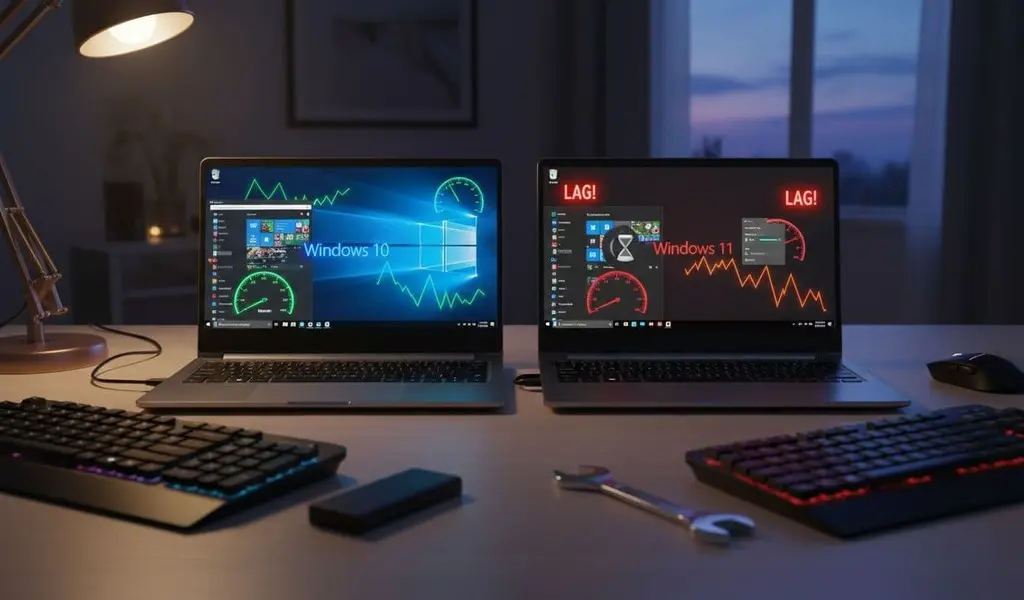
Upgrading should feel like swapping in fresh tires. Same car, smoother ride. So when Windows 11 boots up and everything feels a bit sticky, it’s confusing.
That “it’s not broken, it’s just… slower” feeling is real. Why Windows 11 feels slower than Windows 10 usually comes down to small delays that stack up, heavier visuals, and more background work, not one big failure.
The good news: most of the common pain points (right-click delay, choppy animations, slower search, fans ramping up) are fixable with safe Settings changes and a few quick checks. No registry hacks, no benchmarks, no drama.
Quick answer: the most common reasons Windows 11 feels slow
- Background tasks are busier than before, so the PC “idles” higher; check Task Manager for CPU or Disk spikes.
- More visual effects (transparency, animations) can stutter on mid-range graphics; check Settings > Accessibility > Visual effects.
- Startup apps grew over time, especially after upgrades; check Task Manager, Startup apps.
- Updates, indexing, and syncing can churn for hours or days after changes; check Windows Update status and OneDrive syncing.
- Security features add extra checks, which some PCs feel more than others; check Windows Security, Device security.
- Older hardware hits limits faster (HDDs, 8 GB RAM, older iGPUs); check the Performance tab and confirm whether storage is HDD or SSD.
Why it can feel slower even when your PC is not actually slower.
A PC can have the same raw horsepower and still feel worse day to day. The reason is responsiveness.
Humans notice tiny pauses more than a steady speed. A half-second delay on right-click, a stutter while opening Start, a “thinking” moment in File Explorer, it makes the whole system feel heavy, even if big tasks (like exporting a video) run about the same.
Windows 11 also does more work in the background to keep features ready (search results, widgets, cloud files, security checks). When that background work collides with what you’re doing, it shows up as micro-lag.
Small UI delays that add up (right-click, File Explorer, Start menu, search)
- Many of the complaints after upgrading sound the same:
- Right-click menus feel late, or the first right-click after boot is slow.
- File Explorer opens, but the folder content “pops in” a moment later.
- Start and Search respond, but not instantly.
- Wake-from-sleep is quick, yet the first minute feels sluggish.
Some of this is design (new menus and layers). Some is background prep (indexing, thumbnail caching, syncing). And sometimes it’s just a component that doesn’t like its current driver. Tech sites have tracked Explorer and UI sluggishness in certain builds, including reports that Microsoft is working on fixes for slow folder opening and context menu behavior in newer releases, as covered by TechRadar.
Mini self-check to narrow it down:
- Does it happen only the first time after boot or wake?
- Is it mostly File Explorer, or the whole system?
- Does it get worse when OneDrive is syncing or Windows Update is running?
- Is it worse on battery power than when plugged in?
Those answers point to different fixes.
Visual effects and animations can make Windows 11 look pretty, but feel laggy
Windows 11 leans harder on animations and transparency. On a newer GPU, it’s fine. On older integrated graphics, high-resolution displays, or systems already tight on RAM, it can look smooth but feel slow.
This is where the long complaint “Windows 11 animations slow” comes from. The frame rate might be okay, but the animation pacing and extra UI effects add just enough delay to annoy.
Later in the fix section, the fastest win is in Settings > Accessibility > Visual effects, where the animation and transparency toggles live.
Windows 11 slower than Windows 10 on same PC: the real causes
This is the part most people care about: same hardware, same apps, new OS, worse feel. The causes are usually boring, but very real.
More background processes and higher idle usage (what “high background usage” looks like)
Windows 11 often runs more services at rest, and it’s easier to notice on 8 to 16 GB systems. Background processes steal small slices of CPU, disk, and RAM. The PC still works, it just feels less ready.
If someone says “windows 11 high background usage,” they usually mean one of these patterns:
- CPU jumps to 20% to 60% while nothing is open.
- Disk sits high, even when you’re not copying files.
- RAM hangs over 80%, then the system starts swapping.
Common culprits: Defender scans, Search indexing, Widgets, OneDrive syncing, Teams-style auto-start items, and update services.
30-second check: open Task Manager, sort by CPU or Disk, and look for a process that keeps floating to the top. If the same item stays there for minutes, it’s not just a momentary spike.
Updates, indexing, and syncing after an upgrade can make it slow for days
If the slowdown started right after a big update or upgrade, time is often part of the fix. Windows may rebuild the search index, re-optimize apps, download updates in the background, and re-sync cloud content.
That’s why people search “Windows 11 slow after update.” It’s not always a bug. Sometimes it’s Windows doing a lot, quietly.
A simple timeline that matches many real systems:
- First few hours: high disk and CPU bursts, fans ramp up, Search feels weird.
- Next 1 to 3 days (especially on laptops): indexing and syncing finish, idle settles down.
- If it never settles: Disk stays high every day, boot never feels clean, and File Explorer is always late. That’s when it’s time to troubleshoot.
If Windows feels slow and Microsoft is asking users to share logs in preview builds, it signals this is common enough to track, as reported by PCMag:
Security features are extra locks, safer but sometimes heavier
Windows 11 enables or promotes more security features on supported hardware. Think of it like adding extra locks to every door. It’s good protection, but it can add overhead.
Core Isolation, Memory Integrity, and VBS (virtualization-based security) increase the number of checks on memory and code. Many people will never notice. Some systems will, especially if they’re borderline on CPU power or already run hot.
Who should leave it on:
- Work devices, school devices, shared family PCs.
- Anyone who installs lots of apps or plugins from random places.
Who might test later (carefully):
- A personal gaming PC that feels fine in Windows 10 but stutters in Windows 11.
- A borderline laptop where every bit of performance matters.
This is a tradeoff, not a “turn it off or else” situation.
Drivers and firmware: why “Windows Update drivers” are not always the best
Windows Update can install stable drivers, but not always the best match for your exact hardware. Windows 11 also pushes newer graphics and platform features, which can expose weak drivers.
Symptoms that often point to drivers or firmware:
- Stutter while scrolling, even in simple apps.
- Wi-Fi drops or unstable speed.
- Random disk spikes when opening folders.
- Slow wake, then lag for a minute.
If this sounds familiar, browsing user reports can help confirm that you’re not alone, as in this Microsoft Tech Community thread.
Hardware limits and system requirements impact performance (especially older laptops)
Windows 11 runs best when the hardware has room to breathe. When it doesn’t, the OS feels heavier.
The phrase “windows 11 system requirements impact performance” sounds abstract, but it shows up as simple daily pain:
- Hard drive vs SSD: an HDD makes Windows 11 feel like it’s wading through mud, especially in Search and File Explorer.
- 8 GB RAM: a few browser tabs, a meeting app, and Office can push RAM high fast.
- Older integrated graphics: animations and transparency can stutter.
- Thermal limits on laptops: heat triggers throttling, then everything slows down.
If the machine is older and still on Windows 10, there’s also a practical angle to hardware support and expectations. For systems outside the official list, this guide can add context: how-to-install-windows-11-on-unsupported-cpu.
Fix it safely: quick wins that usually make Windows 11 feel snappier
These steps are low-risk and reversible. Most people can do them in under an hour.
Do a fast diagnosis first (CPU, RAM, Disk) so you are not guessing
Start with facts. Task Manager tells you where the “slow” is coming from.
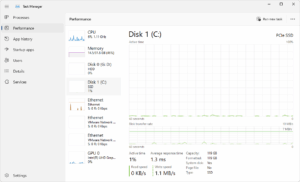
This view shows what is actually getting slammed
Quick read on patterns:
- Disk at 100% for long stretches: storage bottleneck, indexing, or updates.
- RAM above 80% most of the time: too many apps, too many browser tabs, or not enough memory.
- CPU spikes when idle: scans, updates, or a runaway background app.
Then click Processes to see what’s causing it, and Startup to see what’s adding load at boot.
Trim startup apps and background extras without breaking anything
Most “my PC feels slower” stories end up here. Startup lists grow quietly.
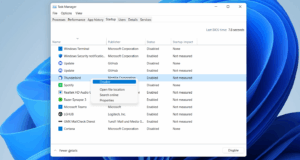
If you do not need it at boot, turn it off
Safe approach:
- Disable obvious non-essentials (chat apps, launchers, “helper” tools).
- Keep security tools and key drivers (audio, touchpad utilities on laptops) if you rely on them.
- Restart, then judge the first 5 minutes after login. That’s where the gain shows up.
Widgets and similar extras can also add background activity. If they aren’t used, turning them off reduces noise.
Turn down animations and transparency for an instant “less lag” feel
This is the fastest way to change the feel, especially on older iGPUs.
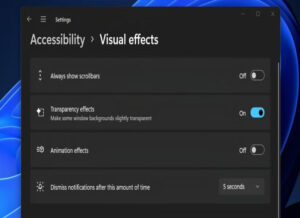
This is one of the quickest wins for a smoother feel
What to change (safe toggles):
- Turn off animation effects.
- Turn off transparency effects.
Apps still work the same. The system just stops spending effort on polish.
Laptop fixes: power mode, battery saver, and OEM utilities that slow things down
Laptops often default to conservative power settings after upgrades. Some OEM tools also fight Windows power control.
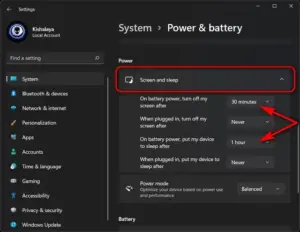
On laptops, this setting alone can change the whole vibe
Simple 10-minute test:
- Plug in the charger.
- Set Power mode to Best performance.
- Re-test scrolling, app launch, and Search.
If the lag improves while plugged in, the issue is likely power limits or heat.
Cleanup that actually helps: storage space, temp files, and pausing heavy syncing
When storage is nearly full, Windows has less room for caches and background work. That makes stutter more likely.
Keep it practical:
- Aim for healthy free space (more is better).
- Use Storage cleanup for temporary files.
- Pause OneDrive syncing during heavy work or gaming sessions, then resume later.
If it is still slow: deeper checks that fix stubborn Windows 11 performance issues
If quick wins don’t change the feel, the next steps take longer but stay safe. Most “Windows 11 performance issues” that persist after basic cleanup come down to drivers, incomplete updates, or storage hardware.
Update drivers the right way (GPU, chipset, Wi-Fi, storage)
Order matters:
- Laptop or prebuilt PC: start at the manufacturer’s support page (model-specific chipset, BIOS, Wi-Fi).
- GPU driver: get it from NVIDIA, AMD, or Intel, not a random download site.
- Chipset and storage: Use OEM first, then the chip maker if needed.
How to confirm it helped: check for smoother scrolling, faster wake, and fewer random disk spikes. Those are driver-sensitive.
When updates seem stuck: pending restart loops, disk thrash, and what to do
Sometimes the PC isn’t “slow.” It’s waiting for an update cycle to complete.
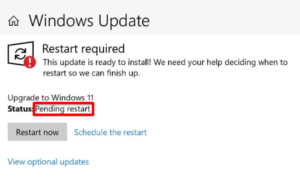
Sometimes it is not ‘slow,’ it is just waiting on a restart.
What’s normal:
- One or two restarts during a big feature update.
- Higher disk use for a while after.
What’s not normal:
- Pending a restart that comes back every day.
- Disk thrash for hours with no progress.
In those cases, a clean restart and letting the system sit idle (plugged in) can finish deferred tasks. If it repeats for weeks, it’s time to take repair steps or check the driver.
HDD vs SSD, and how to tell if your drive is the real bottleneck
An HDD can make Windows 11 feel slow in a way that tweaks can’t fully hide. Boot takes longer, Search takes longer, and apps open with a delay that feels like hesitation.
Easy check:
- Open Task Manager, go to Performance, click Disk.
- If the disk is pegged during simple actions, and it’s an HDD, storage is likely the limit.
Also watch for warning signs: clicking noises, sudden slowdowns, or frequent errors. That’s a health issue, not a settings issue.
Upgrade vs clean install vs rollback: picking the least painful option
Upgrades keep apps and files, but they also keep old drivers, startup junk, and broken services. That’s why some people find that “windows 11 clean install faster than upgrade” is true on their system.
Decision rules that reduce regret:
- Try the quick wins first.
- If it still feels bad, consider Reset this PC (keeps files option) as a middle step.
- Consider a clean install if the machine has years of accumulated software.
- If Windows 10 felt right and the PC is older, rolling back can be the calm choice, if the rollback window is still open and apps are ready to reinstall.
Public reporting suggests Microsoft is still focused on performance improvements in newer versions, which may help over time, as covered by The Verge.
Test security features only if needed (Core Isolation, Memory Integrity)
Safe test approach:
- Change one setting.
- Reboot.
- Test the same tasks (scrolling, app launch, file copies).
- If there’s no clear gain, turn it back on.
Many users should keep these protections enabled.
People also ask: Windows 11 vs Windows 10 speed
Why is Windows 11 so slow compared to Windows 10?
Windows 11 often feels slower because it does more in the background and adds more UI effects. The slowdown is usually a small delay, not a total failure.
Start by checking Task Manager for disk or CPU spikes. Then trim startup apps.
If the lag is mostly UI-related, reduce animations and transparency. Those changes often improve the feel immediately.
Why is my PC so slow in Windows 11?
The quickest troubleshooting flow is simple:
Check Task Manager for CPU, RAM, and Disk pressure. Then check Startup apps. Then check the storage free space. Then check Windows Update status. On laptops, check the power mode.
If it’s slow only in one app, update or reinstall that app. A single broken browser profile or add-on can mimic a system-wide problem.
Does Windows 11 make your PC faster or slower?
On newer, well-supported hardware, Windows 11 can feel great, especially with sleep/wake and modern driver support. On borderline hardware, it can feel heavier.
The deciding factors are usually storage (SSD vs HDD), RAM headroom, and GPU capability for the UI. If the PC is already close to its limits, Windows 11 makes those limits easier to notice.
How to make Windows 11 faster like Windows 10?
The most reliable “recipe” is:
Disable startup clutter, reduce animations, set a more responsive power mode, keep storage free, and make sure drivers come from the right place.
Then let updates and indexing finish. If the system was upgraded from an older install and still feels messy, a reset or clean install can restore that crisp feel.
Is Windows 11 slower on older laptops?
Older laptops show it more because they run closer to power and heat limits. Battery saver settings and OEM control apps can also throttle performance.
A quick laptop checklist: plug in, set Best performance, update BIOS and drivers from the OEM, and remove obvious bloat apps if they are safe to remove.
Should I do a clean install or reset Windows 11?
Reset is easier and keeps you in the Windows flow. It’s a good first step if you want minimal hassle.
A clean install is the freshest start, but it takes time. Apps need re-installing and files need backup. It makes sense when the upgrade carries years of clutter or driver problems.
Windows 11 vs Windows 10 performance, a simple “feel” comparison
| What people notice day to day | Windows 10 (feel) | Windows 11 (feel) |
|---|---|---|
| Boot and wake | Usually consistent | Often fast wake, but can feel busy right after |
| UI responsiveness | Snappy menus, fewer layers | More animations and layers, can feel delayed |
| Background activity | Lower idle on many PCs | More background services and syncing |
| Laptop battery feels | Predictable, fewer extras | Can vary more, power mode matters more |
| Best fit | Older PCs and HDD systems | Newer PCs with SSD, 16 GB RAM, stronger iGPU/GPU |
Conclusion
Windows 11 isn’t bad. It’s just heavier, and it does more work behind the scenes. That extra work shows up as tiny delays, and older PCs feel it first. If the system still feels wrong after the quick wins, deeper checks like drivers, update health, and storage type usually explain the rest. In some cases, sticking with Windows 10 or doing a clean install is the least stressful call. If the goal is to stop asking why windows 11 feels slower than windows 10, start with the quick wins, move to deeper checks only if needed, and stop the moment it feels good enough.


