Software & Apps Guides
10 Best AI Photo Editor Apps for Android (Free & Powerful)


Smartphone cameras keep getting better, but not every photo comes out perfect. Faces are soft, skies look flat, and distracting objects appear where they are least welcome. A good AI photo editor can fix many of these problems in seconds, even for users with no editing experience.
This guide is based on hands-on testing and on the workflow shared by Shutterbug Raaj in his YouTube review of AI photo editor apps for Android, focusing on what they actually do in day-to-day use.
The tools covered here handle everything from sharpening old, blurry photos to adding lens flares, artistic filters, clean-skin retouching, and even AI-powered object removal and expansion.
What AI photo editors do well today
Recent AI photo apps work less like traditional editors and more like smart assistants. They can recognize faces, skies, backgrounds, and objects, and then automatically adjust each part.
Common tasks include:
- Enhancing old or low-quality images, recovering detail and reducing blur
- Adding cinematic effects, such as light flares, fog, or color overlays
- Turning photos into stylized art, including watercolor, glitch, or retro looks
- Retouching portraits, from smoothing skin to balancing uneven tones
- Removing or adding objects, using text prompts and generative tools
- Changing composition, such as expanding a tight portrait into a wide scene
\t
\t
\t
\t
\t
\t
These apps aim to reduce the need for manual sliders and layers. Many actions that used to require several steps now happen with a single tap or a short text prompt.
For readers looking beyond this short list, independent testers have compiled larger roundups, such as this detailed review of the best AI photo editor apps for Android, which includes hands-on notes about performance and use cases.
The sections below focus on the specific apps and workflows demonstrated in the video, from entry-level enhancement to advanced generative editing.
App 5: Remini – AI enhancement for old and blurry photos
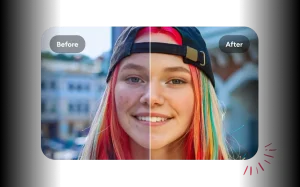
At the fifth spot is Remini (called “ReMoney” in some captions), an AI enhancer designed to rescue soft, noisy, or low-resolution images.
Core use case
Remini targets:
- Old scanned photos
- Blurry mobile shots
- Low-light images that lack detail
\t
\t
\t
The app’s AI model analyzes faces and textures, then reconstructs missing detail while keeping colors and contrast balanced.
In the video, a blurry old portrait is used as an example. After upload, the user taps Enhance, waits a few seconds, and sees a side-by-side comparison. Fine details in the face, hair, and clothing appear noticeably sharper, and colors look cleaner and more modern.
Users can find the app on Android via the official Remini – AI Photo Enhancer page on Google Play.
How the workflow looks in practice
A typical Remini edit follows a simple pattern:
- Open the app and select the Enhance option.
- Import a blurry or low-quality image from the gallery.
- Tap the main Enhance button.
- Wait a few seconds while the AI processes the photo.
- Compare the Before and After views, then save the result.
\t
\t
\t
\t
\t
The app also supports video enhancement, which follows a similar flow. Users who shoot casual clips on older phones may see a visible improvement in clarity and sharpness.
Remini suits anyone who has a folder of old memories or soft images that would otherwise stay unused. It is not a full editor in the traditional sense, but it excels at one task: making bad photos usable again.
App 4: Lens Distortions – adding flares, fog, and mood
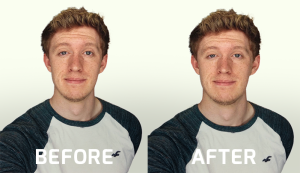
Fourth on the list is Lens Distortions, a popular effects app that adds light, weather, and color overlays to existing photos.
Why is this app different
Lens Distortions does not try to handle every editing task. It focuses on a narrow set of cinematic effects:
- Sun flares and light leaks for warm, backlit scenes
- Fog and haze for winter or moody images
- Snow overlays to enhance cold-weather photos
- Color overlays and tints for dark, dramatic tones
\t
\t
\t
\t
These effects mimic what happens in-camera with specific lenses and lighting setups. For photographers who did not capture the shot with those conditions, the app can recreate the look after the fact.
The company’s effects-based approach often appears in discussions of the best free photo editing apps for iOS and Android, where Lens Distortions is cited as a favorite for creators aiming for a cinematic style without complex workflows.
Example workflow: adding a natural-looking sun flare
In the demonstration, the creator starts with a decent daylight photo that lacks drama. The steps are:
- Open Lens Distortions and import the photo.
- Choose a Sunflare effect from the library.
- Drag the flare into position so it aligns with the light direction in the original image.
- Adjust brightness and intensity so the flare blends with the scene instead of overpowering it.
\t
\t
\t
\t
A quick before-and-after comparison shows a clear difference. The edited image looks as if it were shot directly into a low sun, with warm light streaking across the frame.
The app also supports stacking effects. Users can:
- Add a subtle fog layer to a mountain scene.
- Sprinkle light snow on winter portraits.
- Apply a dark color overlay for a moody, filmic finish.
\t
\t
\t
For social media posts, travel photos, or creative portraits, Lens Distortions acts as a finishing layer rather than a primary editor. It pairs well with other apps that handle exposure, color, and basic corrections.
App 3: Picsart – creative filters, text, and design tools
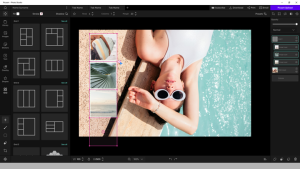
In the third position, the video highlights a user-friendly creative editor that matches the feature set of Picsart AI Photo Editor. This app serves as a bridge between simple filters and complete graphic design tools.
Picsart is available on Android through the Picsart AI Photo Editor entry on Google Play.
Artistic filters and AI effects
Picsart goes beyond basic filter packs. It includes a wide range of styles that change the character of a photo:
- Watercolor and painterly looks
- Glitch and neon effects
- Dreamy, soft-focus filters
- Retro and cinematic color grades
\t
\t
\t
\t
The filters are designed to transform photos into stylized artwork rather than simple color tweaks. This makes the app suited to posters, stories, and thumbnails where users want a strong visual identity.
Text effects and content creation
The video points out that the same app can help with content creation for social media:
- Text effects for headlines and titles
- Layouts and templates for YouTube thumbnails
- Simple poster and flyer compositions
\t
\t
\t
These tools are helpful for users who share tutorials, vlogs, or promotional content. Instead of jumping to a separate design platform, they can keep both editing and layout in one place.
This combination of AI filters and easy layouts is often cited when apps like Picsart appear alongside more traditional editors on lists of best AI photo editors for Android devices.
Background removal and one-tap retouch
Picsart also offers AI-powered cutouts and portrait tools, highlighted in the walkthrough:
- Automated background removal for product shots or profile pictures
- One-click auto-retouch to balance skin tone and reduce blemishes
- Corrections for uneven patches or minor marks on the face
\t
\t
\t
The auto-retouch feature is obvious in the demo. A before-and-after comparison shows smoother skin and more even color in a single tap, without a plastic or overly edited look when used lightly.
AI “Expand” for changing aspect ratios.
Another notable feature shown is the AI “Expand” function, which adjusts the canvas size while filling in new areas with matching content.
The process looks like this:
- Choose a photo that was shot in a tight portrait or square format.
- Select an aspect ratio, such as 16:9 for a YouTube thumbnail or 9:16 for a story.
- Tap Create and let the AI extend the background to fit the new shape.
\t
\t
\t
In one tap, a cramped portrait can become a wide banner-style image. This helps when a photo needs to fit different platforms without cropping important details from the subject.
Frames, text, and posting
To finish the look, the app offers:
- Custom text with various fonts and styles
- Decorative frames and borders
- Easy export options sized for popular platforms
\t
\t
\t
Together, these tools help turn basic photos into polished posts with minimal manual work. For users who regularly publish on social platforms, Picsart sits in a practical middle ground between simple camera filters and full design suites.
App 1: Adobe Express – generative AI and advanced editing
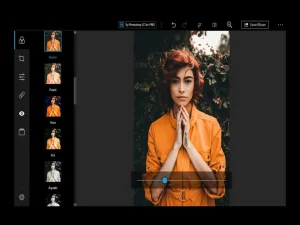
The top spot goes to an Adobe app the creator refers to as “adobe.com,” which matches the feature set of Adobe Express: AI Photo and Video. It combines standard editing controls, advanced presets, and generative AI features.
The Android version is available on Google Play as Adobe Express: AI Photo, Video.
Generative Fill for adding and removing objects
One standout tool is Generative Fill, which lets users add or remove elements using AI.
The workflow shown in the video is straightforward:
- Open a photo and select the area to change, such as a section near the face.
- Type a short text prompt in the box, for example, “sunglasses”.
- Tap Generate.
- Review several variations and pick the one that fits best.
\t
\t
\t
\t
The AI analyzes lighting, angle, and style, then inserts sunglasses that appear to be part of the original shot. Multiple options are offered, and new ones can be generated if the first set does not fit.
The same approach applies to other objects, such as a different shirt. By selecting the clothing area and typing “shirt,” users can try alternative tops that match the pose.
This kind of workflow is similar to other generative tools in the market, including those covered in roundups of top AI-powered photo apps for mobile, but the Adobe integration stands out because it pairs AI with established color and tone controls.
AI-powered image expansion
The app also supports image expansion, which turns a portrait-oriented photo into a landscape or wide image.
The sequence is:
- Choose a portrait-format picture inside the app.
- Select the Expand Image option.
- Adjust the canvas to a wider ratio, such as 16:9.
- Let the AI fill the new empty space with plausible background content.
\t
\t
\t
\t
This helps when a shot was framed too tight and needs extra room for text, branding, or thumbnails. Instead of stretching or manually cloning backgrounds, the AI builds believable scenery around the original subject.
Filters, presets, and manual editing
Beyond generative tools, Adobe’s app includes:
- One-tap filters for dreamy or moody tones
- Presets that combine color, contrast, and grain into a single look
- Manual sliders for exposure, contrast, highlights, shadows, and more
\t
\t
\t
The video shows that users can change a photo’s overall mood with one tap, then fine-tune exposure and color if needed. This suits both quick social posts and more polished edits.
Spot healing and portrait cleanup
Portrait editing gets special attention through the Spot Healing tool. It is used to:
- Remove pimples and minor skin marks
- Clean up dust spots or distractions
- Erase small unwanted objects
\t
\t
\t
With a few taps on the affected areas, the app blends neighboring pixels to create a clean result. Combined with lighting adjustments, it can give portraits a brighter, more intentional look without heavy retouching knowledge.
Collages and video editing
Adobe’s app is not limited to single-image edits. The creator also highlights:
- Collage maker tools that combine multiple photos in a single frame
- Basic video editing, including trimming and simple enhancements
\t
\t
This transforms the app into more of an all-in-one content tool. Users can:
- Build story-style collages with text and stickers
- Prepare short clips for social platforms
- Apply consistent filters to both photos and videos
\t
\t
\t
These capabilities place Adobe Express alongside other advanced editors and design tools. For comparison, alternative AI-first products like Photoroom AI Photo Editor focus heavily on product photography and background replacement, while Adobe’s approach is broader, covering general photography, graphics, and video.
Other AI-powered editing options
The apps highlighted in the video cover a wide range of use cases:
- Rescue work on old photos
- Cinematic overlays for atmosphere
- Artistic filters and social content design
- Generative object edits and expansion
\t
\t
\t
\t
Beyond this set, many other mobile tools follow similar patterns, combining AI with familiar sliders and layers. Some center on product shots, others on portraits or social graphics.
Broader comparison pieces, such as third-party tests of the best AI photo editing apps and suites, can help users see where each tool fits in terms of performance, pricing, and platform support.
For users interested in experimenting without long-term commitments, most of the apps discussed here offer free tiers, with optional paid upgrades for higher-resolution exports, more styles, or faster processing.
Conclusion
AI-powered editors now handle tasks that once required detailed manual work, from sharpening old family photos to adding sunglasses or changing a shirt with a simple text prompt. The apps covered here, from Remini and Lens Distortions to Picsart and Adobe Express, show how much can be achieved on a phone with a few taps.
Choosing the right AI photo editor depends on the goal: restoration, creative styling, portrait retouching, or advanced generative changes. Many users will benefit from installing more than one, using each where it is strongest. As these tools continue to improve, the barrier between casual snapshots and polished images keeps shrinking, putting powerful editing within reach of anyone willing to experiment.
Want to try an AI photo editor right now?
Click below to use a free editing AI photo editor and turn your photos into clean, sharp, eye-catching images in seconds.
Click here to use the free AI photo editor
No design skills needed. Just upload a photo and start editing.


