Mac Mini and MacBook Air for Students: How to Compare Budget, Performance, and Portability

Choosing between a Mac Mini and MacBook Air for students is not just a specs question. It is a daily life question.
Many high school, college, and university students are stuck between these two options in 2025. Both run macOS, both use fast Apple Silicon chips like the M4, and both can last through a full degree. Yet they fit very different routines.
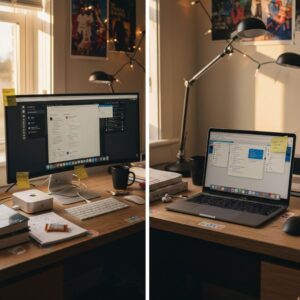
The Mac Mini is a tiny desktop box that needs a monitor, keyboard, and mouse. The MacBook Air is a thin, light laptop with a built-in screen, keyboard, and battery. One stays on a desk—the other lives in a backpack.
This guide gives a clear answer, a simple decision framework, and student-focused tips on budget, performance, portability, and long-term use across 3 to 4 years of study.
Quick Answer: When a Mac Mini Wins and When a MacBook Air Is Better for Students
Both devices are strong student options. The right choice depends on how a student studies, where they work, and how much they move around.
For many readers, the decision is less about raw hardware specifications and more about routine. A commuter student has different needs than someone who studies mainly in a dorm room. A design major has different needs than an English major.
Here is the fast breakdown.
Pick a MacBook Air if this sounds like you:
-
\t
- You carry your computer to class, the library, or coffee shops.
- You want one device for notes, online courses, and travel.
- You often have long days away from power and need strong battery life.
- You prefer an all-in-one device without buying a separate monitor and keyboard.
- You care most about portability and flexibility.
- You want a simple answer for Mac mini vs MacBook Air for college students with no extra desk gear needed.
\t
\t
\t
\t
\t
Pick a Mac Mini if this sounds like you:
-
\t
- You mainly study at a fixed desk at home or in a dorm.
- You already own, or plan to own, a good monitor, keyboard, and mouse.
- You want more power for heavy apps like video editing, coding, or design tools.
- You like a big screen and comfortable desk setup for long study sessions.
- You do not need your main computer with you in every class.
- You are focused on value per dollar and want a stronger macbook air vs mac mini student budget guide option for desk-based work.
\t
\t
\t
\t
\t
The rest of this guide breaks down performance, portability, price, and real student scenarios in simple language.
At a Glance: Best Mac for a Typical University Student in 2025
For a typical university student in 2025, the 13‑inch MacBook Air M4 is the best default choice. It covers notes, online classes, essays, spreadsheets, web research, and light creative work in one portable computer.
Portability, strong battery life, and the built-in screen and keyboard make the MacBook Air an easy pick for most students. It fits on small lecture hall desks, runs quietly, and lasts a full day of classes and study.
The Mac Mini can beat it for students who do most of their work at a desk and run heavy apps for design, code, or video. For the question best Mac for university student 2025 mac mini or macbook air, the MacBook Air wins most of the time, but the Mac Mini is a smart choice for desk-focused power users.
How This Guide Compares Mac Mini vs MacBook Air for Students
This guide uses simple, real-life criteria instead of only listing specs:
-
\t
- Performance for real student tasks.
- Portability and daily campus life.
- Total cost, including accessories and student discounts.
- Comfort and space in a dorm or shared room.
- Battery life versus always plugged in.
- How long each Mac is likely to feel fast across a 3 to 4 year degree.
\t
\t
\t
\t
\t
The goal is to make this the clearest MacBook Air and Mac mini for student budget guide, not another confusing spec sheet. The focus is on how each device feels in daily student use.
Mac Mini vs MacBook Air Basics: What Each One Is and How It Fits Student Life
Before comparing details, it helps to get a clear picture of what each device actually is.
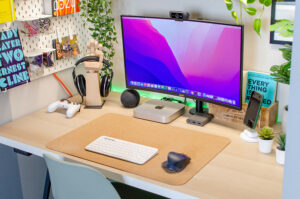
A Mac Mini is a small desktop. It is a square box that sits on your desk and needs a monitor, keyboard, and mouse. It stays plugged into the wall.
A MacBook Air is a laptop. It includes its own screen, keyboard, trackpad, and battery. It folds up and goes wherever you go.
These two options sit in different spots inside student laptop options, even though both run the same macOS software.
What Is a Mac Mini? A Tiny Desktop for Students Who Study at a Desk
The Mac Mini is a compact desktop computer. It looks like a small square metal box that you place on a desk or shelf. You connect it to:
-
\t
- An external monitor.
- A keyboard.
- A mouse or trackpad.
\t
\t
Recent Mac Mini models with Apple Silicon, such as versions built around M-series chips, offer strong performance for their price. They are quiet, use little power, and stay plugged in at a desk.
For students, a Mac Mini can be:
-
\t
- A space-saving design in a small dorm room, compared with a big tower PC.
- Strong for heavy work like video editing, photo editing, coding, and running many apps at once.
- Easy to pair with a large monitor, for better posture and long study sessions.
\t
\t
The trade-off is clear. A Mac Mini is not portable in a simple way. To use it, a student must have a screen and input devices available. Moving it between rooms is possible, but not as simple as tossing a laptop into a backpack. The idea behind choosing a Mac Mini over a laptop is discussed in more depth in this Mac Mini vs MacBook overview.
What Is a MacBook Air? A Thin, Light Laptop for Class, Campus, and Travel
The MacBook Air is a thin, light laptop. It includes:
-
\t
- A built-in screen.
- A built-in keyboard and large trackpad.
- A built-in battery for many hours of use.
\t
\t
Current MacBook Air models, such as the M4 13‑inch version, are quiet and have long battery life. They are designed as portable computers for everyday work.
For students, a MacBook Air fits tasks such as:
-
\t
- Taking notes in class.
- Joining video calls and online lectures.
- Writing essays and lab reports.
- Researching on the web in the library.
- Studying in coffee shops or common rooms.
\t
\t
\t
\t
A student can close the lid, put it in a backpack, and keep working anywhere. That is very different from a fixed Mac Mini setup.
For a broad overview of how the MacBook Air fits student life in 2025, some stores describe it as their top pick for college-bound students, as seen in this guide on choosing the best Mac for a college-bound student in 2025.
Desktop vs Portable for Students: How It Changes Your Day
Choosing between a Mac Mini and a MacBook Air means choosing between desktop vs portable.
With a portable computer like the MacBook Air, a typical day might look like:
-
\t
- Open the dorm lid for morning notes.
- Put it in a backpack for classes.
- Use it in the library in the afternoon.
- Finish work at a friend’s apartment at night.
\t
\t
\t
With a Mac Mini, a typical day is more fixed:
-
\t
- Attend lectures with a notebook or tablet.
- Come back to a desk setup with a large monitor.
- Do all serious work at that desk.
\t
\t
There are comfort differences as well. A separate monitor and keyboard can be better for neck and back health during long study sessions. Laptops are easy to use on a bed or couch, but that posture is not always ergonomic over time.
Some students enjoy having a fixed study spot that feels like a “work zone.” Others need to move between rooms, buildings, and sometimes cities. The choice between the Mac mini and MacBook Air for students shapes that daily rhythm.
Performance, Battery Life, and Specs: Which Mac Handles Student Work Better?
Both devices can run the same macOS apps. They share similar hardware foundations, with M-series Apple Silicon chips and solid performance.
This section looks at performance in clear, real-world terms.
Everyday Student Tasks: Web, Notes, Docs, and Online Classes
For everyday student tasks, both the Mac Mini and MacBook Air feel fast:
-
\t
- Web browsing with many tabs.
- Google Docs and Microsoft Word.
- Reading PDFs and research articles.
- Email and messaging.
- Online classes through Zoom or similar tools.
\t
\t
\t
\t
Current M‑series chips handle these tasks with plenty of headroom. Speed differences between Mac Mini and MacBook Air show up more with heavy apps or very long workloads.
Students who only read, write, and use light media do not need to worry about lag on either device.
Heavy Work: Coding, Design, and Video Editing on Mac Mini vs MacBook Air
Some students use heavier tools:
-
\t
- Code editors and compilers.
- Local development servers.
- Photo editing in apps like Photoshop.
- HD or 4K video editing.
- 3D work or engineering software.
\t
\t
\t
\t
In these cases, the Mac Mini often has an edge. It can include higher-performance configurations and features active cooling, so it stays cooler and maintains stable performance during long tasks such as video rendering.
Key points for heavy work:
-
\t
- A Mac Mini is safer for big video projects, long code builds, or multi-hour renders.
- A MacBook Air can handle light and medium projects, but may slow a bit when pushed hard for a long time.
- For weekly or daily 4K video editing for class, a Mac Mini with a good monitor is often better.
\t
\t
Apple’s own Mac comparison page can help students match specific models to their performance needs.
Battery Life vs Always Plugged In: Long Campus Days or Desk-Only Setup
Battery life is a major difference between these two student laptop options.
-
\t
- The MacBook Air often lasts 12 to 18 hours on a charge for light to normal use.
- This covers full days of classes, labs, and group work without hunting for outlets.
- It supports back-to-back lectures and library sessions, even when outlets are full.
\t
\t
The Mac Mini has no battery. It stays plugged into the wall at a desk. This avoids any battery wear over time, which can be an advantage across many years of use.
For long-term battery health:
-
\t
- MacBook Air batteries slowly lose some capacity over several years.
- Good habits, such as not keeping it at 0% or 100% for long periods, help.
- The Mac Mini avoids all of this by design, since it has no internal battery.
\t
\t
Students who are on campus all day benefit more from a MacBook Air. Those who study at one desk and rarely move may not need a mobile battery.
Screen Size, Resolution, and Comfort for Long Study Sessions
Screen experience affects comfort and focus.
-
\t
- The 13‑inch MacBook Air has a Retina display with sharp text and good colors.
- It is large enough for essays, web browsing, and basic editing.
- It fits easily on small lecture hall desks and crowded tables.
\t
\t
The Mac Mini allows flexible screen choices:
-
\t
- Students can pick a 24‑inch or 27‑inch monitor, or even dual screens.
- A larger screen helps with reading dense PDFs, coding, spreadsheets, and design work.
- A bigger display can reduce eye strain and allow side-by-side windows.
\t
\t
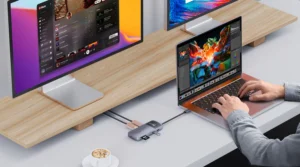
The MacBook Air can also connect to an external monitor in a dorm. That gives a “best of both worlds” setup, where the laptop is used at a desk with a large screen, then unplugged and used alone for class.
Student Budget Guide: Total Cost of Mac Mini vs MacBook Air
Price is a major concern in any student budget guide for MacBook Air and Mac mini. Students often compare only the main device price, but accessories and discounts change the real picture.
Upfront Price and Education Discounts in 2025
As of late 2025, typical education pricing in the US for Apple Silicon models sits roughly in these ranges:
-
\t
- Mac Mini M4 (education prices):
-
\t
- Entry models start in the mid $500s.
- Higher storage and RAM models range from the high $600s to the $800s.
\t
- MacBook Air M4 13‑inch (education prices):
-
\t
- Entry models start around $750.
- Larger storage or memory options range from $900 to $1,150.
\t
\t
These ranges align with recent education store pricing data, similar to the examples seen for M4 models in 2025.
Apple’s education pricing usually offers savings of about $50 to $150 compared with standard retail prices. Students with a school email can check the Apple Education Store directly.
In simple terms:
-
\t
- The Mac Mini is usually cheaper for the box itself.
- The MacBook Air costs more, but includes a screen, keyboard, trackpad, webcam, and battery.
\t
Hidden Costs: Monitor, Keyboard, Mouse vs Laptop Accessories
The real cost picture changes once accessories are added.
For a Mac Mini setup, a student may need:
-
\t
- Monitor: around $100-$250 for a basic 1080p or 1440p display.
- Keyboard: about $20 to $100, depending on type and brand.
- Mouse or trackpad: $15-$100.
- Speakers or a headset: $20-$80 if sound quality matters.
- Webcam: $20-$70 if the monitor has no built-in camera.
\t
\t
\t
\t
For a MacBook Air, the extras are smaller:
-
\t
- Laptop sleeve or case: $20-$50.
- USB‑C hub or adapter (for extra ports): $20-$60.
- Optional external drive: $50-$120.
- Optional stand or cooling riser: $20-$40.
\t
\t
\t
Students who already own a good monitor, keyboard, and mouse at home will find the Mac Mini a more budget-friendly device. For students starting from scratch, the Mac Mini plus monitor set can end up close in price to a MacBook Air.
Future-Proofing: RAM, Storage, and How Long Each Mac Can Last
Modern Apple Silicon Macs do not allow RAM or internal storage upgrades after purchase. Students must choose these specs when buying.
Simple way to think about it:
-
\t
- RAM is how many things you can do at once.
- Storage is the amount of space on the device for files, apps, and photos.
\t
Basic guidance for students:
-
\t
- RAM
-
\t
- 8 GB: OK for light use, simple web and writing, not ideal for heavy apps.
- 16 GB: Better for most students, including coding, light design, and many browser tabs.
- More than 16 GB: Only for heavy video, 3D, or large data work.
\t
\t
- Storage
-
\t
- 256 GB: Works for light users who rely on cloud storage.
- 512 GB: Safer long-term choice for most students.
- 1 TB or more: For big media libraries, lots of video, or large local datasets.
\t
\t
\t
Because these parts cannot be upgraded later, it is smart to buy a bit more RAM and storage than you need today, without paying for very high tiers that you will never use.
For a 3 to 4 year degree, many students do well with:
-
\t
- 16 GB RAM.
- 512 GB storage.
\t
Real Student Scenarios: Which Should You Pick as a Student?
Students have different study patterns and majors. This section ties the comparison to daily life.
Students on a Tight Budget: Stretching Every Dollar
Students working part-time or watching every dollar must look at the total cost, not just the starting price.
If a student already owns a monitor and keyboard at home, a Mac Mini can be the cheapest way to get a fast Mac. The box alone costs less than a MacBook Air.
If they do not own any desktop gear:
-
\t
- The combined cost of Mac Mini plus monitor, keyboard, and mouse can get close to, or pass, a base MacBook Air with student discount.
- A refurbished MacBook Air or Mac Mini from Apple or trusted sellers is worth checking. Used Apple Silicon models are far better value than much older Intel Macs.
\t
For tight budgets:
-
\t
- If a desk setup is already in place, go Mac Mini.
- If not, or if portability is essential, a base or refurbished MacBook Air is often a better choice.
\t
Commuting and Campus-Hopping Students: Always on the Move
Students who move between home, dorm, campus, library, work, and friends’ houses rely heavily on portability.
For these students:
-
\t
- The MacBook Air fits in a backpack without adding much weight.
- It runs on battery for a long time, which helps during days full of classes and group meetings.
- It works on small desks and shared tables.
\t
\t
By design, a Mac Mini can only be used in a full desk setup. It is not realistic to carry a Mac Mini, a monitor, and accessories to campus every day.
For commuting and campus-hopping students, the clear advice is:
-
\t
- Pick the MacBook Air.
Design, Media, and Film Students: Editing Photos and Video for Class
Design, media, and film programs often require apps that push hardware harder:
-
\t
- Adobe Photoshop, Illustrator, and Lightroom.
- Final Cut Pro, Premiere Pro, and DaVinci Resolve.
- Animation tools and color grading workflows.
\t
\t
Both Mac Mini and MacBook Air can handle basic creative work. The difference shows up as project size and comfort increase.
Advantages for Mac Mini:
-
\t
- Strong sustained performance for long renders.
- Easy to pair with a big, color-accurate monitor.
- Room for dual monitors, which helps with timelines and tool panels.
\t
\t
Advantages for MacBook Air:
-
\t
- Easy to bring to shoots, classes, and group projects.
- Can offload heavy work to an external drive.
- Can gain comfort by pairing with an external monitor at home.
\t
\t
For many media students, a hybrid setup works well:
-
\t
- MacBook Air for portability and class.
- External monitor and perhaps a color-accurate display at home.
\t
External SSDs are helpful for storing large video files without overpaying for huge internal storage.
For larger, regular video projects, a Mac Mini at a desk may be the better long-term workhorse. For students who film on location or present work often at school, a MacBook Air remains important.
Computer Science and Engineering Students: Coding, Math, and Simulations
Computer science and engineering courses often involve:
-
\t
- Long coding sessions.
- Running compilers and test suites.
- Local servers, containers, or databases.
- Math tools and simulations.
\t
\t
\t
A Mac Mini can be appealing for these students:
-
\t
- Stable performance over long workloads.
- Support for one or two large monitors.
- Comfortable desk setup for many hours at the keyboard.
\t
\t
However, many computer science and engineering students work on campus in labs, group study rooms, or hackathons. In those cases, a MacBook Air is valuable:
-
\t
- Easy to take to group projects.
- Ready to code on the go.
- Can connect to lab monitors where available.
\t
\t
A simple rule:
-
\t
- If most coding happens at one desk and a large monitor is a priority, consider a Mac Mini.
- If coding often happens on campus or at friends’ places, go for a MacBook Air.
\t
Students Who Mostly Study in One Place and Want a Bigger Screen
Some students prefer a fixed study space. They rarely work outside their room or home.
For them, a Mac Mini with a 24‑inch or 27‑inch monitor creates a comfortable study station:
-
\t
- Extra screen space for split-view work.
- Less eye strain during long reading sessions.
- A clear separation between “desk work” and “relax time.”
\t
\t
These students can still use a MacBook Air in desktop mode:
-
\t
- Plug the laptop into an external monitor, keyboard, and mouse.
- Use the bigger screen at the desk.
- Unplug the laptop when it occasionally goes out.
\t
\t
For students who almost never move their primary computer, a Mac Mini plus large monitor can be a more focused and comfortable option. For those who move sometimes, a MacBook Air with a desk setup on the side is flexible.
Straight Answers to Common Mac Mini vs MacBook Air Questions
Is the Mac Mini worth it for students?
The Mac Mini is worth it for students who mostly study at a desk and already have, or can easily buy, a good monitor and keyboard. It offers strong performance for the price and good flexibility with big screens.
Its main pros:
-
\t
- Lower entry price than a MacBook Air for the computer itself.
- Strong performance for video, coding, and design.
- Flexible screen size, from basic monitors to pro-level displays.
- No laptop battery to wear out over time.
\t
\t
\t
Its main cons:
-
\t
- Not portable on its own.
- Requires extra gear to be usable.
- Harder to move between study spaces.
\t
\t
A film or coding student who does 90 percent of their work at a home desk can get excellent value from a Mac Mini.
Which is best for students, a Mac Mini or a MacBook Air?
For most students, a MacBook Air is the better all-around choice. It is a complete laptop that works in class, at home, and while traveling.
The Mac Mini can still be the best Mac for university student 2025 in certain cases. That is true when the student works mostly at a desk, uses heavy apps, and prefers a large external display.
In many comparisons of Mac Mini vs MacBook Air for students, the MacBook Air wins for flexibility, while the Mac Mini wins for desk-based power and value.
What is the main disadvantage of a Mac Mini for students?
The main disadvantage of a Mac Mini for students is the lack of portability. It cannot go to class without a monitor and other accessories.
Students who travel to campus often may also need a second device, such as a cheap laptop or tablet for notes. That can increase the total cost compared to buying a single MacBook Air that does everything.
The Mac Mini suits students with a stable study space much more than those who move often.
Which MacBook size is best for students?
For most students, the 13‑inch MacBook Air is the best size. It is light in a backpack, fits on small desks, and offers enough screen space for docs and web pages.
Students who like larger screens can connect the 13‑inch MacBook Air to an external monitor at home. That approach often works better than buying a huge and heavy laptop.
Extra Tips: Avoid Common Mistakes and Get the Most Out of Your Mac
Small choices at the time of purchase can affect comfort and costs over several years.
Familiar Buying Mistakes Students Should Avoid
Some common mistakes include:
-
\t
- Too little storage: Students choose 256 GB, then fill it with photos, videos, and apps within a year.
Tip: Aim for 512 GB if possible, or plan on using external SSDs. - Too little RAM for heavy work: Design or coding students pick 8 GB to save money, then run into slowdowns with many tabs and tools.
Tip: Pick 16 GB RAM for design, coding, or media majors. - Ignoring port needs: Students do not think about how many USB devices or displays they will use.
Tip: Check port counts and plan for a USB‑C hub if needed. - Forgetting monitor cost for Mac Mini: They buy the Mac Mini but not the monitor and keyboard, which raises the real price later.
Tip: Add all accessories to the budget up front. - Overbuying high-end models: Some students pay for a top-tier Mac they never use fully.
Tip: Pick a balanced mid-level configuration that fits your actual work.
\t
\t
\t
\t
Pairing a MacBook Air with an External Monitor in Your Dorm
A MacBook Air can double as a desktop at home.
A simple setup:
-
\t
- External monitor in front of you.
- MacBook Air on a stand to the side or below the monitor.
- Wireless keyboard and mouse on the desk.
\t
\t
This layout gives a larger, more ergonomic workspace for writing and reading. It keeps the laptop keyboard and trackpad free for times when you want to use only the laptop.
For many students, this approach is more flexible than a Mac Mini, because they can unplug the laptop and take all their files and apps to class.
Making a Mac Mini Setup More Flexible at Home
A Mac Mini setup does not have to be fixed entirely.
Simple steps to keep it flexible:
-
\t
- Use a compact monitor that is easy to move.
- Plug everything, including the Mac Mini, into a single power strip.
- Route cables neatly so the entire setup can shift from desk to table.
\t
\t
This lets students slide the setup between rooms in shared housing with less hassle. The Mac Mini stays a desktop, but it is not locked to one exact spot.
The idea of using a Mac Mini instead of a laptop is often discussed in user communities such as this Mac Mini vs MacBook conversation, which highlights how some users like the small, movable desktop style.
Refurbished and Second-Hand Options to Save Money
Refurbished and second-hand Macs can help students control costs.
-
\t
- Apple refurbished: Devices tested, cleaned, and sold with a warranty. Safer than random used listings.
- Used from private sellers: Cheaper, but more risk.
\t
For MacBook Air, students should check the battery health and look for Apple Silicon models rather than older Intel models. For Mac Mini, condition matters less on battery life, but ports and performance still count.
Buying refurbished or used is a smart way to get high-quality hardware at a lower price, as long as the return policy and seller’s reputation are clear.
Quick FAQ: Short Answers for Fast Decisions
Is 8 GB of RAM enough for students?
8 GB of RAM is usually enough for basic school tasks such as web browsing, notes, streaming, and simple documents.
Students who plan to do design, coding, or heavy multitasking with many tabs open should aim for 16 GB so the Mac stays smooth for 3 to 4 years.
How much storage does a student really need on a Mac?
256 GB works for light users who rely on cloud storage and do not keep many files offline.
For most students, 512 GB is more comfortable over several years, especially with photos, videos, and downloaded class materials. External SSDs or cloud storage help if budget forces a smaller internal drive.
Can a Mac Mini replace a laptop for university?
A Mac Mini can replace a laptop for students who do nearly all their work at one desk and do not need to bring a computer to class.
Students who attend many in-person classes or work in different locations may need a second device, like a Chromebook or tablet, which raises cost. Many students are happier when their main computer travels with them, which is why a MacBook Air is often the safer single-device choice.
Is a MacBook Air good for coding or design students?
Yes, a modern MacBook Air with enough RAM and storage is good for many coding and design students.
A setup with 16 GB RAM and 512 GB storage, plus an external monitor at home, works well for most class projects. Very heavy 3D or long video work might fit better on a Mac Mini or higher-end Mac, but the Air is fine for many programs.
How long will a Mac Mini or MacBook Air last for student use?
With regular care, both can last 5 to 7 years. The sweet spot for student use is often 3 to 5 years where everything still feels fast and supported.
MacBook Air batteries slowly lose capacity, while the Mac Mini avoids that issue but depends on the monitor and other accessories staying in good shape. Students should pick specs that match at least 3 to 4 years of expected work.
Simple Comparison Table: Mac Mini vs MacBook Air for Students
| Feature | Mac Mini (M-series) | MacBook Air (M-series) |
|---|---|---|
| Type | Small desktop, needs monitor & keyboard | Thin, light laptop |
| Portability | Desk-bound, moveable only with setup | Highly portable, backpack friendly |
| Screen | External monitor of your choice | Built-in 13‑inch Retina, can use external |
| Battery | No battery, always plugged in | All-day battery for campus use |
| Performance | Strong sustained performance | Fast for most tasks, slows under heavy load |
| Best for | Desk-based study, heavy creative or code | Daily class use, notes, travel, and general work |
| Upfront cost | Lower box price, higher with accessories | Higher box price, fewer extras needed |
| Comfort for long sessions | Great with large monitor & full keyboard | Good, best when paired with an external monitor |
Conclusion: Which Should You Choose as a Student?
The choice between Mac Mini and MacBook Air for students comes down to daily life, not just specs.
In simple terms:
-
\t
- Choose a MacBook Air if:
-
\t
- You want one computer for class, campus, and travel.
- You study in many places, not just at one desk.
- You care about battery life and portability.
\t
\t
- Choose a Mac Mini if:
-
\t
- You mostly work at a single desk and want a big screen.
- You already own, or will buy, a monitor, keyboard, and mouse.
- You value strong performance per dollar for video, design, or coding.
\t
\t
\t
If the decision still feels close, use this last tip: pick the MacBook Air if portability and all-day battery life matter most; pick the Mac Mini if you care more about desk comfort, big screens, and raw performance for the price.
Students who want to go deeper into other student laptop options or compare more budget-friendly devices can next look for broader guides on best laptops for students and long-term laptop planning.

Related Articles