
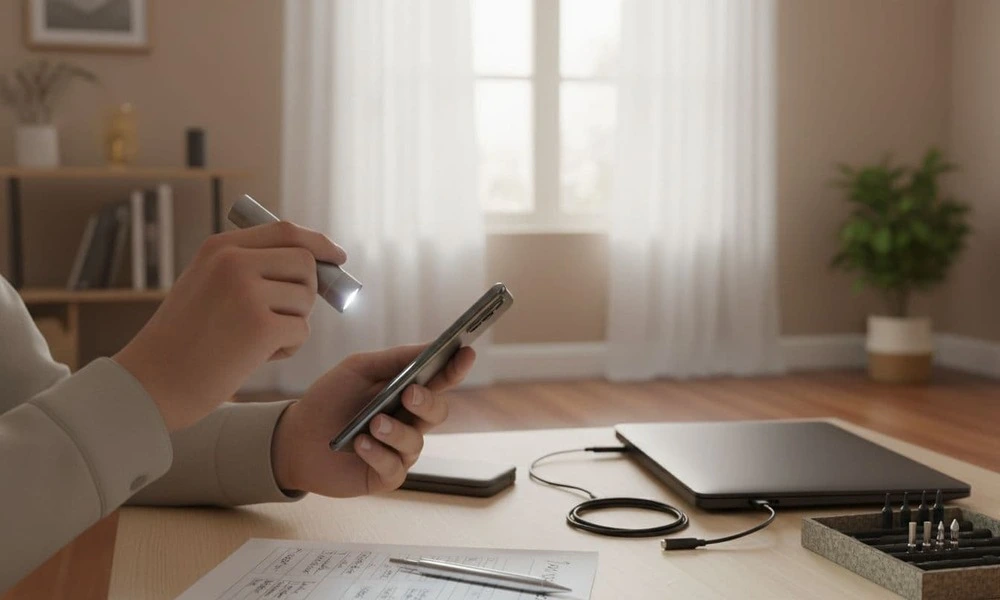
A refurbished device can look clean on day one, yet still carry signs of real prior use. The problem is simple: cosmetic cleaning hides a lot, and buyers want to know whether the wear matters for reliability.
This is for anyone who bought, or is about to buy, refurbished electronics and feels unsure about what “refurbished” really means in practice.
It explains how to know if a refurbished device was used before using quick physical checks, a battery health check, setup and reset clues, and signs of past repairs.
It also lays out a first 30-minute test plan that works across device types, plus what to document and how to make return decisions while the return window is still open.
What to Check First on a Refurbished Device
Most people try to judge a refurbished device by how clean it looks. That helps, but it is not enough. A device can be polished and still have a worn battery, loose ports, or a rushed repair.
The fastest way to tell if prior use matters is to check the few areas that fail first: power and battery behavior, heat, buttons and ports, and screen stability. These checks take minutes and work for phones, laptops, tablets, consoles, and other electronics.
If you find only light cosmetic marks, the device may still be a good refurbished unit. If you find functional issues, document them early and decide quickly while the return window is still open
First, the truth about refurbished: it was probably used, so focus on risk
In most cases, “refurbished” means the device was previously owned, returned, or opened at some point. Refurbishment should mean it was tested, cleaned, repaired if needed, and reset to a fresh setup state.
The real goal is not to prove a device was touched before. That is usually a given. The goal is to confirm how much prior use shows up, and whether any signs point to hidden problems (weak battery, sloppy repair, or unstable hardware).
This is also where “refurbished vs used condition” matters. Used devices are often sold as-is with minimal testing. Refurbished devices are supposed to be inspected and put back into reliable working order.
Cosmetic wear vs functional wear: what matters most
Cosmetic marks are often normal on refurbished electronics condition, especially if the listing grade allowed “minor wear.”
Cosmetic wear that’s usually fine:
- Light scratches on the back or edges
- Small scuffs on corners
- Faint screen micro-scratches that aren’t visible while the screen is on
- Slight shine on a frequently touched area
Functional wear is different. It can hint at shortened lifespan or a poor repair:
- Screen flicker, bright spots, or uneven backlight
- Dead touch areas, missed taps, or ghost touches
- Loose charging port or data port, wobble during plug-in
- Mushy buttons or buttons that double-click
- Overheating during basic tasks, not just heavy loads
- Speaker crackle, mic dropouts, or distorted sound
A good rule: if it affects input, power, heat, or display stability, it’s not “just cosmetic.”
How to inspect refurbished electronics for physical clues of prior use or repair
A consistent inspection routine helps. It also reduces “panic testing,” where everything feels suspicious because nothing is checked in order.
This step-by-step approach covers phones, tablets, laptops, consoles, smartwatches, and headphones. The point is to spot physical wear signs and assembly issues that don’t match a careful refurb process.
Start with good lighting. A small flashlight helps, even a phone light.
1) Frame and corners: look for dents, deep chips, or bent sections.
2) Seams and gaps: check that the device closes evenly all the way around.
3) Screws: verify they match, sit flush, and don’t look chewed up.
4) Ports: inspect for lint, corrosion, or wobble when a cable is inserted.
5) Buttons and switches: press each one slowly, feel for consistent click and travel.
6) Hinges (if any): open and close a few times, note looseness or grinding.
7) Camera glass and sensor windows: look for haze, scratches, or misalignment.
8) Speaker grilles and mic holes: check for dents, clogged mesh, or trapped grime.
Signs of opening or part swaps can happen even on legitimate refurb units. What matters is whether the assembly looks clean and consistent, not rushed or forced.
Signs a refurbished device was used: wear patterns that tell a story
Wear patterns often show routine handling more clearly than a single scratch.
Common signs a refurbished device was used include:
-
- Keyboard keys that look shiny or smoothed down
-
- Buttons with a polished, worn texture, or faded icons
-
- A hinge that won’t hold position well, or swings too freely
-
- Ports that feel “loose” and don’t grip the plug firmly
-
- Uneven rubber feet or pads that look compressed on one side
-
- Scuffed charging tips or worn connector edges (if accessories were included)
-
- Grime trapped in seams, around buttons, or in speaker mesh
- Screen micro-scratches that appear under angled light
If the listing included a grade or condition note, compare it to the actual wear level. A few light scuffs might match a mid-grade refurb. Deep dents or loose hardware usually do not.
How to spot signs of previous repairs or the device being opened
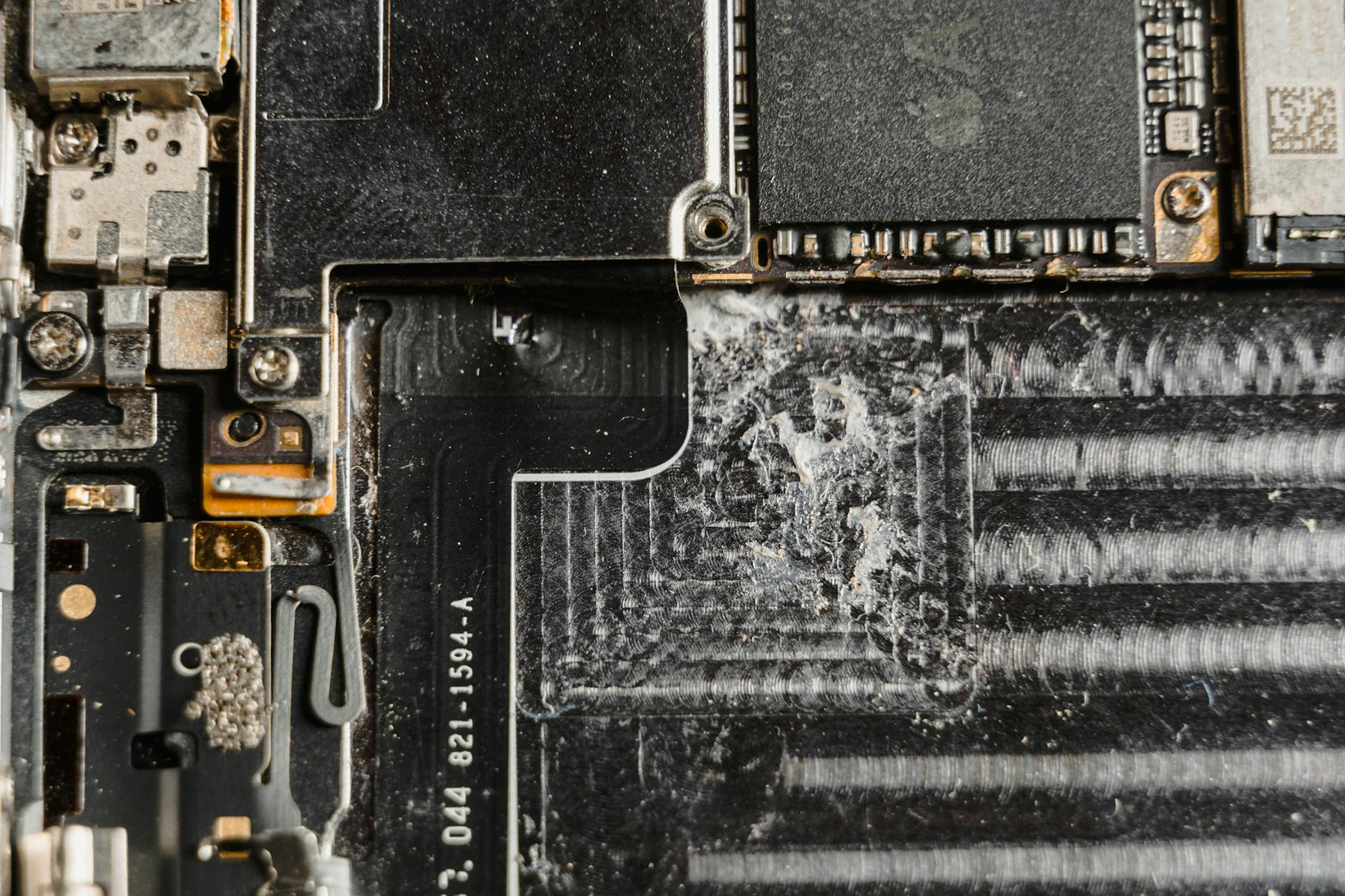
Photo by Tima Miroshnichenko
Some repairs are normal in refurbishment. The concern is a repair done poorly, or a device opened repeatedly.
Practical signs to look for:
- Mismatched screws (different sizes or finishes)
- Stripped screw heads or scratches around screw holes
- Uneven gaps around the screen or back panel
- Slightly lifted edges, especially near corners
- Adhesive residue, smears, or glue shine along seams
- Dust or fingerprints under glass (screen or camera cover)
- One panel that looks a different shade or texture than the rest
- Rattling sounds when lightly shaken
- Sharp edges where a tool may have pried
- A safety note matters here: don’t open the device to “confirm” suspicions. It can be dangerous (battery puncture risk), and it can affect returns.
For more context on what changes are typical between categories, see this guide on refurbished vs used electronics.
Battery and setup checks that reveal real prior use (and what a reset does not prove)
Battery wear is the most common hidden issue because it’s not obvious in photos, and a factory reset doesn’t change it. Batteries also shape daily reliability more than most cosmetic marks.
A refurbished device inspection should treat battery and power behavior as a primary signal, especially on portable electronics.
A reset is still useful, mainly for privacy and clean setup. It just doesn’t confirm part quality, past repairs, or battery age.
Battery health check: what “bad” looks like and quick tests you can run
If the device shows battery health as a percentage, that is the fastest signal. In plain terms, aim for about 85% or higher if a health percentage is available. Under 80% is a concern for many people because runtime drops, and shutdowns under load become more likely.
If the device doesn’t show a health percentage, use behavior tests:
- Charge speed check: it should charge at a steady rate and not stall at low percentages.
- 10 to 15 minutes of heavy use: run a demanding task (video call, high-brightness video, or a game). A steep drop can hint at wear.
- Standby drain: set it down for an hour after setup. A large drop without use can signal background issues or a weak cell.
- Heat in light use: warm is normal, hot during basic browsing is not.
- No swelling: any bulge, screen lift, or creaking back panel is a return-level issue.
If cycle count is available, it helps interpret the story. High cycle count plus low health usually means heavier prior use and a shorter runway ahead.
This also ties into basic safety questions around refurbished devices. A plain-language overview is here: is refurbished tech safe to buy.
Factory reset refurbished device: what it proves, and what it does not
Seeing the welcome setup screen is a good sign. It often means the device was wiped and is ready for a new owner. It does not prove the battery is healthy, that repairs were done well, or that internal parts match original specs.
A quick setup checklist:
- Confirm the device is not account-locked during activation.
- After setup, check that storage capacity looks normal for the model.
- Look for unexpected restrictions, management profiles, or admin controls that shouldn’t be there on a personal device.
- Verify that basic updates install normally (failed updates can hint at storage or system issues).
Treat the reset as a privacy and readiness check, not a quality certificate.
Before you accept it: the first 30 minutes test plan, documentation, and return decisions
This section focuses on how to check refurbished device condition quickly and calmly, before the return window shrinks. The first half hour often reveals issues that won’t improve with time.
Keep packaging and included materials nearby. If a return is needed, re-packing is simpler when nothing is thrown away.
A broader set of device checks lives in the site’s buying guide hub: https://techbasics101.com/tech-buying-guides/.
First 30 minutes tests: screen, sound, ports, cameras, wireless, and sensors
Run these checks in a quiet room with stable Wi Fi if possible:
- Screen uniformity: raise brightness, view a white and dark screen, look for bright spots or uneven areas.
- Touch edges: drag an icon or scroll near all edges and corners, dead zones show up fast.
- Speakers and mic: record a short voice clip, play it back, then test a call or voice chat.
- Cameras: test focus near and far, switch modes, check for haze or constant blur.
- Port fit: plug in power and any data cable, confirm a firm click and no wiggling.
- Headphone audio (if applicable): listen for crackle, channel imbalance, or loose jack contact.
- Wi Fi and Bluetooth: connect, stream for a few minutes, confirm it doesn’t drop repeatedly.
- Cell signal (if applicable): check basic connection and a short call.
- Biometric login (if present): enroll and unlock several times, failures can point to sensor damage.
- Performance and stability: open several apps, watch for random freezes or unexpected restarts.
- Heat check: after 10 minutes of normal use, the device shouldn’t feel hot in one spot.
If there is any unexpected reboot or a repeating crash pattern, that belongs in the documentation folder right away.
What to document for returns and when to return it
Returns go smoother when proof is clear and time-stamped. Documentation also protects buyers from arguments about “damage after delivery.”
What to capture:
- A short unboxing video (even 30 seconds helps)
- Photos of the serial label and any ID labels (including IMEI when present)
- Close-ups of dents, gaps, lifted edges, and port areas
- Screenshots of battery health, cycle count, and any warning messages
- Short videos showing issues like flicker, dead touch zones, speaker crackle, or port wiggle
- A dated note with what was tested, what failed, and how often it happens
- Normal for refurbished often includes: light cosmetic marks, non-retail packaging, and accessories that look generic but function safely.
Return it when there is swelling, overheating in light use, fast drain, screen defects, loose ports, rattles, missing parts that were promised, account lock, or repair signs paired with functional problems. When in doubt, don’t let the return window expire while “hoping it settles.”
FAQs about checking a refurbished device for prior use
Is it normal for a refurbished device to have small scratches?
Yes, small scratches and scuffs are common, depending on the listed grade. The line is crossed when marks affect use, like deep screen scratches that catch a fingernail or dents that distort ports and buttons.
Can a device look new but still be heavily used?
Yes. A clean shell can hide a worn battery and internal wear. That’s why battery behavior and stability tests often matter more than the exterior.
What battery health percentage should I expect on refurbished devices?
If a health percentage is shown, many buyers expect around 85% or higher. Under about 80% is often treated as a return threshold, but policies and expectations vary by seller and category.
What is battery cycle count, and what number is too high?
Cycle count tracks how many full charge cycles a battery has gone through. There’s no single “too high,” but higher cycles plus lower health usually signals heavier prior use and less remaining life.
Does a factory reset mean the device was properly refurbished?
No. A reset mainly proves the device is wiped and ready for setup. It does not confirm battery condition, repair quality, or whether parts were replaced.
How can I tell if the device was opened for a repair?
Look for stripped or mismatched screws, uneven gaps, lifted edges, adhesive residue, dust under glass, and panels that don’t match in color or finish. Rattles and sharp pry marks also stand out.
What if the charger or cable looks cheap or different?
Third-party accessories are common with refurbished items. It can be fine if the fit is secure and charging stays cool and stable. Treat it as a red flag if the plug feels loose, the cable heats up, or safety markings are missing.
If something feels off, should I keep testing or return right away?
Document first, then run the key 30-minute checks to confirm the pattern. Don’t keep testing past the point where a major red flag is clear, especially if the return window is short.
Conclusion
Most refurbished devices were used before, so the practical question is how much wear shows up, and whether the device behaves like it was tested and reassembled with care. Cosmetic marks often mean little, while battery health, heat, unstable ports, screen defects, and repair clues carry real risk. A simple process helps: inspect the body, verify battery behavior, confirm setup is clean, then run the first 30-minute tests and document results while returns are still possible. That combination is the safest answer to how to know if a refurbished device was used before.