Windows 11 After Update Problems? The Complete 2026 Fix Hub
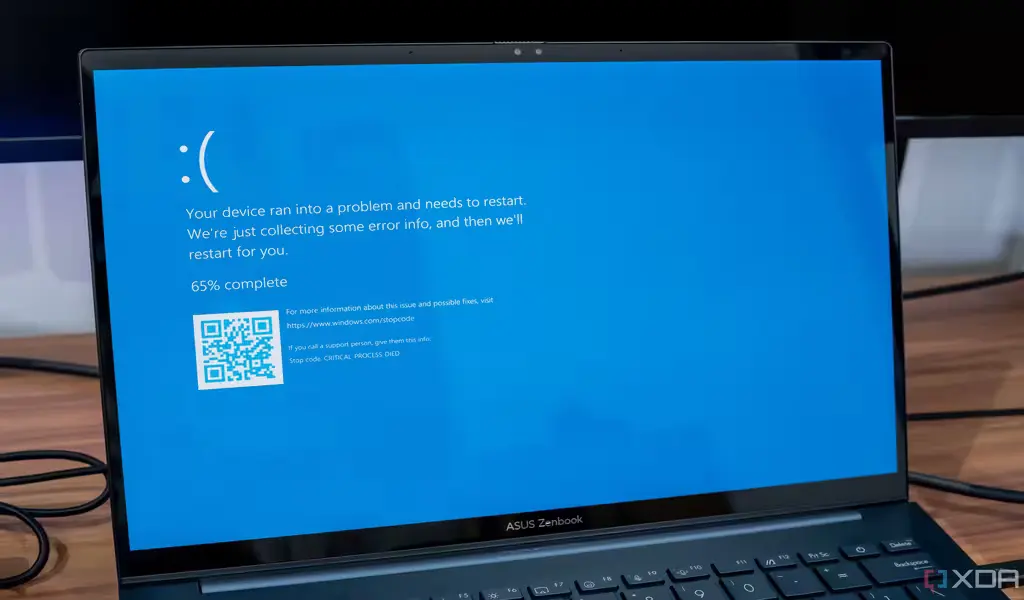
You installed a Windows 11 update, and now something is wrong. Maybe the Start menu won’t open. Maybe the screen is black. Maybe the taskbar vanished, the Wi-Fi keeps dropping, or the whole system just feels slower than it did yesterday. None of this is rare, and none of it means your PC is dying.
Windows 11 updates touch a huge number of shared system components at once — the shell, the network stack, the update service itself, sometimes the boot files. When one of those components doesn’t come back cleanly, the symptoms show up in completely different places, even though the root cause is often the same handful of things. This page exists to do two jobs: point you to the exact fix for your specific symptom, and explain the patterns behind why this keeps happening, so you’re not starting from zero every time an update ships.
Every guide linked below is based on hands-on testing, real user reports from Reddit and Microsoft’s own forums, and current Windows servicing data — not generic troubleshooting theory recycled from a decade-old article.
First, Check This: Windows 11 Now Has a Built-In Undo Button
Before you touch anything else, it’s worth knowing that Windows 11 quietly gained a genuinely useful safety net this year. Point-in-time restore rolled out broadly through 2026 and is enabled by default on Windows 11 Home and Pro machines with 200GB or more of storage. Unlike the old System Restore, it captures a snapshot of your entire system state — OS, apps, settings, and local files — roughly every 24 hours, and keeps each snapshot for 72 hours before it’s automatically deleted.
If something broke within the last three days, this is worth trying first:
- Open Settings > System > Recovery.
- Select Point-in-time restore, then View or edit.
- If it’s off, turn it on. If a restore point already exists from before your problem started, you can roll back to it in minutes, through the Windows Recovery Environment, without a full reinstall.
It won’t help with something that’s been broken longer than 72 hours, and it’s not a substitute for backing up files you can’t lose. But for the specific situation of “this update broke something and I want it back the way it was yesterday,” it’s the fastest option Windows has ever shipped natively.
What’s Actually Going On With Windows 11 Updates Right Now (July 2026)
Some context helps explain why this page exists in the first place. The July 2026 cumulative update, KB5101650, shipped as part of Patch Tuesday on July 14 and carried an unusually large security payload — Microsoft patched several hundred vulnerabilities in that single release, touching core components including the kernel, Remote Desktop, File Explorer, and Secure Boot. A release that large, touching that many subsystems, is exactly the kind of update where side effects show up in places nobody expected.
Within days, Microsoft had to ship an out-of-band emergency fix, KB5121767, after a subset of Dell PCs started shutting down unexpectedly, overheating, or draining battery — a regression traced back to a driver component involved in Intel processor power management. That fix replaced the July update specifically on affected machines. It’s a useful reminder that even Microsoft doesn’t always catch every interaction before release, and that checking Windows Update > Update history for your exact installed KB number is genuinely the fastest way to match your problem to a known cause.
If you’re unsure which article on this page applies to you, start with your Windows Update history and the KB number listed there, then match your symptom below.
Match Your Symptom to the Right Fix
| What’s happening | Where to go |
|---|---|
| Start menu won’t open, or search won’t accept typed input | Start Menu or Search Not Working After Update |
| Update is frozen at a percentage, or fails with an error code | Windows 11 Update Stuck or Failed to Install |
| Taskbar has disappeared, or Start/Settings won’t respond | Taskbar Not Working After Update |
| Screen is black, with or without a visible cursor | Black Screen After Update |
| Wi-Fi disconnects repeatedly, or won’t hold a connection | Wi-Fi Keeps Disconnecting After Update |
| Everything feels sluggish — typing, scrolling, opening apps | Windows 11 Running Slow After Update |
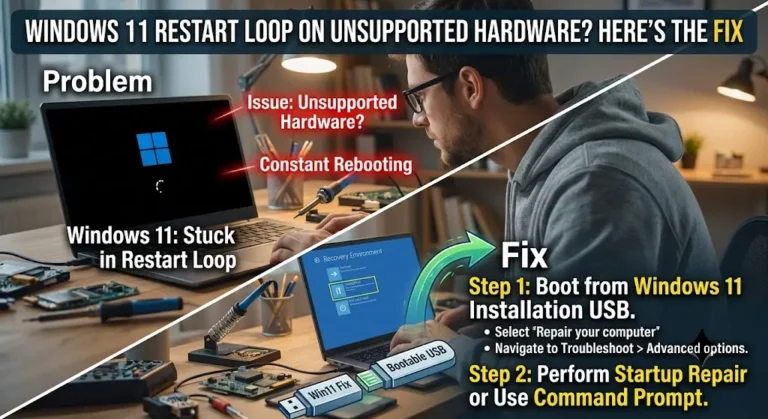
| PC restarts in a loop and never finishes booting | Stuck in Restart Loop on Unsupported Hardware |
| Feature updates never arrive, even though monthly patches do | Updates Not Installing on Unsupported PC |
| Windows 11 in general feels heavier than Windows 10 did | Why Windows 11 Feels Slower Than Windows 10 |
| You haven’t installed Windows 11 yet, and your CPU isn’t on the supported list | How to Install Windows 11 on Unsupported CPU |
Why the Same Few Causes Keep Showing Up
Read enough of these guides back to back and a pattern emerges: five underlying failure points explain most post-update problems on Windows 11, regardless of which symptom you’re seeing.
Explorer.exe doesn’t restart cleanly. Explorer.exe drives the taskbar, Start menu, desktop icons, and File Explorer all at once. Updates tear this process down and rebuild it, and when that rebuild goes wrong, you get a black screen with a cursor, a missing taskbar, or a Start button that looks fine but does nothing. This single process explains a surprising share of the guides linked above, and restarting it through Task Manager is almost always worth trying first, no matter which specific symptom brought you here.
AppX packages fail to re-register. The Start menu and Shell Experience Host run as Windows app packages, not classic programs. When an update doesn’t re-register them correctly, the visual element stays on screen but stops responding to input. The PowerShell re-registration command that appears in several guides on this site — running Get-AppxPackage piped to Add-AppxPackage — exists specifically to force this re-registration.
Drivers get overwritten with generic versions. Windows Update frequently replaces a manufacturer’s WiFi, GPU, or chipset driver with a generic in-box version during a cumulative update. That generic driver often lacks power-management or feature support specific to your hardware, which is why Wi-Fi drops, animations stutter, or a second monitor stops working right after an update — even though nothing about your hardware changed. Going directly to the manufacturer’s driver page, rather than trusting Device Manager’s automatic search, resolves this more often than any other single fix across every guide on this page.
Background services get reset to defaults. Power management settings, network profile types (Public vs. Private), and indexing behavior all get touched during major updates. A Wi-Fi adapter that’s allowed to power down to save energy, or a home network that got reclassified as Public, produces symptoms that look like a deeper fault but are really just a toggle switched back to its default state.
Unsupported hardware amplifies everything above. If your CPU isn’t on Microsoft’s officially supported list, every one of the causes above becomes more likely and harder to predict, because you’ve removed a layer of validation Windows normally relies on. Feature updates can silently stop arriving, cumulative updates can re-trigger a hardware check your original bypass didn’t fully disable, and driver support for older chipsets is thinner to begin with. If your PC runs on unsupported hardware, treat that as your starting assumption for any post-update issue, not an afterthought.
Before You Dive Into a Specific Guide, Try This
Regardless of which symptom sent you here, these four checks take under five minutes combined and resolve a meaningful share of cases on their own:
- Open Task Manager (Ctrl + Shift + Esc) and restart Windows Explorer from the Processes tab. This alone fixes a large share of Start menu, taskbar, and black-screen-with-cursor cases.
- Check Settings > Windows Update > Update history for the exact KB number and error code tied to your problem. Matching your specific update to known issues (like KB5101650 or KB5121767 this cycle) narrows down the cause immediately, instead of guessing.
- Check whether Point-in-time restore has a snapshot from before the problem started (see above). If it does, this is usually faster than working through a multi-step manual fix.
- If you’re on unsupported hardware, confirm that before assuming a driver or software conflict — the fix path is often different, and the dedicated guides above account for that.
A Note on Prevention
Every guide on this site repeats a version of the same advice, because it’s the single highest-leverage habit for avoiding this entire category of problem: don’t install a cumulative update the day it ships. Waiting two to three days lets other users surface the bugs first — as happened publicly with the Dell shutdown issue in July 2026 — and gives Microsoft a window to ship a fix before it reaches you. Pairing that with an enabled Point-in-time restore setup, and pulling GPU, Wi-Fi, and chipset drivers directly from the manufacturer rather than Windows Update, covers most of what these guides exist to fix after the fact.
Frequently Asked Questions
Why does one Windows 11 update seem to break so many different things at once?
A single cumulative update touches many shared system components in one pass — Explorer, the network stack, driver packages, security services. When one component fails to update cleanly, it can produce symptoms in the taskbar, search, Wi-Fi, or display, even though there’s only one underlying cause. That’s why matching your symptom to the right guide, and checking your specific KB number, matters more than trying generic fixes at random.
Is it my hardware, or is this a Windows problem?
If the issue started right after installing an update, on a PC that worked fine before, it’s almost always software, not hardware. A reliable test: boot into Safe Mode. If the problem disappears there, the fault lies with a driver or a third-party app, not the underlying hardware.
Should I just roll back the update?
It’s a legitimate option, not a last resort, especially if a specific KB is confirmed to cause your exact symptom. Go to Settings > Windows Update > Update history > Uninstall updates, remove the most recent one, then pause updates for a few weeks so Microsoft has time to ship a corrected version before it reinstalls.
My exact problem isn’t listed here. What do I do?
Check Settings > Windows Update > Update history for your KB number and search it directly — a fast-moving issue like the Dell shutdown problem in July 2026 can appear and get an emergency fix within days, faster than any single guide can be rewritten. If nothing matches, the general fixes in this hub (Explorer restart, Point-in-time restore, manufacturer drivers) resolve a wide range of problems that don’t fit a named category.
This hub is maintained alongside the individual guides linked above and updated as new Windows 11 updates introduce new issues. If you’ve found a fix that worked for you and isn’t covered here, let us know — real solutions help real people.

Related Articles