PDF to eBook Converter Online – How to Convert PDF to EPUB Step by Step
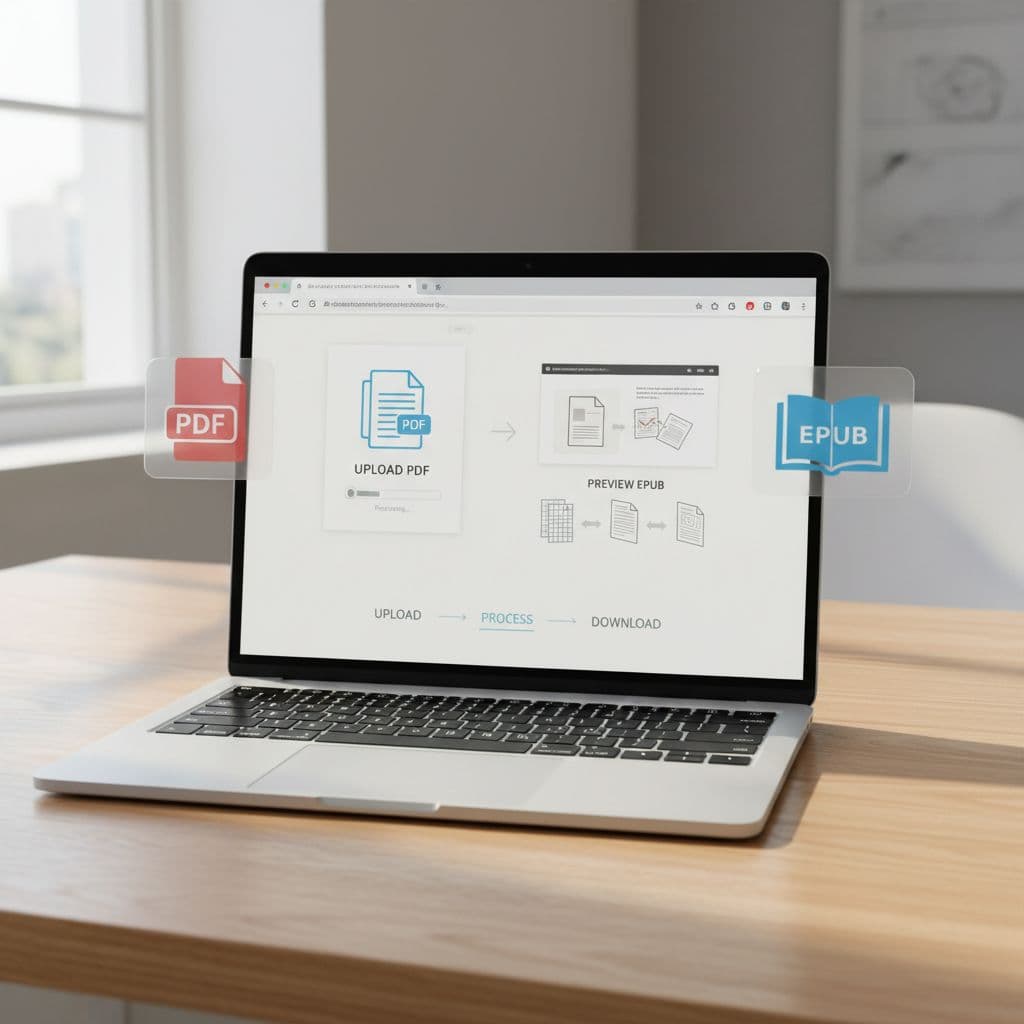
Converting a PDF into a clean, professional eBook often feels broken from the start. Headings flatten, images jump around, tables fall apart, and the book becomes hard to read on phones. A smart PDF to eBook Converter workflow can fix much of this and help you convert PDF to EPUB without losing format as badly as basic one-click tools.
This guide explains how bloggers, authors, course creators, VAs, marketers, and educators can move from PDF to EPUB, MOBI, AZW3, and KPF in a controlled way. It covers free and paid tools, including Calibre, iLovePDF, CloudConvert, CleverPDF, Sigil, and Kindle tools, plus a final checklist for a publish-ready eBook.
PDF to eBook Converter guide to convert PDF to EPUB, AZW3, and KPF without losing format. Step-by-step workflows, free and paid tools, tips, and FAQs for clean, readable eBooks.
Quick Answer: How to Convert a PDF to an eBook in a Few Simple Steps
For many projects, a short workflow is enough. The steps below are suitable as a quick reference.
-
\t
- Export your PDF to DOCX in Adobe Acrobat or Word if possible, then clean headings and spacing.
- Import that DOCX or the PDF into Calibre, your main PDF to eBook Converter, and set EPUB as the output.
- Turn on heuristic processing and chapter detection in Calibre to fix line breaks and build a basic table of contents.
- Run the same file through one online tool, for example, CloudConvert or iLovePDF, to compare output or get another version.
- When you are happy with the EPUB, convert it to AZW3 or KPF for Kindle, then test on Kindle Previewer to convert PDF to EPUB without losing format too much.
\t
\t
\t
\t
This quick path handles many simple and medium projects, but more complex PDFs need a deeper workflow.
What Is a PDF to eBook Converter and Which Formats Can You Create?

A PDF to eBook converter is software or an online service that takes a PDF and outputs an eBook file. The most common outputs are EPUB, MOBI, AZW3, and KPF.
These formats are designed for reading on phones, tablets, and e-readers. Text can be resized, pages reflow, and readers can change fonts. This is very different from PDF, which is locked to a page size.
Many tools advertise as PDF to ebook converter free. Output quality, however, varies a lot. A good result depends on both the tool and the source file.
Key features of a solid converter:
-
\t
- Support for EPUB 3, the modern standard
- Handling of images and basic fonts
- Support for headings, links, and table of contents
- Better accessibility, such as screen reader support and resizable text
\t
\t
\t
This is why pressing a single convert button rarely gives store-ready output. The workflow and prep work matter.
Common eBook Formats: EPUB, MOBI, AZW3, and KPF Explained
The main formats you see when you create eBook from PDF free or with paid tools are:
-
\t
- EPUB:
Open standard, used by Apple Books, Kobo, Google Play Books, and many apps.
Best choice for most non-Kindle stores and general readers.
When people say PDF to EPUB, they usually mean this. - MOBI:
Older Kindle format. Amazon no longer recommends MOBI for publishing.
Still used by some users for sideloading, but not for new store uploads. - AZW3:
Newer Kindle format used on many Kindle devices.
A common step when you create a Kindle eBook from PDF using Calibre. - KPF:
Format produced by Kindle Create.
Used mainly for upload to Kindle Direct Publishing (KDP).
\t
\t
\t
General rule:
-
\t
- For Apple Books or Kobo, output EPUB.
- For Kindle store, upload EPUB or KPF.
- For personal Kindle use, AZW3 works well.
\t
\t
You can use a desktop e-book converter app or an online tool to go from PDF to EPUB, then to Kindle formats.
Reflowable vs Fixed Layout: Which One Should You Choose for Your eBook?
Layout choice affects almost everything.
Reflowable layout:
-
\t
- Text adjusts to screen size.
- Readers can change font size and style.
- Works best for novels, guides, blog collections, and most course handouts.
- Example: A simple text-only PDF export of a blog series.
\t
\t
\t
Fixed layout:
-
\t
- Pages keep the original design.
- Good for comics, magazines, workbooks, and design-heavy textbooks.
- Often better on tablets than on phones.
- Example: A magazine-style PDF with sidebars, multi-column text, and layered images.
\t
\t
\t
Many PDF to eBook converter tools struggle with complex layouts. Multi-column PDFs, heavy sidebars, and layered text can confuse PDF reflow and lead to broken paragraphs and poor reading on small screens.
EPUB 3 supports both reflowable and fixed layouts. It also supports accessibility features, such as:
-
\t
- Table of contents and internal navigation
- Alt text on images
- Landmarks for main sections
\t
\t
For most authors and course creators, reflowable EPUB 3 is the best target. Brands and catalogs sometimes need fixed layout or even high-quality PDF instead.
Why Turning a PDF Into an eBook Is Hard (And How to Fix the Problems)
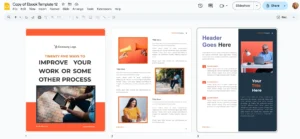
PDF is a print-first format. It was designed to show the same page on every device.
This causes problems when you try to make a flexible eBook:
-
\t
- No real headings or semantic structure
- Scanned PDFs that are only images
- Broken line breaks inside sentences
- Hard hyphenation at the end of lines
- Multi-column layouts that confuse converters
- Complex tables and mixed fonts
\t
\t
\t
\t
\t
To reduce these problems before running any PDF to eBook Converter, use this approach:
-
\t
- Run OCR if the PDF is scanned.
- Export the PDF to DOCX.
- Clean headings and lists.
- Fix spacing and broken lines.
- Apply styles, such as Heading 1 and Heading 2.
\t
\t
\t
\t
If you still have the original Word, Google Docs, or InDesign file, use that as your source instead of the PDF. That source often converts to EPUB 3 much more cleanly.
Typical PDF Conversion Problems: Broken Layout, Line Breaks, and Missing Images
After conversion, many users see the same problems:
-
\t
- Random line breaks in the middle of sentences
- Words with hyphens that should not be there
- Headings that look like body text
- Images missing or shifted to odd positions
- Tables stretched or collapsed into a single column
\t
\t
\t
\t
A simple text-only PDF, such as a single column report, usually converts better. A magazine-style PDF with two columns, pull quotes, and design boxes often breaks PDF reflow and results in messy paragraphs.
The more complex the layout, the more manual cleanup is needed.
Prepping Your PDF: OCR, DOCX Export, and Cleaning Styles Before You Convert
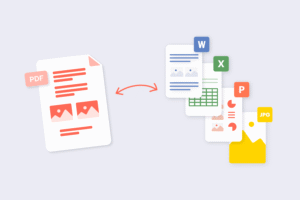
A strong prep workflow improves conversion more than any setting.
-
\t
- Run OCR for scanned PDFs
If the PDF is a scan, use OCR so text is selectable.
Options include Adobe Acrobat, Google Drive OCR, or other OCR tools. - Export PDF to DOCX
Use Acrobat, Microsoft Word, or a trusted converter to produce DOCX.
Avoid unknown sites if the document is sensitive. - Clean the DOCX file
-
\t
- Remove extra line breaks inside paragraphs.
- Fix hyphenated words at line ends.
- Use true Heading 1, Heading 2, and Heading 3 styles.
- Fix lists with proper bullets and numbers.
\t
\t
\t
- Fix images and alt text
Make sure each image appears in the right place.
Add alt text if possible, for accessibility. - Save the cleaned DOCX
Use this file with your PDF to ebook converter free tool instead of the raw PDF.
\t
\t
\t
\t
This step takes time but produces far better EPUB files.
When You Should Avoid PDF and Use the Original Source File Instead
Sometimes the best option is to skip PDF completely.
Use the original source file if you have it:
-
\t
- Word or Google Docs for simple text-first books.
- Apple Pages or Adobe InDesign for design-heavy books.
\t
A clean DOCX or InDesign file with proper headings and styles will export to EPUB 3 with fewer issues than a flattened PDF. This is important for store uploads where layout problems hurt reviews and sales.
Step-by-Step: Convert a PDF to an eBook for Free With Calibre
Calibre is one of the most widely used free tools for eBooks. It works offline, which helps privacy, and gives more control than most online PDF to ebook converter free sites.
You can download Calibre from the official page at https://calibre-ebook.com/download.
This section focuses on Calibre PDF to EPUB and AZW3 workflows.
Download and Set Up Calibre as Your Main PDF to eBook Converter
Basic setup:
-
\t
- Download Calibre for Windows, macOS, or Linux from the official site.
- Install and open the app.
- The main window shows your library list, book details, and top toolbar.
- The “Add books” button imports PDFs or DOCX files.
- The “Convert books” button starts the format conversion.
\t
\t
\t
\t
Calibre can also send books to Kindle or Kobo devices by USB or email.
The interface may feel busy at first, but it gives more control than most simple web tools.
Convert PDF to EPUB in Calibre Without Losing Formatting
A practical workflow to convert PDF to EPUB without losing format too badly:
-
\t
- Add the source file
Import the cleaned DOCX or PDF into Calibre using “Add books.” - Open the convert window
Select the book, then click “Convert books.” - Set EPUB as output
Choose “EPUB” in the top right output format list. - Turn on heuristic processing
In the left menu, open “Heuristic processing” and tick “Enable heuristic processing.”
This helps remove bad line breaks and fix hyphenation. - Configure structure detection
Open “Structure detection.”
Use patterns based on Heading 1 or chapter markers, such as “Chapter” at the start of a line, so Calibre can detect chapters. - Adjust table of contents settings
Use the “Table of contents” tab to auto-generate entries from headings.
Edit or remove wrong entries as needed. - Convert and review
Click OK to convert.
When finished, open the EPUB in Calibre’s viewer and scan for layout, images, and TOC.
\t
\t
\t
\t
\t
\t
No tool can perfectly copy a complex PDF layout, but these steps reduce problems.
Set Metadata, Cover, and Table of Contents for a Professional-Looking eBook
Good metadata and navigation improve reading and store performance.
In Calibre:
-
\t
- Right-click the book, choose “Edit metadata.”
- Set title, author, series, language, publisher, and description.
- Add keywords if you plan to publish in stores.
- Add or change the cover image.
\t
\t
\t
A clear table of contents also matters:
-
\t
- In the convert window, use the TOC tab to adjust entries.
- Remove duplicates or wrong items.
- Ensure each major section starts in the right place.
\t
\t
These steps help your eBook look professional in Kindle, Apple Books, and Kobo.
Create a Kindle eBook From a PDF Using Calibre (AZW3 Workflow)
To get a Kindle eBook from PDF using Calibre:
-
\t
- Follow the steps above to create a clean EPUB from the PDF or DOCX.
- In Calibre, select the EPUB and choose “Convert books.”
- Pick AZW3 as the output format.
- Convert and then open the AZW3 in Calibre’s viewer to check layout.
- Sideload the AZW3 to a Kindle device or app for real-world testing.
\t
\t
\t
\t
For publishing through KDP, you will usually upload EPUB or KPF. AZW3 is more for personal use and testing.
How to Turn a PDF Into an eBook Online: iLovePDF, CloudConvert, and CleverPDF
Some users prefer browser tools. These can be quick and do not require installs.
This section compares three popular PDF to ebook converter free or freemium tools:
-
\t
- iLovePDF
- CloudConvert
- CleverPDF
\t
\t
They are best for small or simple files. For large or sensitive books, offline tools are safer.
Convert PDF to EPUB Online With iLovePDF (Fast and Simple)
iLovePDF offers many simple PDF tools, including iLovePDF PDF to EPUB conversion, at https://www.ilovepdf.com/.
Basic steps:
-
\t
- Open the PDF to EPUB tool on iLovePDF.
- Upload your PDF from your computer or cloud storage.
- Start the conversion process.
- Download the EPUB file when it finishes.
\t
\t
\t
Pros:
-
\t
- Easy to use.
- Good for short, text-heavy PDFs like lead magnets or short guides.
- No install needed.
\t
\t
Cons:
-
\t
- Limited layout control.
- Free plan has file size and daily limits.
- Formatting quality drops with complex layouts, tables, and multi-column pages.
\t
\t
It works as a quick PDF to ebook converter free for simple jobs.
Use CloudConvert for Higher-Quality PDF to EPUB and Kindle Formats
CloudConvert supports many formats, including CloudConvert PDF to EPUB and AZW3.
Typical workflow:
-
\t
- Go to the PDF to EPUB converter on CloudConvert.
- Upload the PDF from your computer, URL, or cloud storage.
- Set output to EPUB or AZW3.
- Open advanced options to adjust quality, page range, and more if needed.
- Convert and download the finished file.
\t
\t
\t
\t
Advantages:
-
\t
- Often preserves images better than basic tools.
- Many output options, including Kindle formats.
- Advanced settings for fine-tuning.
\t
\t
Limitations:
-
\t
- Free plan has conversion minutes and size limits.
- Files upload to their servers, which can be a concern for confidential content.
\t
CloudConvert is a strong choice when you want more control without desktop software.
CleverPDF PDF to EPUB: Quick Online Conversion for Simple Documents
CleverPDF PDF to EPUB works similarly to iLovePDF:
-
\t
- Open the PDF to EPUB page on CleverPDF.
- Upload the PDF.
- Start the conversion.
- Download the EPUB file.
\t
\t
\t
Use cases:
-
\t
- Short manuals and basic ebooks for email signups.
- Text-heavy documents without complex tables or designs.
\t
It can struggle with multi-column layout, sidebars, and large tables. Testing a sample chapter in several tools is a good way to compare output.
Online vs Offline PDF to eBook Tools: Privacy, Limits, and Use Cases
Key differences:
-
\t
- Online tools (iLovePDF, CloudConvert, CleverPDF, ToEPUB, FreeConvert)
-
\t
- Good for small, non-sensitive files.
- Quick and easy for occasional use.
- Often have file size and daily limits.
- Data goes through remote servers.
\t
\t
\t
- Offline tools (Calibre, Sigil, PDFelement, desktop apps)
-
\t
- Better for sensitive or client documents.
- More reliable for large or complex books.
- No daily upload limits.
- Require installation and some learning.
\t
\t
\t
\t
Simple rule:
Use online tools for small public PDFs. Use offline tools and a full workflow for ebooks you plan to sell or distribute widely.
Pro Workflow: From PDF to Clean DOCX to EPUB 3 for Store-Ready eBooks
For serious publishing, a more careful workflow gives better results.
Core steps:
-
\t
- Convert the PDF to an editable DOCX.
- Clean the DOCX with proper styles and structure.
- Export or convert to EPUB 3 with Calibre, then refine with Sigil if needed.
\t
\t
This approach fits projects going to Kindle, Apple Books, and Kobo.
Convert PDF to DOCX and Clean the Document Before You Create an eBook
A clean DOCX is the single most important step.
Actions:
-
\t
- Use Adobe Acrobat, Microsoft Word, or a reliable converter to turn the PDF into DOCX.
- In Word, remove extra breaks and fix broken paragraphs.
- Apply Heading 1, Heading 2, and Heading 3 styles.
- Clean bullet and numbered lists, so they are true lists.
- Normalize fonts and font sizes across the document.
- Check image placement and add alt text.
\t
\t
\t
\t
\t
Save this DOCX as the main source file for your eBook. It will convert to EPUB 3 with fewer issues in any best PDF to EPUB converter workflow.
Export a High-Quality EPUB 3 and Refine It With Sigil or Calibre
Once the DOCX is ready:
-
\t
- Import it into Calibre and convert to EPUB (preferably EPUB 3).
- Open the EPUB in Sigil if you need deeper edits.
- In Sigil, correct headings, links, and any broken tables.
- Repair or rebuild the table of contents.
- Save and test the EPUB in multiple readers.
\t
\t
\t
\t
The Calibre plus Sigil combination is a strong free path to create store-ready ebooks from PDF sources.
Design-Heavy Books: Fixed Layout EPUB for Apple Books and Tablets
Some books are too visual for clean reflowable output:
-
\t
- Cookbooks with complex layouts
- Magazines and catalogs
- Photo-heavy guides and textbooks
\t
\t
For these, fixed layout vs reflowable is a key decision.
If you have the original InDesign or Pages file, export a fixed-layout EPUB directly. This keeps the design and avoids a messy conversion from PDF.
Trying to turn a design-heavy PDF into a reflowable EPUB often produces poor reading on phones. In such cases:
-
\t
- Use fixed-layout EPUB for tablets.
- Offer a separate high-quality PDF.
- Keep reflowable editions for light versions of the same content.
\t
\t
Make It Look Right: No-Format-Loss Tips for PDF to eBook Conversion
A strong workflow reduces format loss, no matter which PDF to eBook Converter you use.
Focus on text structure, images, and metadata.
Clean Up Text: Remove Bad Line Breaks, Hyphens, and Fake Headings
Simple text cleanup steps:
-
\t
- Use find-and-replace in Word to remove manual line breaks inside paragraphs.
- Fix words that still have hyphens from line ends.
- Change large bold lines into true heading styles.
- Convert fake lists, where each line starts with a dash, into real bullet lists.
\t
\t
\t
This gives the converter a clear structure, which improves reading on phones and e-readers.
Handle Images, Tables, and Fonts So They Work on Phones and eReaders
Guidelines for media:
-
\t
- Resize and compress large images to suit typical e-reader screens.
- Avoid small text inside images, since it does not scale well.
- Keep tables simple, with one header row and no complex merged cells.
- Convert very complex tables or infographics into images with clear alt text.
- Use basic fonts and do not rely on custom typography, since many readers ignore embedded fonts.
\t
\t
\t
\t
These changes improve speed and readability on older devices.
Build a Clear Table of Contents and Set Proper Metadata
A clear table of contents and accurate metadata help discovery and navigation.
Steps:
-
\t
- In Word, use heading levels consistently.
- During conversion, let Calibre generate the TOC from these headings.
- Use Calibre’s TOC editor to fix wrong or missing entries.
- Set title, author, series, language, publisher, description, keywords, and ISBN (if you have one).
\t
\t
\t
Good metadata helps stores like Amazon, Apple, and Kobo categorize your book and helps readers find it.
Optimize File Size and Accessibility for EPUB 3 eBooks
To optimize EPUB 3 output:
-
\t
- Compress large images and remove unused graphics.
- Avoid many embedded fonts or large background images.
- Clean unused styles and extra code.
- Add alt text for images.
- Maintain a logical heading structure.
- Mark lists and links correctly.
\t
\t
\t
\t
\t
Better accessibility supports screen readers and improves reading for learners and users with disabilities.
Kindle-Specific Workflow: From PDF or EPUB to KPF and AZW3
Many readers want a Kindle eBook from PDF. The safest path:
-
\t
- Convert PDF to a clean DOCX.
- Turn DOCX into EPUB with Calibre.
- Test EPUB in Kindle Previewer.
- Use Kindle Create if needed and output KPF.
- Upload EPUB or KPF to KDP.
\t
\t
\t
\t
Use Kindle Previewer to Test Your Converted eBook on Real Devices
Kindle Previewer lets you see how your book looks on various screens.
Workflow:
-
\t
- Convert the cleaned PDF or DOCX to EPUB with Calibre or an online tool.
- Open Kindle Previewer and load the EPUB.
- Switch between phone, tablet, and e-ink views.
- Check headings, spacing, images, and TOC.
- Fix issues in Calibre or the DOCX, then re-export and re-test.
\t
\t
\t
\t
Testing catches problems before readers do.
Kindle Create and KPF: Turn Your EPUB Into a Store-Ready Kindle eBook
Kindle Create can import DOCX, some PDFs, or EPUB files.
Usage:
-
\t
- Import a clean DOCX or EPUB rather than a raw PDF.
- Let Kindle Create detect chapters and front matter.
- Adjust page breaks so each chapter starts on a new screen.
- Apply simple styling and preview the result.
- Export KPF and upload to KDP.
\t
\t
\t
\t
KDP now prefers EPUB or KPF, not MOBI, for new uploads.
Common Kindle Formatting Issues and How to Fix Them
Typical problems and fixes:
-
\t
- First lines not indented: Fix paragraph styles in Word or Calibre and reconvert.
- Too much space between paragraphs: Remove extra spacing in the source and use consistent styles.
- Chapters not starting on new screens: Add page breaks before each chapter in DOCX or Calibre.
- Images too big or too small: Resize to a reasonable width and test in Kindle Previewer.
- Missing or broken TOC: Use proper heading styles and rebuild the TOC in Calibre.
- Cover not showing correctly: Use KDP’s cover size guidelines and replace low-resolution images.
\t
\t
\t
\t
\t
Tool Comparison: Best PDF to eBook Converters for Different Needs
Different tools suit different types of projects. There is no single best PDF to EPUB converter for all PDFs.
Comparison Table: Popular PDF to eBook Tools
| Tool | Type | Best For | Pros | Cons |
|---|---|---|---|---|
| Calibre | Desktop | Text-first books, full control | Free, powerful, metadata and TOC tools | Learning curve, mixed results on complex PDFs |
| iLovePDF | Online | Short, simple PDFs | Fast, easy, no install | Limited control, free plan limits |
| CloudConvert | Online | Medium projects, better layout | Many formats, advanced options | Rate limits, privacy concerns for sensitive docs |
| CleverPDF | Online | Basic manuals and guides | Simple interface, quick jobs | Struggles with complex layouts |
| Sigil | Desktop | Fine-tuning EPUB structure | Direct EPUB editing | Technical for beginners |
| Kindle Previewer | Desktop | Testing Kindle formats | Device previews, QA tool | Not a converter by itself |
| Kindle Create | Desktop | Preparing Kindle KPF for KDP | Guided workflow, clean KPF output | Limited design control, best with clean source |
This table helps pick a primary tool or workflow based on document complexity and privacy needs.
Free vs Paid PDF to eBook Converters: When It Makes Sense to Pay
Free tools handle many text-first ebooks:
-
\t
- Blog collections
- Short lead magnets
- Internal reports
\t
\t
Paid tools or pro services make sense when:
-
\t
- You work with heavy OCR needs or many scanned PDFs.
- Layouts use complex tables, math, or brand design.
- You handle confidential client content and want secure, offline tools.
\t
\t
Privacy is a key factor. For sensitive documents, avoid random free sites and prefer offline software or trusted paid services.
Which PDF to eBook Workflow Should You Use? Quick Recommendations
Practical guidance:
-
\t
- Simple text PDFs: Clean in Word, then use Calibre, or combine iLovePDF with Calibre cleanup.
- Better quality without installs: Use CloudConvert and test multiple outputs.
- Full control for store publishing: PDF to DOCX, clean styles, Calibre to EPUB 3, refine in Sigil, test in Kindle Previewer.
- Design-heavy visual books: Skip PDF conversion if possible and export fixed-layout EPUB from the original design tool, or keep as high-quality PDF.
\t
\t
\t
Choose the workflow that matches your time, skills, and book type.
Troubleshooting: Fix Messy eBook Output After PDF Conversion
When output looks bad, common issues usually have clear fixes.
Lines Look Broken or Choppy After Conversion
This usually comes from hard line breaks in the PDF.
Fixes:
-
\t
- In Calibre, enable heuristic processing before conversion.
- In Word, remove manual line breaks with find-and-replace.
- Reconvert after cleanup instead of trying to fix only in the EPUB.
\t
\t
Images Are Missing, misplaced, or Blurry in the eBook
Steps to handle image issues:
-
\t
- Confirm images are embedded in the original PDF, not linked from outside files.
- When exporting to DOCX, check each image position.
- In Calibre, avoid options that strip or overly compress images.
- Test the result on at least one tablet and one phone.
\t
\t
\t
Table of Contents Does Not Work or Shows the Wrong Chapters
A broken TOC usually means incorrect headings.
Fixes:
-
\t
- Use real heading styles in Word, not just bold text.
- In Calibre, adjust TOC generation rules and structure detection.
- Use the TOC editor to remove duplicate or wrong entries.
- Re-test in an EPUB reader or Kindle Previewer.
\t
\t
\t
The eBook File Is Too Big or Fails to Upload
Large file size often comes from images and embedded fonts.
Reduce size by:
-
\t
- Compressing images and removing unused pictures.
- Avoiding many custom fonts.
- Removing unused CSS or code where possible.
- Cutting unneeded pages or appendices from the source before conversion.
\t
\t
\t
Working With Scanned PDFs That Have Poor Text Recognition
Scanned PDFs are difficult because they start as images.
Steps:
-
\t
- Run OCR in Adobe Acrobat, Google Drive, or a dedicated OCR tool.
- Export to DOCX and carefully proofread the text.
- Fix obvious OCR errors in Word first.
- Only then convert to EPUB or Kindle formats.
\t
\t
\t
For very poor scans, manual retyping or rebuilding may be faster.
FAQs About Using a PDF to eBook Converter
How can I convert a PDF into an eBook?
Prepare the PDF by exporting to DOCX and cleaning headings and spacing. Use a PDF to eBook Converter like Calibre or an online tool to output EPUB or Kindle formats. Check formatting in an e-reader or Kindle Previewer, then fix issues in the source and reconvert.
How do I make an eBook from a PDF for free?
You can create eBook from PDF free with tools like Calibre, iLovePDF, CleverPDF, or ToEPUB. For scanned PDFs, add a free OCR step first. Free tools are best for text-first books and shorter guides, while complex layouts may need more manual work.
What is the best PDF to EPUB converter for keeping the format?
There is no perfect tool, but Calibre PDF to EPUB with a cleaned DOCX source often gives the best free results. CloudConvert and some desktop tools like PDFelement also perform well for certain layouts. In most cases, file prep matters more than the converter alone.
Can ChatGPT or AI tools convert PDF to EPUB for me?
AI tools like ChatGPT cannot directly convert uploaded files into EPUB or AZW3. They can, however, guide you through the process and help you understand why a conversion failed. Pair AI guidance with a real converter, such as Calibre or CloudConvert PDF to EPUB, for the best results.
What is the difference between EPUB, MOBI, AZW3, and KPF?
EPUB is the open standard used by most stores and apps. MOBI and AZW3 are older and newer Kindle formats, used mainly for sideloading and device reading. KPF is produced by Kindle Create and is used for uploads to KDP. Today, most users focus on EPUB for non-Kindle stores and EPUB or KPF for Kindle.
Conclusion: From Stubborn PDF to Clean, Readable eBook
Converting PDFs into real ebooks is never perfect, but the right workflow turns a fragile file into a solid PDF to eBook Converter process. The key is to treat the PDF as a starting point, not the final source.
Use this checklist as a quick recap:
-
\t
- Check if you can use the original DOCX or InDesign file instead of a PDF.
- If you must use PDF, convert to DOCX and run OCR for scans.
- Clean text, fix headings and lists, and remove bad line breaks.
- Normalize fonts and sizes, and organize images with alt text.
- Convert DOCX to EPUB 3 using Calibre or a trusted converter.
- Build a clear table of contents and set full metadata.
- Convert to AZW3 or KPF if you need Kindle formats.
- Test the ebook in Calibre’s viewer, Kindle Previewer, and at least one app.
- Fix layout issues, file size problems, and broken TOC entries.
- Save your workflow and templates for future projects.
\t
\t
\t
\t
\t
\t
\t
\t
\t
Start with one sample PDF and run it through the recommended method. Keep a copy of this checklist as a reference for your next book, lead magnet, or course handout, and your conversions will improve with every project.

Related Articles