

Many people want to try AI, but do not want to sign in with a personal account. For privacy‑minded users and people on shared devices, that concern is reasonable. The good news is that you can now open Gemini on the web in guest mode and start chatting without logging in.
In this guide, use google gemini mini without google account means using Gemini on the web as a guest, with no profile and no stored history. Guest mode is quick, simple, and works well on school, office, and public computers.
There are limits, so this article explains how to open it, what you can and cannot do, how privacy works, real-life examples, and how to fix problems if the site keeps asking you to sign in.
Use google gemini mini without google account in guest mode. Learn how to open Gemini on the web, stay private, avoid sign‑in, and fix common login issues.
What is Google Gemini Mini, and how does Guest Mode work?
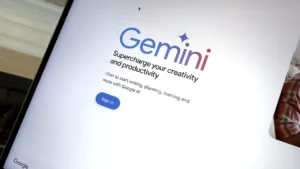
Google Gemini Mini is the lighter web version of Gemini that runs directly in your browser. It is accessed at gemini.google.com. There is nothing to install.
In guest mode, the site lets people start a chat without signing in to a Google account. You see a simple chat box and can type a prompt right away. Google still applies safety rules and some logging, but you do not get a personal profile or saved history.
When signed in, Gemini links to your Google account. It can remember your chat history, sync settings, and in some regions connect with other Google products. When you stay as a guest, you get a more limited feature set, but you also avoid linking prompts to a named account.
Articles such as this guide from Tom’s Guide on how you can now use Gemini without an account explain the same change, that Google opened Gemini on the web to guest access for more users: You can now use Google Gemini without an account.
Gemini on the web vs Gemini mobile apps
Gemini on the web, at gemini.google.com, is where guest mode works. You open it in a browser like Chrome, Edge, Firefox, or Safari.
The Gemini apps on Android and iOS are different. They work like full assistants and replace or sit next to Google Assistant. These apps require a Google account and do not offer true guest mode today.
Users who refuse to sign in need the browser version, not the official mobile apps. On a phone, that means opening a browser and going to the Gemini website instead of installing the app.
What “guest mode” really means in Gemini
Guest mode in Gemini is simple. You can chat without an account. Your conversation is not stored as a history list that you can open later. Features are stripped down to the basics.
Google may still collect some data, such as prompts and technical details, for safety and quality. The key difference is that this data is not tied to a visible Google profile for you. It is background logging, not a personal feed of past chats.
This mode sits between full anonymous browsing and full account use. It gives quick access without the long‑term profile, which is why many users prefer it.
When using Gemini without sign-in makes sense
Guest use is common in several situations:
-
\t
- Shared family computers at home
- School lab PCs where accounts are managed
- Office desktops with strict software rules
- Public library computers
- Countries or regions where Google sign‑up is hard
\t
\t
\t
\t
Even as a guest, users can:
-
\t
- Learn new topics with step‑by‑step explanations
- Get help rewriting short texts or emails
- Brainstorm ideas for projects or events
- Do light research and quick checks of facts
\t
\t
\t
For simple work like this, guest mode is usually enough.
Step-By-Step: How To Use Google Gemini Mini Without Google Account
This section gives clear steps to open Gemini in a browser, check that you are not signed in, and start a guest chat.
Open Gemini on the web in a regular browser window
Follow these steps on any modern browser:
-
\t
- Open Chrome, Edge, Firefox, or Safari.
- Click in the address bar at the top of the window.
- Type
gemini.google.comand press Enter. - Wait for the Gemini homepage to load.
\t
\t
\t
On many devices, you will see a chat box and a welcome screen. There might be a button like “Try Gemini” on the page.
If guest mode is available in your region, the screen can show one of these:
-
\t
- A button or link such as “Continue as guest”
- Two options side by side, such as “Sign in” and “Try without signing in”
\t
If you see both choices, click the option that says you can try it without signing in. If the page starts to load your profile picture or your Gmail address, you are not in guest mode, so the following sections explain how to fix that.
For more context about how Gemini behaves in Chrome, you can check Google’s own support page, Use Gemini in Chrome.
Use Incognito or private browsing to avoid auto sign-in
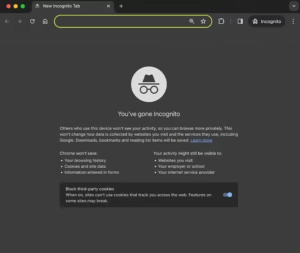
Many people keep Google signed in in their main browser window. This can cause Gemini to open with your account by default. An Incognito or private window helps because it starts with no cookies.
Here is how to open a private session in common browsers:
-
\t
- Chrome (Incognito): press Ctrl+Shift+N on Windows or Cmd+Shift+N on Mac, or click the three dots menu, then choose “New Incognito window”.
- Microsoft Edge (InPrivate): press Ctrl+Shift+N, or open the menu and choose “New InPrivate window”.
- Firefox (Private Window): press Ctrl+Shift+P, or use the menu and choose “New Private Window”.
- Safari (Private Window): on Mac, choose File > New Private Window.
\t
\t
\t
Once the private window is open:
-
\t
- Type
gemini.google.cominto the address bar. - Press Enter.
- Look for the guest option or a simple chat box with no profile picture, as described before.
\t
\t
Private windows are helpful on shared or school computers because they avoid old logins. When you close the window, cookies from that session are usually erased.
Reports such as this article from Chrome Unboxed confirm that Google now allows Gemini access on the web without an account, which pairs well with private browsing methods: Gemini on the web can now be accessed without a Google account.
Start your first Gemini chat without signing in
Once the Gemini page loads in guest mode, take a moment to check that no account is active:
-
\t
- There should be no Gmail address at the top.
- There should be no round profile picture from your Google account.
- You may see a simple “Guest” label or no label at all.
\t
\t
If everything looks anonymous, you can start a test chat. Type a short prompt in the box, for example:
-
\t
- “Explain photosynthesis in simple terms.”
- “Give me 3 polite ways to ask for an extension on a school project.”
- “Summarize the main causes of the American Civil War in 5 short bullet points.”
\t
\t
Press Enter and read the reply. If it works, you are using Gemini as a guest.
Tips if Gemini keeps asking you to log in
Some users see a sign‑in screen even when they prefer guest mode. Common reasons include active Google sessions and network rules.
If Gemini keeps pushing a login, try these steps:
-
\t
- Open an Incognito or private window, then go to
gemini.google.com. - In a standard window, sign out of your Google account at
google.com, then refresh Gemini. - Try another browser, for example switch from Chrome to Firefox.
- Restart the browser to clear temporary state.
\t
\t
\t
In some schools and offices, IT teams block AI tools or require sign‑in for tracking. In those cases, local rules take priority, and guest mode might not be available at all from that network.
What You Can and Cannot Do in Gemini Guest Mode
Guest mode is limited, but still useful. In most regions, guests are placed on the fast Gemini 2.0 Flash model with a simple interface.
Here is a quick comparison.
| Feature | Guest mode (web) | Signed-in account (web/app) |
|---|---|---|
| Basic Q&A and explanations | Yes | Yes |
| Chat history list | No | Yes |
| File or image uploads | No | Often, yes, region dependent |
| Image generation | Sometimes limited or none | Often available |
| Deep research tools | No | In some areas and plans |
| Links to Gmail, Docs, Drive | No | In supported areas and languages |
| Personal preferences and settings | Very limited | Full settings and personalization |
The following sections provide more detail.
Features you still get without a Google account
Even with limits, guest mode offers many valuable features:
-
\t
- Short explanations of school topics and concepts
- Rewriting or cleaning up text that you paste in
- Simple summaries of short passages
- Brainstorming lists of ideas for projects or events
- Outlining essays, blog posts, or simple reports
- Language help, such as grammar corrections or sample sentences
\t
\t
\t
\t
\t
These are the same kinds of tasks many people try first when testing AI. For users exploring AI tools in general, guides on No-Code AI Chatbot Builders for Beginners can help them compare simple AI tools with minimal setup.
Gemini’s training on large public data sets enables it to answer a wide range of general questions well, even in basic guest mode.
Important limits of Gemini 2.0 Flash in guest mode
Guest users usually access Gemini 2.0 Flash. This model is fast and suitable for light tasks, but it is not tuned for heavy research or long, complex workflows.
Important limits:
-
\t
- No deep research tools that scan many pages in depth
- Less ability to track a very long project across many prompts
- No long‑term memory of your style or preferences
- Fewer or no integrations with other Google products
\t
\t
\t
For simple daily needs, this is enough. For advanced users who want complete project management, document uploads, or integrated workflows, a signed‑in account is still required.
No file uploads, image tools, or deep research for guests
Guest mode does not support file uploads. You cannot upload:
-
\t
- PDFs
- Word documents
- Slide decks
- Images for analysis
\t
\t
\t
You may also lack the tools to generate images at all. In some regions, image features are available only to signed‑in users.
A few examples of tasks that do not work well in guest mode:
-
\t
- “Read this 50‑page PDF and give me key takeaways.”
- “Scan this screenshot of an error message and tell me what to fix.”
- “Connect to my Google Drive and organize my notes.”
\t
\t
These requests rely on uploads and account links, so they require a signed‑in Gemini experience.
Web version vs mobile apps when you do not want to sign in
The web version in a browser is the only practical way to stay in guest mode.
There is no true guest mode in the official Android or iOS Gemini apps today. Installing the app requires a Google account, and on many phones, it replaces the standard Google Assistant.
Users who want to stay out of accounts can:
-
\t
- Open Chrome, Safari, or another browser on the phone
- Start a private tab
- Go to
gemini.google.comand look for guest mode
\t
\t
The mobile web layout isn’t as smooth as the native app, but it works for simple questions and writing tasks.
Privacy, Safety, And Smart Practices When Using Gemini As A Guest
Many users choose guest mode for privacy reasons. It reduces how closely prompts are tied to a personal profile, but it is not full anonymity.
How private is Gemini guest mode really
Even without an account, Google can collect data such as:
-
\t
- The text of your prompts and Gemini’s replies
- Time and length of your session
- Technical details, such as browser type and language
\t
\t
Google uses this data to run the service, enforce safety rules, and improve the models. In guest mode, this activity is not connected to a signed‑in profile view for you, but it still exists on the backend.
For the most accurate and current details, Google maintains policy pages linked from the Gemini site and support pages. Start at Google Gemini on the web and follow links to terms and privacy.
Extra steps to protect your privacy on shared or school computers
Guest mode helps, but users can take extra steps, especially on shared devices:
-
\t
- Use an Incognito or private window whenever possible.
- Close the tab as soon as you finish.
- Clear browsing data if local rules allow it.
- Avoid pasting passwords, ID numbers, or financial data.
- Avoid full names, addresses, school IDs, and company identifiers.
\t
\t
\t
\t
Consider a real case. A student at a school lab wants help with a history essay. They can safely paste the essay text and ask for clearer wording. They should not paste their student ID number or login details.
For broader advice on picking and using AI safely, guides such as this step‑by‑step tutorial on No-Code AI Chatbot Builders for Beginners include privacy checklists that apply to many AI tools, not just chatbots.
Content rules and safety filters in Gemini
Gemini uses safety filters to block or limit certain content. This applies in guest mode and with accounts.
The system may refuse or reshape prompts that are:
-
\t
- Hateful or harassing
- Extremely violent
- Sexually explicit
- Focused on self‑harm or harm to others
\t
\t
\t
If a response is blocked, the interface can show a short message that the request cannot be completed. In many cases, a neutral and respectful rewrite of the question helps. The focus is on practical, healthy use of AI for learning and everyday work.
Practical Ways To Use Gemini Guest Mode At School, Work, And Home
Guest mode is effective for day‑to‑day tasks. The following use cases show what people can do right away without signing in.
Students on school or library computers
Students using school labs or library PCs often cannot install software or log into personal accounts. Guest Gemini in a browser gives quick support.
Helpful uses:
-
\t
- Simple explanations of complex topics in math, science, or history
- Practice quiz questions for upcoming tests
- Rewriting notes in more explicit language
- Planning a one‑week or one‑month study schedule
- Checking grammar on short paragraphs
\t
\t
\t
\t
School rules always come first. Some districts block AI sites or only allow them in supervised sessions. When the site is open, students can still use it as a competent study helper, not as a way to bypass homework.
Employees using locked-down work PCs
Many offices lock down work computers, and workers do not want to tie personal Google accounts to office devices. Guest mode lets employees test small tasks without permanent accounts.
Common safe uses:
-
\t
- Drafting polite emails on routine topics
- Summarizing non‑confidential meeting notes
- Brainstorming project names or slogans that do not reveal secrets
- Planning personal tasks on a lunch break
\t
\t
\t
One strong rule stays in place. Workers should not paste sensitive company data, client records, or internal documents into any AI chat, even in guest mode. Treat everything you type as information that could leave company control.
People testing AI tools before creating an account
Many people are still unsure whether AI chat tools are helpful to them. Guest use is a low‑pressure way to test without signing up.
A simple trial plan:
-
\t
- Ask three learning questions, such as concept explanations.
- Ask three writing tasks, such as email rewrites or short summaries.
- Ask three creative prompts, such as ideas for weekend activities or stories.
\t
\t
After those nine prompts, users have a clear sense of how helpful Gemini feels. If they like the results, they can consider a full account later or look at other beginner tools, including guides that compare free AI platforms for new users.
Users in places where Google accounts are hard to create
In some regions, creating a Google account requires phone verification, ID checks, or other steps that are hard for many people. Some do not have stable phone numbers. Others face local rules.
For these users, guest mode is a critical path. It lets them:
-
\t
- Ask questions in simple English to improve language skills
- Get advice on planning personal projects, such as study plans
- Receive explanations of news topics and basic technical ideas
- Draft letters and short documents for daily life
\t
\t
\t
Guest mode does not fix all access issues, since Gemini itself may not be available in every country, but when the site loads, it can help people who cannot pass full sign‑up flows.
How Gemini Guest Mode Compares To Other No-account AI Tools
Gemini guest mode is one of several AI options that work in a browser without a complete sign‑up. Some versions of ChatGPT and other web AIs also offer no‑account or light‑account modes.
Gemini’s strengths lie in fast general answers and its link to Google’s research base. Weak points are the lack of uploads and history when you stay as a guest.
For users comparing several tools at once, broader roundups of AI platforms, similar to articles on no‑code chatbot tools, can help map which tools run on school and office computers without extra sign‑up steps.
Strengths of using Gemini as a guest
Key strengths include:
-
\t
- Fast access from any modern browser
- A clean and simple interface that beginners can read easily
- Strong general knowledge across many topics
- Good writing and rewriting help in a short time
- No need to hand over email, phone number, or credit card to start
\t
\t
\t
\t
These traits make guest mode a good first step for people who are curious about AI but cautious about sign‑ups.
When another no-account AI might fit better
Some users need features that Gemini guest mode does not provide.
Other no‑account or light‑account AIs may fit better when:
-
\t
- File uploads and document summaries are required
- Image generation is a core need
- Long histories must stay available between sessions
- Strong offline or on‑device options are preferred
\t
\t
\t
In practice, many people combine tools. Gemini guest mode handles quick questions and writing help. Another service handles uploads or long‑term storage, once users are comfortable registering an account.
Quick FAQ About Using Gemini Without A Google Account
Is Google Gemini Mini free to use without an account?
Gemini on the web is free for basic use in guest mode in many regions. Users can ask questions and get text answers without paying.
Limits, models, and price tiers can change over time. For the latest rules, check Google’s pages linked from gemini.google.com.
Why does Gemini sometimes force me to sign in?
Gemini can ask for sign‑in in some locations due to age or regional rules, or for product testing by Google. It may also appear if your device is under heavy load from a single IP address or browser.
If guest mode worked before, try opening an Incognito or private window, changing browsers, or using another device. If the network blocks guest mode, local rules likely control access.
Can I keep my chat history in guest mode?
Guest mode does not preserve your chat history. Once you close the tab or window, the conversation is gone from your view.
If rules allow it, you can copy essential answers into a note app or local document before closing Gemini. On shared or school computers, make sure those notes do not expose private data.
Can I use Gemini guest mode safely on a phone or tablet?
Gemini’s mobile apps need a Google account, but you can still open a mobile browser and go to gemini.google.com in a private tab. This works much like guest mode on a desktop.
Take the same care as on a computer. Avoid typing passwords or personal details, close the tab when finished, and use private browsing to reduce data left on the device.
Learning how to use google gemini mini without google account gives users a simple way to try AI with fewer strings attached. By opening gemini.google.com in a browser, often in Incognito or private mode, anyone can chat as a guest on school PCs, office machines, or shared home devices. The trade‑offs are clear, no history, no uploads, and a basic model only, but the benefits are substantial for quick learning and writing help. Readers can start with a few test prompts right now and then explore more beginner‑friendly AI guides, including the internal resources linked earlier, to decide when or if a complete account makes sense.