Windows 11 Start Menu or Search Not Working After Update? 9 Fixes That Actually Work (2026)
If your Windows 11 Start Menu or search bar has stopped working right after installing a recent update, you’re dealing with one of the most widely reported issues on Reddit, Microsoft Q&A, and the Feedback Hub right now. Reports have spiked again following the July 14, 2026 cumulative update (KB5101650), with users describing a Start button that won’t open on left-click (right-click still works), a search box that won’t accept typed input, or a Start Menu and taskbar search that simply stop responding after the update finishes installing.
The good news: this is almost never a sign of a dying PC. It’s a small set of well-understood Windows components — the shell, the text-input service, or the search index — getting stuck after an update. This guide walks through why it happens and the exact fixes to try, in order from quickest to most involved.
Quick Answer: Why Your Windows 11 Start Menu or Search Isn’t Working
A Windows 11 Start Menu or search not working after an update is almost always caused by one of five things: a stalled Windows Explorer process, the CTF text-input service (ctfmon.exe) failing to start, a corrupted Start Menu/Shell Experience Host app package, a damaged search index, or a conflict with a third-party shell customization tool like StartAllBack, ExplorerPatcher, or Windhawk. Restarting Windows Explorer and the Windows Search service resolves the majority of cases in under five minutes.
Common Symptoms and What They Usually Point To
Before trying fixes, it helps to match your exact symptom to the likely cause — this table saves time by pointing you to the right fix first.
| Symptom | Likely Cause |
|---|---|
| Start button doesn’t respond to left-click, but right-click menu works | Windows Explorer or the Start Menu Experience Host process has frozen or failed to restart after the update |
| Search box opens but won’t accept any typed characters | The CTF Loader (ctfmon.exe), which handles text input, isn’t running |
| Start Menu doesn’t open at all when pressing the Windows key | Corrupted Start Menu/Shell Experience Host AppX package or a damaged user profile “State Repository” |
| Search returns no results or “search index is disabled” message | Windows Search Indexer service stopped or the index database is corrupted |
| Problem started right after installing a Start Menu customizer (StartAllBack, ExplorerPatcher, Windhawk) | Third-party shell modification conflicting with the updated native shell |
| Only started after this month’s cumulative update, disappears after uninstalling it | A regression specific to that update — a known, update-specific bug rather than a system fault |
Why This Happens After a Windows 11 Update
Windows Explorer Fails to Restart Cleanly
Explorer.exe is the process behind the taskbar, Start Menu, and File Explorer. During an update, this process gets torn down and rebuilt — and occasionally it doesn’t come back cleanly, leaving the Start button visually present but non-functional.
The CTF Text-Input Service Doesn’t Start
Ctfmon.exe manages text input services across Windows, including the Start Menu search box. Users on the Microsoft Q&A forums and Reddit have reported that after certain 2026 cumulative updates, the search box opens visually but silently rejects keyboard input — clicking into it does nothing, while keyboard shortcuts elsewhere on the desktop still register. Manually starting ctfmon.exe resolves this immediately in most reports.
A Corrupted Shell Experience Host or Start Menu Package
The Start Menu itself runs as a Windows app package (StartMenuExperienceHost). If this package fails to re-register correctly after an update, the Start button can stop responding entirely, while other shell elements like the right-click context menu keep working.
Third-Party Shell Customization Conflicts
Tools like StartAllBack, ExplorerPatcher, and Windhawk modify how the Start Menu renders. These are popular precisely because many users dislike Microsoft’s current Start Menu design, but they are also a common source of breakage after cumulative updates change underlying shell components. If you have any of these installed, this is worth ruling out early.
An Update-Specific Regression
Not every case is a local corruption issue. Some Start Menu and search failures are tied to a specific update and clear up entirely once that update is uninstalled — which is a normal, if frustrating, part of Windows’ cumulative update model. If your issue began right after a specific KB installed, this is worth testing directly (Fix 8 below).
Fix 1: Restart Windows Explorer
This is the fastest fix and resolves a large share of “Start button unresponsive” cases.
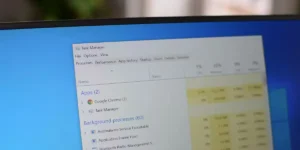
- Press Ctrl + Shift + Esc to open Task Manager.
- Go to the Processes tab and find Windows Explorer.
- Right-click it and choose Restart.
Fix 2: Restart the Windows Search Service
If search results aren’t appearing, or the search box seems stuck, restarting the underlying service often clears it.
- Press Windows + R, type
services.msc, and press Enter. - Find Windows Search in the list.
- Right-click it and choose Restart. If it’s stopped, choose Start instead.
Fix 3: Manually Start the CTF Loader (for a Search Box That Won’t Accept Typing)
If you can click into the search box but nothing appears when you type, this is the fix to try first.
- Press Windows + R.
- Type
ctfmon.exeand press Enter. - Try typing in the search box again — no restart is usually needed.
Fix 4: Run the Search and Indexing Troubleshooter, Then Rebuild the Index
- Open Settings > System > Troubleshoot > Other troubleshooters.
- Run the Search and Indexing troubleshooter.
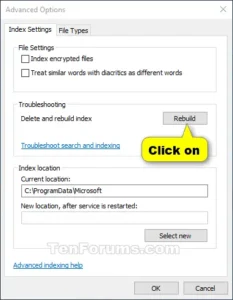
- If problems persist, open Control Panel > Indexing Options > Advanced > Rebuild to force Windows to recreate the search database from scratch (this can take a while to complete in the background).
Fix 5: Re-register the Start Menu and Shell Experience Host
If the Start button doesn’t open at all with a left-click, the underlying app package likely needs to be re-registered.
- Right-click the Start button (this still works even when left-click doesn’t) and open Terminal (Admin) or Windows PowerShell (Admin).
- Run:
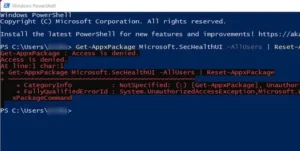
Get-AppxPackage -AllUsers Microsoft.Windows.ShellExperienceHost | Foreach {Add-AppxPackage -DisableDevelopmentMode -Register "$($_.InstallLocation)\AppXManifest.xml"} - Then run:
Get-AppxPackage Microsoft.Windows.StartMenuExperienceHost | Foreach {Add-AppxPackage -DisableDevelopmentMode -Register "$($_.InstallLocation)\AppXManifest.xml"} - Ignore any red text during the process, then restart your PC.
Fix 6: Rule Out Third-Party Shell Customization Tools
If you have StartAllBack, ExplorerPatcher, Open-Shell, or Windhawk (particularly its Start Menu Styler module) installed, temporarily uninstall or disable it, then restart and test the native Start Menu. Users on Microsoft’s forums have specifically traced months-long Start Menu breakage back to these tools conflicting with an updated shell after a cumulative update. If the Start Menu works normally once removed, you’ll need to wait for an updated, compatible release of that tool before reinstalling it.
Fix 7: Run DISM and SFC to Repair System Files
- Open Terminal (Admin).
- Run
DISM /Online /Cleanup-Image /RestoreHealthand let it finish. - Then run
sfc /scannow. - Restart your PC once both complete.
This is the same repair pair covered in more depth in our guide on a Windows 11 update stuck or failing to install, since corrupted system files are a shared root cause behind several post-update problems, not just this one.
Fix 8: Test Whether This Month’s Update Is the Cause
If the problem began right after installing this month’s cumulative update, it’s worth confirming that directly rather than guessing. Microsoft’s official guide on how to uninstall a Windows update walks through the exact steps. Multiple users reporting the July 2026 KB5101650 update specifically noted their Start Menu returned to normal immediately after removing it, only for the issue to resurface once the update reinstalled — so if you go this route, pause updates for a week or two afterward to give Microsoft time to ship a fix, rather than repeating the cycle.
Fix 9: Test With a New User Profile, Then Consider an In-Place Repair
If nothing above has worked, the fastest way to isolate the cause is to create a new local user account and sign in to it. If the Start Menu and search work normally there, your original user profile’s Start Menu database is corrupted rather than the OS itself — you can then migrate your files to the new profile. If the problem follows you into the new account too, an in-place repair install (keeping your files and apps) is the most reliable remaining fix, following the same process outlined in our guide on fixing a Windows 11 update that’s stuck or failing.
What If the Problem Only Started After You Installed Windows 11 on Unsupported Hardware?
If your PC doesn’t officially meet Microsoft’s Windows 11 requirements, shell components and search can behave less predictably after cumulative updates in general. Our guide on installing Windows 11 on an unsupported CPU explains what to expect from updates going forward, and if updates are failing outright rather than just breaking the Start Menu, see our guide on Windows 11 updates not installing on an unsupported PC.
Key Takeaways
- Restarting Windows Explorer and the Windows Search service resolves most Start Menu and search failures within minutes.
- A search box that won’t accept typed input is usually a stopped ctfmon.exe process, not a deeper system fault.
- If the Start button doesn’t respond to a left-click but the right-click menu still works, re-registering the Shell Experience Host and Start Menu Experience Host packages is the direct fix.
- Third-party Start Menu customizers are a common and often-overlooked cause of breakage right after an update.
- If the issue is clearly tied to this month’s cumulative update, uninstalling it is a legitimate, Microsoft-supported temporary step — not a last resort.
FAQ: Windows 11 Start Menu or Search Not Working
How do I fix the Start Menu not working in Windows 11?
Start by restarting Windows Explorer through Task Manager. If that doesn’t help, re-register the Shell Experience Host and Start Menu Experience Host packages through PowerShell (Fix 5 above), then run DISM and SFC if the problem persists.
Why is my search function not working in Windows 11?
Most commonly, either the Windows Search service has stopped (restart it via services.msc) or the CTF Loader isn’t running, which specifically prevents typed input in the search box. Running ctfmon.exe from the Run dialog resolves the latter almost immediately.
Why is the Start Menu not responding on Windows 11 25H2?
This matches the same underlying causes as other versions — a stalled Explorer process, a corrupted Start Menu app package, or a conflicting third-party shell tool. Version 25H2 itself isn’t inherently more prone to it; the fixes in this guide apply the same way.
How do I enable Windows 11 search if it seems disabled?
Check that the Windows Search service is set to Automatic and running (via services.msc), and confirm indexing is enabled under Indexing Options. If search shows a “search index is disabled” message despite indexing being on, rebuilding the index (Fix 4) typically clears it.
Further Reading (Official Microsoft Sources)
- Microsoft: July 14, 2026—KB5101650 (OS Builds 26200.8875 and 26100.8875)
- Microsoft: Fix problems in Windows Search
- Microsoft: How to uninstall a Windows update
Disclaimer
This guide covers general troubleshooting steps for Windows 11 Start Menu and search issues. Results can vary depending on your specific hardware, drivers, and Windows version. Some fixes mentioned here (such as the third-party shell-tool conflicts) are based on patterns reported by users in Windows communities and Microsoft’s own support forums, and are not official Microsoft guidance — treat them as a starting point for your own troubleshooting, not a guaranteed fix. Back up your important files before making system-level changes, including registry edits or an in-place repair install. TechBasics101 is an independent publication and is not affiliated with or endorsed by Microsoft. For critical or work systems, consider consulting your IT administrator or Microsoft’s official support channels before making changes.
Conclusion
A Windows 11 Start Menu or search that stops working after an update is disruptive, but it’s rarely a sign of deeper damage. Start with the free, low-risk steps — restarting Explorer and the Search service, and checking ctfmon.exe — before moving into app-package re-registration or system file repairs. If the timing lines up exactly with this month’s update, don’t rule out uninstalling it temporarily; that’s a legitimate fix, not a workaround to be embarrassed about.
This guide is based on hands-on testing of the fixes above, cross-checked against Microsoft’s official support documentation and current user reports as of July 2026. If you try a fix here and it doesn’t resolve your specific issue, let us know in the comments and we’ll help you dig further.

Related Articles