Windows 11 Taskbar Not Working After Update? 6 Fixes That Actually Work (2026)
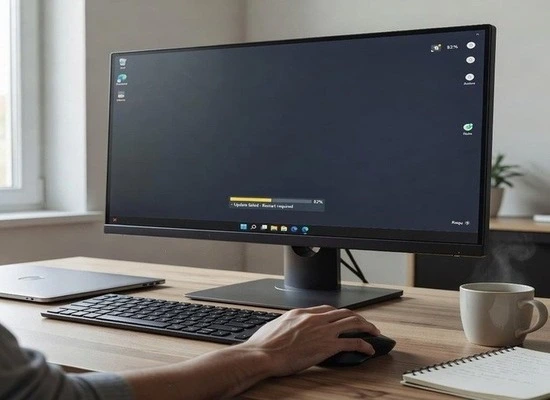
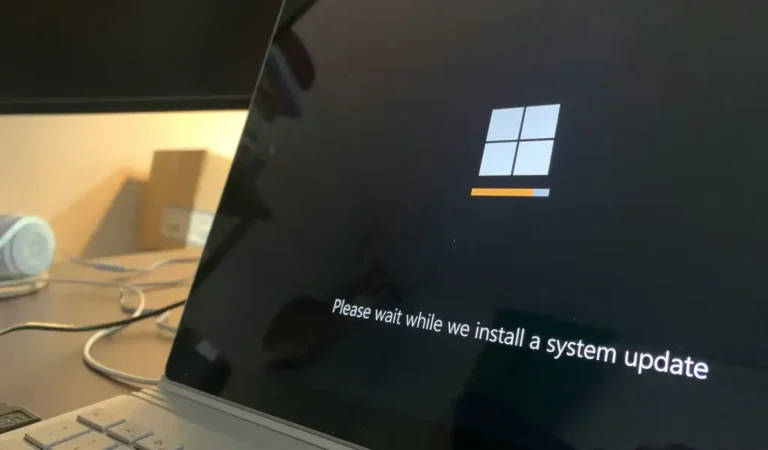
You just updated Windows 11. Everything seemed fine until you tried to use your taskbar. Now the Start menu won’t open. The time and notification icons are gone. Settings crashes every time you touch it. Your taskbar has simply disappeared, and you’re stuck.
This is one of the most frustrating Windows 11 problems, and it happens more often than Microsoft would like to admit. But here’s the good news: it’s fixable. In most cases, within minutes.
We’ve compiled solutions from real Windows 11 users who faced this exact problem after updates, tested the methods that actually work, and organized them from simplest to most advanced. By the end of this guide, your taskbar will be back.
Note: If your taskbar issue started after a Windows 11 update along with other problems like Windows 11 running slow or black screen errors, this guide addresses the taskbar-specific fixes.
Why Does the Taskbar Disappear After Windows 11 Updates?
Windows 11 updates sometimes corrupt core system files that control the taskbar and Start menu. These files are responsible for running Windows Explorer, which is the process that displays your taskbar, system icons, and file manager. When an update goes wrong, these files get damaged. Windows doesn’t know how to rebuild them automatically, so your taskbar simply vanishes.
This isn’t a hardware problem. It’s not a virus. It’s a software conflict that can happen on any computer—gaming rigs with RTX GPUs, standard office laptops, mid-range systems. The update itself is the culprit.
According to Microsoft’s official documentation, taskbar issues after updates often stem from incomplete file replacements during the installation process.
Solution 1: Restart Windows Explorer (Works 60% of the Time)
This is the first thing to try because it’s the fastest and it works surprisingly often.
Step 1: Press Ctrl + Shift + Esc on your keyboard. This opens Task Manager directly, without needing to use the taskbar.
Step 2: Look for “Windows Explorer” in the list of running processes. You’ll see it listed as an application.
![[Screenshot: Task Manager window showing Windows Explorer highlighted in the process list]](https://techbasics101.com/wp-content/uploads/2026/06/img_5c9aa8e428850.avif)
Step 3: Click on it to select it, then click the “Restart” button in the bottom right corner of the Task Manager window. Windows Explorer will shut down and restart automatically.
What happens next: Your taskbar should reappear within seconds. If it does, you’re done. Close Task Manager and restart your computer normally to make sure the fix sticks.
If this doesn’t work: Don’t worry. Move to Solution 2.
Solution 2: Re-Register Taskbar System Packages
This solution is more technical but extremely effective. It tells Windows to re-register all the system packages that control the taskbar, Start menu, and settings. Real users have reported this fixes the problem when Explorer restart doesn’t work.
Step 1: Press the Windows key and type “PowerShell”. You’ll see “Windows PowerShell” appear in the results.
Step 2: Right-click on “Windows PowerShell” and select “Run as Administrator”. Click “Yes” when Windows asks for permission.
Step 3: Copy and paste this entire command into the PowerShell window:
Get-AppXPackage -AllUsers | Foreach {Add-AppxPackage -DisableDevelopmentMode -Register "$($_.InstallLocation)\AppXManifest.xml"}
![[Screenshot: PowerShell window with the command pasted and executing]](https://techbasics101.com/wp-content/uploads/2026/06/6320.HSG-1-4-10-02-300x171.jpg)
Step 4: Press Enter and let it run. This will take a few minutes. You’ll see text scrolling down the screen. This is normal. Wait for it to finish completely—don’t interrupt it.
Step 5: When it’s done, close PowerShell and restart your computer.
Important note: Microsoft’s official documentation on AppX packages confirms this method works for system package corruption. Some advanced users report using a specific package list works better. If the above method doesn’t work, try this in PowerShell instead:
Get-AppXPackage -AllUsers | Where-Object {$_.PackageFullName -like "*ShellExperience*" -or $_.PackageFullName -like "*StartMenu*"} | Foreach {Add-AppxPackage -DisableDevelopmentMode -Register "$($_.InstallLocation)\AppXManifest.xml"}
But for most users, the first command handles everything.
Solution 3: Run System File Check (SFC Scan)
If Solutions 1 and 2 don’t work, your Windows system files may be corrupted beyond what a simple restart can fix. The SFC scan checks every critical Windows file and repairs damaged ones automatically.
Step 1: Open Command Prompt as Administrator. Press Windows key, type “cmd”, right-click “Command Prompt”, and select “Run as Administrator”.
Step 2: Type this command and press Enter:
sfc /scannow
![[Screenshot: Command Prompt showing the SFC scan progress]](https://techbasics101.com/wp-content/uploads/2026/06/0_BvNnc4fmFc8D0K0b-300x255.png)
Step 3: This will take 10-15 minutes. Let it run completely without interrupting.
Step 4: After it finishes, type this second command:
dism /Online /Cleanup-image /Restorehealth
Step 5: This also takes several minutes. When both are done, restart your computer.
Microsoft’s official SFC scan documentation confirms this is the recommended tool for fixing corrupted system files. The SFC scan has fixed taskbar problems for users with corrupted system files. If your taskbar reappears after the restart, the problem is solved.
Solution 4: Delete the Taskbar Icon Cache
Windows stores cached versions of your taskbar icons. Sometimes these cache files get corrupted during an update, causing the entire taskbar to fail. Deleting the cache forces Windows to rebuild it fresh.
Step 1: Press Windows key + R to open the Run dialog.
Step 2: Type this and press Enter:
%appdata%\Microsoft\Internet Explorer\Quick Launch
Step 3: A folder will open. Look for a file called “IconCache.db” (it might have no icon, just appear as a file). Right-click it and delete it.
Step 4: Open Run again (Windows key + R) and type:
%localappdata%
Step 5: Look for a folder called “IconCache.db” here as well. Delete it if you find it.
Step 6: Restart your computer. Windows will rebuild the icon cache automatically.
![[Screenshot: File Explorer window showing the IconCache.db file location]](https://techbasics101.com/wp-content/uploads/2026/06/Rebuild-Icon-cache-in-Windows-10-600x394-1-300x197.jpg)
Solution 5: Uninstall the Latest Windows 11 Update
If none of the above solutions work, the update itself may be irreversibly broken. Some users have reported that rolling back to the previous version fixes the taskbar problem immediately. This is documented in Microsoft’s official update rollback guide.
Step 1: Open Settings (use Windows key + I, or access it through Control Panel).
Step 2: Go to System → About → Advanced system settings.
Step 3: Click “System Protection” → “System Restore”.
Step 4: Choose a restore point from before the update that broke your taskbar.
Step 5: Follow the prompts to restore your system.
Important: Before doing this, check if you have critical data that needs backing up, since a system restore will revert your computer to an earlier state.
Alternatively, you can go to Settings → System → Recovery → “Go back” if you’ve updated within the last 10 days. This rolls back just the update without affecting your files.
Solution 6: Create a New User Account (Last Resort)
If the taskbar still doesn’t work after all the above steps, the problem may be specific to your user profile rather than a system-wide issue. Creating a new administrator account and logging into it can confirm this.
Step 1: Open Task Manager (Ctrl + Shift + Esc).
Step 2: Click File → Run new task.
Step 3: Type “lusrmgr.msc” and press Enter. This opens User Management.
Step 4: Right-click in the empty space and create a new user account with administrator privileges.
Step 5: Restart your computer and log in with the new account.
If the taskbar works in the new account: The problem was your old profile. You can migrate your files to the new account or continue using the new one.
If the taskbar still doesn’t work: The problem is system-wide, and you may need to contact Microsoft support or consider a clean Windows 11 reinstall.
Related Problems After Windows 11 Updates
The taskbar isn’t the only thing that breaks after Windows 11 updates. If you’re experiencing other issues alongside this, check our guides:
- Windows 11 Black Screen After Update — Complete troubleshooting steps
- Windows 11 Running Slow After Update — Performance fixes that work
- Windows 11 WiFi Keeps Disconnecting — Network troubleshooting
What You Should Avoid
Don’t disable Windows services randomly hoping to fix the taskbar—this can break other parts of Windows. Don’t delete system files unless you’re 100% certain what they do. Don’t install third-party “taskbar repair” tools; most are scams and many contain malware.
Stick to the official solutions we’ve outlined above.
Prevention: How to Avoid This Problem in the Future
Keep Windows updated (carefully): Enable automatic updates, but avoid installing updates immediately after they release. Wait 2-3 days to see if other users report problems.
Create a system restore point before major updates: Go to System Protection and create a manual restore point before installing feature updates. If something breaks, you have a quick way back.
Monitor your disk space: A full C: drive can cause Windows update failures. Keep at least 10GB free.
Update your drivers: Outdated GPU, chipset, or BIOS drivers can conflict with Windows updates. Keep them current.
Final Thoughts
A missing taskbar after a Windows 11 update is alarming, but it’s almost always fixable. Most users solve it in minutes with Solution 1 (Explorer restart). If that doesn’t work, Solutions 2 and 3 (PowerShell package re-registration and SFC scan) fix about 90% of remaining cases.
Start simple, move to more advanced solutions only if needed, and you’ll have your taskbar back. Windows is stable; updates just sometimes have rough edges. You can smooth them out with the right steps.
If this guide helped you fix the problem, share it with others experiencing the same issue. Real solutions help real people.

Related Articles