ChatGPT Not Loading on Chrome? Fix It Fast (11 Steps)

A blank page where ChatGPT should be is a special kind of annoying. The symptoms tend to look the same: a white screen, an endless spinner, “Unable to load site,” getting stuck on “Checking your browser,” or a login loop that keeps bouncing back to the sign-in page.
This guide covers fast checks first, then deeper fixes that address the most common causes. It’s written for everyday use on Windows, Mac, Chromebook, and Android. If ChatGPT not loading on Chrome is blocking work or school, start with the 60-second checklist below.
Quick checklist (fix it in 60 seconds)
-
\t
- Hard refresh the page
-
\t
- Windows/Chromebook:
Ctrl + Shift + R - Mac:
Cmd + Shift + R - What should happen: the sidebar and chat list load instead of a blank screen.
\t
\t
- Windows/Chromebook:
- Open ChatGPT in a new tab
-
\t
- Right-click the tab, duplicate it, or press
Ctrl/Cmd + L, then typechatgpt.com. - What should happen: a clean reload that bypasses a “stuck” tab.
\t
- Right-click the tab, duplicate it, or press
- Sign out, then sign back in
-
\t
- What should happen: the login screen appears once, then the chat list returns.
- Warning: signing out (or later clearing cookies) may sign out other OpenAI sessions too.
\t
- Incognito test
-
\t
- Menu (three dots) → New Incognito tab → go to
chatgpt.com - What should happen: if it loads here, the problem is usually cookies, site data, or extensions.
\t
- Menu (three dots) → New Incognito tab → go to
- Try a different network (mobile hotspot if possible)
-
\t
- What should happen: if it works on hotspot but not Wi‑Fi, the Wi‑Fi network is blocking something.
- Check for outages or degraded performance
-
\t
- Open OpenAI’s status page.
- What should happen: an incident banner if there’s a known problem, or normal status if not.
\t
\t
\t
\t
\t
\t
Fast signs it’s not your browser (OpenAI outage or account session issue)
Chrome may be fine if the same failure happens on other devices and browsers. A quick pattern check helps:
-
\t
- If ChatGPT fails on Chrome, Edge, and Firefox, a service issue is more likely.
- If it fails on both Wi‑Fi and mobile data, the network is less likely.
- If login works but it immediately loops, it could be an expired session or a login provider hiccup.
\t
\t
On December 26, 2025, users reported widespread loading failures and missing chat history in community threads, even when the status page looked normal. One example is this OpenAI Community report: Chatgpt web in google chrome not working. When reports spike like that, local troubleshooting still helps, but waiting can be the right call.
Fixes that solve most Chrome loading problems
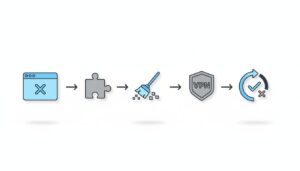
Most cases come down to corrupted site data, an extension conflict, blocked cookies, or a filtered network. Cache is saved files Chrome keeps for speed, and cookies are small sign-in and preference files websites store.
Work through these in order, testing ChatGPT after each fix. When a step works, stop there.
Fix 1: Test Incognito mode first (quick diagnosis)
Incognito runs with a fresh cookie jar and usually disables extensions unless they were allowed manually.
-
\t
- Desktop: Menu (three dots) → New Incognito window
- Android: Menu (three dots) → New Incognito tab
- Visit
https://chatgpt.com
\t
\t
What should happen when it works: the login page loads normally, then the chat list appears after sign-in.
If ChatGPT works in Incognito, the cause is usually an extension, bad cookies, or a Chrome profile setting.
Fix 2: Clear ChatGPT site data (targeted, not a full wipe)
This removes data only for OpenAI and ChatGPT instead of wiping every saved login.
-
\t
- Chrome Settings
- Privacy and security
- Open Third-party cookies (or Site data)
- Choose See all site data and permissions
- Search and remove entries for openai.com and chatgpt.com
\t
\t
\t
\t
What should happen when it works: ChatGPT loads like a first-time visit, then sign-in succeeds without looping.
Note: this will sign out and may reset site preferences. Targeted clearing is better than “Clear all browsing data” because it avoids breaking unrelated sites.

Fix 3: Turn off extensions that commonly break ChatGPT
Extensions that can interfere include ad blockers, script blockers, privacy tools, grammar tools, corporate security agents, and VPN extensions. Some also block WebSocket connections, which many web apps use to keep sessions live.
-
\t
- Open
chrome://extensions/ - Disable all extensions
- Reload ChatGPT
- Re-enable extensions one by one until the conflict appears
\t
\t
\t
What should happen when it works: the page loads fully, and messages send instead of hanging.
Fix 4: Check JavaScript, cookies, and site permissions for login
Login loops and “Checking your browser” screens often point back to blocked scripts or cookies.
-
\t
- Settings → Privacy and security → Site settings
- Confirm JavaScript is allowed
- Confirm cookies are not blocked for ChatGPT
-
\t
- If third-party cookies are blocked, add exceptions for
chatgpt.comandopenai.com
- If third-party cookies are blocked, add exceptions for
- If sign-in keeps bouncing, allow Pop-ups and redirects for ChatGPT
\t
\t
\t
What should happen when it works: the login completes once, then stays signed in.
Fix 5: Network and DNS checks (VPN, proxy, filtered Wi‑Fi)
A VPN, proxy, school firewall, work filter, captive portal (hotel Wi‑Fi sign-in page), or filtered DNS can stop the ChatGPT web app from loading.
-
\t
- Turn off VPN or proxy, then reload
- Restart the router (or disconnect and reconnect Wi‑Fi)
- Test on a mobile hotspot
\t
\t
What should happen when it works: ChatGPT opens on the new network without timing out.
Advanced, optional: clear Chrome’s DNS cache
-
\t
- Visit
chrome://net-internals/#dns→ Clear host cache
Fix 6: Update Chrome, restart it fully, and try a new profile
Updates fix browser bugs that can show up as a Chrome blank page or stalled UI.
-
\t
- Visit
chrome://settings/helpand install updates - Close all Chrome windows, then reopen Chrome (not just the tab)
\t
If it still fails, test a new Chrome profile:
-
\t
- Click the profile icon (top-right)
- Add → create a new profile
- Open ChatGPT in the new profile
\t
\t
What should happen when it works: ChatGPT loads in the new profile, which points to corrupted settings in the old one.
Fix 7: Turn off hardware acceleration (hidden fix for blank screens)
This is worth trying for a white screen, flicker, or UI that loads but won’t respond.
-
\t
- Settings → System
- Turn off Use hardware acceleration when available
- Click Relaunch
\t
\t
What should happen when it works: the page renders normally and stays stable. Hardware acceleration can be turned back on later.
Fix 8: Chrome flags and QUIC (only if nothing else worked)
This is optional and should be reverted if it doesn’t help.
-
\t
- Visit
chrome://flags/ - Search QUIC
- Disable Experimental QUIC protocol
- Relaunch Chrome
\t
\t
\t
What should happen when it works: fewer loading stalls on certain networks, especially where QUIC traffic is restricted.
If it still won’t load: quick diagnosis by symptom
| Symptom | Likely cause | Best fix to try first |
|---|---|---|
| White screen | GPU render issue or extension | Turn off hardware acceleration |
| Stuck on checking your browser | Cookies or script blocked | Allow JavaScript, clear site data |
| Login loop | Blocked cookies, pop-ups | Clear site data, allow redirects |
| Only fails on Wi‑Fi | Firewall, DNS filtering, captive portal | Hotspot test, turn off VPN |
| Works in Incognito | Extension or corrupted cookies | Disable extensions, remove site data |
What worked for me: Incognito is the first test because it answers the extension question fast. When ChatGPT loaded in Incognito but not normal Chrome, removing only openai.com and chatgpt.com site data fixed the login loop without wiping other saved logins.
Common symptoms mapped to the fastest next step
-
\t
- If the page says unable to load site ChatGPT, test a hotspot to rule out Wi‑Fi filtering.
- If ChatGPT stuck loading after sign-in, clear site data for
chatgpt.comandopenai.com. - If the sidebar is missing, hard refresh, then check https://status.openai.com.
- If it only breaks with an ad blocker on, disable extensions and reload once.
- If it works in Incognito, focus on cookies, extensions, or the Chrome profile.
- If the screen is white or flickers, toggle hardware acceleration and relaunch.
\t
\t
\t
\t
\t
People Also Ask
Why is ChatGPT not loading anymore?
The most common cause is corrupted site data or an extension conflict. Blocked cookies can also cause login loops or “Checking your browser” stalls. Network filtering is another frequent cause on school or work connections. A service incident is possible too, so the status page matters.
-
\t
- Check https://status.openai.com for incidents
- Test Incognito mode
- Remove site data for
chatgpt.comandopenai.com - Disable extensions at
chrome://extensions/ - Try a different network or hotspot
\t
\t
\t
\t

Is ChatGPT down on Google Chrome?
“Down on Chrome” can mean two different things: an OpenAI service problem, or a Chrome-only issue on one device. If it fails across browsers and devices, that points to the service. If it fails only on one Chrome profile or one network, it’s usually local.
-
\t
- Check https://status.openai.com
- Test another browser (Edge or Firefox)
- Test another device (phone vs laptop)
- Test hotspot vs Wi‑Fi
- Try a new Chrome profile
\t
\t
\t
\t
Why is ChatGPT blocked on Chrome?
Blocking often comes from extensions, corporate policies, firewalls, filtered DNS, or a VPN/proxy route that gets flagged or restricted. Captive portals can also interrupt secure sessions. When the block is network-based, the same device often works on mobile data.
-
\t
- Disable extensions at
chrome://extensions/ - Turn off VPN or proxy
- Try a mobile hotspot
- Restart the router
- Create a new Chrome profile and test again
\t
\t
\t
\t
How to fix unable to load site ChatGPT?
Start with the fastest checks, then move toward fixes that reset sign-in and remove conflicts. In most cases, Incognito plus targeted site data removal solves it. If it only fails on one network, treat it like a filtering problem.
-
\t
- Check https://status.openai.com
- Hard refresh, then try a new tab
- Test Incognito mode
- Clear site data for
chatgpt.comandopenai.com - Disable extensions, reload, then re-enable one at a time
- Switch networks, then update Chrome at
chrome://settings/help - Toggle hardware acceleration if the page is blank
\t
\t
\t
\t
\t
\t
Prevent this next time (keep ChatGPT working on Chrome)
Small habits reduce repeat issues:
-
\t
- Keep Chrome updated, and restart it after updates.
- Avoid stacking multiple ad blockers or script blockers.
- Allow cookies for ChatGPT, aggressive privacy settings can break logins.
- Keep VPN rules consistent, switching regions often triggers odd load failures.
- Remember: clearing cookies signs you out.
- Use a separate Chrome profile for work security extensions if needed.
\t
\t
\t
\t
\t
Conclusion
When ChatGPT won’t open in Chrome, the fastest order is consistent: check https://status.openai.com, run an Incognito test, clear ChatGPT site data, then look for extension conflicts. After that, check the network, update Chrome, try a new profile, and toggle hardware acceleration for blank screens. Tracking the exact step that fixed it makes the next incident quicker to solve. If it only fails on school or work Wi‑Fi, the next step is often a network admin, not another browser tweak. The goal is a stable load and a working chat list, nothing more.
For more simple tech guides, visit TechBasics101

Related Articles