Mac Mini and MacBook Air Buying Guide: Choose the Right Mac for You

Buying a new Mac can feel like a small project. The choice between Mac Mini and MacBook Air is one of the most common, especially in 2025, when both are very fast and can handle most daily work. This guide compares them in plain language and focuses on how they fit real life, not just spec sheets.
The focus is on students, home office users, remote workers, light gamers, and casual creators. The goal is to help match the right Mac to the way a person actually works and lives.
The guide starts with a quick answer, then moves into details, use cases, performance, costs, and common questions. It ends with a clear recommendation so readers can feel confident before they buy.

Quick Answer: Should You Buy a Mac Mini or a MacBook Air?
For most people who move around during the day, the MacBook Air is the better default choice. It is a light laptop with a built‑in screen, keyboard, trackpad, and battery. It works in class, on the sofa, on a plane, or in a café.
For people who sit at a desk and already have, or plan to buy, a monitor and keyboard, the Mac Mini often gives more performance and more ports for the money. It is a tiny desktop that stays plugged in and out of the way.
A fast way to decide:
-
\t
- If a person works in different places, studies on campus, or likes changing rooms at home, the MacBook Air fits better.
- If a person works at the same desk each day and wants the most power for the price, the Mac Mini fits better.
\t
Short guides by use case:
-
\t
- Best for students: MacBook Air, unless they always study at the same desk.
- Best for home office: Mac Mini, with a good external monitor and keyboard.
- Best for professionals: MacBook Air for mobile work, Mac Mini for fixed office setups.
- Best for creative work: Mac Mini M4 or M4 Pro for heavier video and design, MacBook Air M1, M2, or M4 for lighter projects.
- Best for budget buyers: Mac Mini, if they already have a monitor, or a discounted MacBook Air M1.
- Best for light gaming: Mac Mini M4 or M4 Pro, thanks to stronger graphics and better cooling.
\t
\t
\t
\t
\t
The rest of the guide explains why, with clear sections and real‑world examples.
At a glance: Who the Mac Mini fits best
The Mac Mini is a compact desktop. It stays on a desk and uses an external screen and keyboard. It suits people who do not need to carry their computer around.
The Mac Mini fits best for:
-
\t
- Home office workers with a fixed desk.
- Students who mostly study at home or in a dorm room.
- Budget buyers who already own a monitor and keyboard.
- Users who want more ports for drives, printers, or wired internet.
- Light gamers who want a small desktop gaming setup.
\t
\t
\t
\t
In 2025, the latest Mac Mini uses Apple M4 and M4 Pro chips. These chips are very fast for the size and price. A person working from a small home office can place the Mac Mini under a monitor and still have a clean desk. Another example is a student who connects it to a 24‑inch display in a dorm and keeps the setup ready for essays, streaming, and casual games.
At a glance: Who the MacBook Air fits best
The MacBook Air is a thin, light laptop. It is an all‑in‑one device with a screen, keyboard, trackpad, speakers, webcam, and battery.
The MacBook Air fits best for:
-
\t
- Students who move between classes, library, and home.
- Remote workers who use cafés, co‑working spaces, or different rooms.
- Frequent travelers who need a light laptop in a backpack.
- Anyone who prefers to work from the couch, bed, or kitchen table.
\t
\t
\t
Past models with M1 and M2 chips are still common and feel quick for normal use. Newer 2025 models with the M4 chip are even faster and more efficient. Later sections cover the Apple M1 vs M2 comparison and MacBook Air M1 vs M2 performance in more detail, but for most daily tasks, all of them feel smooth.

What the Mac Mini and MacBook Air Actually Are
The Mac Mini is a small desktop computer. It looks like a metal box about 5 inches by 5 inches and 2 inches tall. It does not include a screen, keyboard, mouse, or speakers. To use it, a person must connect:
-
\t
- A monitor or TV.
- A keyboard and mouse or trackpad.
- Optional speakers or headphones.
\t
\t
Once set up, it behaves like a full desktop system that stays on a desk and usually stays plugged into wall power.
The MacBook Air is a portable laptop. It has a built‑in Retina display, keyboard, trackpad, speakers, webcam, and battery. It works on its own, with only the charger as an extra item. A person can open it and start working almost anywhere.
Both machines now use Apple silicon chips. These chips, like M1, M2, and newer parts such as M4 and M4 Pro, combine the CPU, GPU, and memory into a single package. This design gives strong performance with low power use and long battery life on laptops.
In 2025, this choice matters more because even base models are fast:
-
\t
- Web browsing with many tabs.
- Zoom calls and video meetings.
- Notes, essays, and spreadsheets.
- Light photo and video editing.
- Streaming movies and music.
\t
\t
\t
\t
A student can write papers and join classes on either a Mac. A remote worker can join calls and manage documents on both. The question is not “Is it fast enough?” but “Which form factor fits daily life better?”
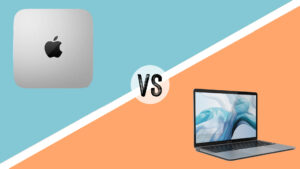
What is a Mac Mini? Small desktop with big performance
The Mac Mini is a tiny desktop that stays put on a desk and uses separate accessories. It is roughly a 5×5‑inch square and about 2 inches tall. This size works well in tight spaces, such as a compact home office or a crowded dorm room.
The current Mac Mini comes with Apple M4 or M4 Pro chips. The M4 model has a 10‑core CPU and 10‑core GPU, and the M4 Pro steps up to a 12‑core CPU and 16‑core GPU. In simple terms, both are very fast for office work, multi‑tasking, and creative apps. The M4 Pro is better for heavy video editing, large photo work, and coding projects.
Ports and connectivity are a strong point. Typical Mac Mini models include:
-
\t
- Multiple USB‑C/Thunderbolt ports.
- USB‑A ports for older accessories.
- HDMI for external displays or TVs.
- Ethernet for wired internet.
- A headphone jack.
- Wi‑Fi and Bluetooth.
\t
\t
\t
\t
\t
Cooling is handled by a fan inside the case. In normal use, it runs cool and very quiet. Even under heavy work, such as 4K video export, it stays stable and avoids slowdowns that can affect fanless laptops.
What is a MacBook Air? Thin, light laptop for everyday use
The MacBook Air is Apple’s light laptop line. It is built around portability and all‑day battery life.
Key traits:
-
\t
- Thin and light body, easy to carry in a backpack.
- Built‑in high‑quality Retina display.
- Backlit keyboard and large trackpad.
- Stereo speakers and microphone array.
- Built‑in webcam for video calls.
- Long battery life that can cover a full school or work day.
\t
\t
\t
\t
\t
Recent models use Apple silicon chips such as M1, M2, and now M4 in 2025 models. For many people, even older M1 and M2 versions still handle daily work without issues. Tasks like web browsing, email, slides, note‑taking, coding, basic photo editing, and short video edits feel smooth.
The MacBook Air is fanless. It stays silent during normal use. Under heavy workloads, like long 4K video exports, it can warm up and may slow slightly to control temperature. For most office or school work, this is not a concern.
Apple silicon basics: M1, M2, and newer chips explained simply
Apple silicon refers to Apple’s own chips used in Macs. The main names people see are M1, M2, and newer chips like M4 and M4 Pro.
Three ideas help:
-
\t
- CPU is the “brain” that runs apps and general tasks.
- GPU handles graphics, games, and video effects.
- RAM is short‑term memory that keeps apps and files ready to use.
\t
\t
The M1 was the first Apple silicon Mac chip. It brought a big jump in speed and battery life over older Intel Macs. The M2 is a newer version. In simple terms, it is a bit faster and supports more memory in some models. For heavy multi‑tasking and creative apps, M2 feels stronger.
For basic work such as web browsing, streaming, and document editing, many people will not notice a big difference between M1 and M2.
The latest Mac Mini uses M4 and M4 Pro chips. These go a step further, with higher CPU and GPU speeds. They are better suited to 4K video, large photo work, development, and heavy multi‑tasking. Many shoppers in 2025 will also see M1 and M2 Macs on sale or in the used market, which still offer good value.
Specs & Features Overview: Mac Mini vs MacBook Air
This section summarizes the key specs without going deep into technical detail. The focus is on what matters for real use: performance, portability, connectivity, design, battery life, and price.
Both Mac Mini and MacBook Air share:
-
\t
- Strong Apple silicon processing power.
- Support for current macOS versions.
- Access to the same software ecosystem.
\t
\t
The main differences are in form factor, ports, and power source.
-
\t
- Mac Mini is a compact desktop. It needs a monitor and keyboard but offers more ports and stronger performance per dollar, especially with M4 Pro.
- MacBook Air is a portable laptop. It includes everything in one device and runs on battery, with fewer ports and lower sustained performance but far greater flexibility.
\t
Simple comparison for typical 2025 models:
| Feature | Mac Mini (M4 / M4 Pro) | MacBook Air (M1 / M2 / M4) |
|---|---|---|
| Chip options | M4, M4 Pro | M1, M2, M4 |
| RAM range | 16 GB to 32 GB or more | 8 GB to 32 GB (varies by model) |
| Storage options | 256 GB to multi‑TB SSD | 256 GB to 2 TB SSD |
| Ports | Multiple USB‑C/Thunderbolt, USB‑A, HDMI, Ethernet, headphone jack | 2 USB‑C/Thunderbolt, MagSafe (newer), headphone jack |
| Size / weight | Small 5×5‑inch box, desktop only | 13‑ and 15‑inch laptops, around 2.7–3.3 lb |
| Starting price | Lower base price, from about $599 | Higher base price, often around $899–$1,199+ |
| Power source | Wall power only | Built‑in battery plus charger |
For a normal user, both machines feel fast and responsive. The choice is less about raw processing power and more about portability and how many devices need to connect at once.
Key specs that actually matter for normal users
A few specs affect daily experience more than others.
-
\t
- Chip (M1, M2, M4, M4 Pro):
M1 and M2 are great for web, office work, and light creative tasks. M2 is a bit faster and better for bigger projects. M4 and M4 Pro are stronger again and fit heavier workloads and multi‑tasking. - RAM (memory):
8 GB works for basic use with a few apps open. 16 GB is safer for several years, especially with many browser tabs, design tools, or large files. Creative pros often prefer 24 GB or more when available. - Storage (SSD):
256 GB is fine for light users who stream most content and store little media. People with large photo or video libraries should consider 512 GB or higher, plus external drives. - Ports:
More ports mean easier connectivity. Mac Mini offers USB‑C, USB‑A, HDMI, Ethernet, and audio jacks. MacBook Air focuses on USB‑C and a headphone jack, with MagSafe on newer models. - Battery life (for laptops):
MacBook Air can often last a full day of light work. Battery life depends on brightness, apps, and workload.
\t
\t
\t
\t
In short, both Mac Mini and MacBook Air handle web, office apps, and streaming well. Specs matter more for creative work, heavy multi‑tasking, and large storage needs.
Simple comparison table: Mac Mini vs MacBook Air 2025
The goal of this comparison is to show patterns, not every single configuration. It focuses on typical 2025 options.
| Category | Mac Mini (M4 / M4 Pro) | MacBook Air (M1 / M2 / M4) |
|---|---|---|
| Performance | Very strong, best per dollar, M4 Pro for heavy work | Strong for daily use, less sustained under heavy load |
| RAM options | 16–32 GB+ | 8–32 GB, higher on newer models |
| Storage | 256 GB to several TB | 256 GB to 2 TB |
| Ports & connectivity | Many ports, ideal for multiple screens and drives | Fewer ports, best used with a small USB‑C hub if needed |
| Portability | Not portable, desk only | Highly portable, 13‑ and 15‑inch options |
| Battery | No battery, needs wall power | Long battery life, often full day on a charge |
| Starting price | Lower, desktop only | Higher, but includes screen and input devices |
The table highlights a simple idea: Mac Mini wins on ports and raw performance per dollar. MacBook Air wins on portability and all‑in‑one convenience. Software compatibility is almost identical, since both run current macOS versions and access the same apps.
Real‑World Use Cases: Which Mac Fits Your Life?
Specs help, but daily life is often the real test. This section focuses on how each device feels in practice for students, home office users, light gamers, and casual creators.
Key phrases apply here in a natural way:
-
\t
- Mac Mini for students
- Mac Mini for home office use
- Best Mac Mini for gaming setup
- MacBook Air for video editing
- MacBook Air for professionals
- MacBook Air battery optimization
\t
\t
\t
\t
\t
The Mac Mini tends to fit people who like a stable desk setup. The MacBook Air fits people who want to move around or work in different places during the day.
Mac Mini for students and home office use
A Mac Mini for students works best when they mostly study in one place. This could be a dorm room desk or a bedroom at home. The key benefit is the ability to use a larger display, often 24 inches or more, which makes long reading, spreadsheets, and essay writing more comfortable.
For Mac Mini for home office use, the setup can include:
-
\t
- One or two monitors for multitasking.
- A full‑size keyboard is better for long typing sessions.
- A comfortable mouse or trackpad.
- Wired Ethernet for stable video calls.
- External drives for backups and media.
\t
\t
\t
\t
Ports on the Mac Mini make it easy to connect printers, webcams, and storage. The main trade‑off is extra cost for the monitor, keyboard, mouse, and speakers if the person does not already own them.
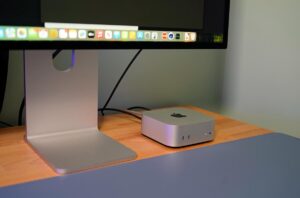
Best Mac Mini for a light gaming and media setup
The Best Mac Mini for gaming setup in 2025 centers on the M4 or M4 Pro models. These chips offer strong GPUs and hardware acceleration that can handle:
-
\t
- Casual games and Apple Arcade titles.
- Some modern games at lower settings or resolutions.
- Emulators and retro games.
- Smooth 4K video playback for movies and streaming.
\t
\t
\t
The Mac Mini is not a full replacement for a high‑end gaming PC, but it does fine for light gaming and media. It can connect to a large monitor or TV via HDMI and works well with wireless game controllers.
The small, quiet case makes it a good choice under a TV or in a living room. It can act as both a work machine and a family media box, with enough power for streaming, browsing, and casual play.
MacBook Air for students, remote workers, and professionals
For many people, the MacBook Air is the default choice for professionals and students. It combines enough performance with a light, portable design.
Typical daily tasks include:
-
\t
- Note‑taking in class or meetings.
- Email, documents, and slide decks.
- Web apps and cloud tools.
- Zoom or Teams calls with built‑in webcam and mic.
- Music and streaming during breaks.
\t
\t
\t
\t
A student can carry a MacBook Air all day in a backpack, move between lectures, and work in the library without hunting for a power outlet. A remote worker might use it at a desk with an external monitor all morning, then move to the sofa in the afternoon.
Professions that fit well with MacBook Air include writing, teaching, consulting, general office work, and light design. It is a flexible device that shifts quickly from one setting to another.
SEE ALSO: Fixing ModuleNotFoundError in Python (Beginner-Friendly Guide)
MacBook Air for video editing and creative work
A MacBook Air for video editing can be a good fit for basic projects. Apple silicon chips handle media workloads more efficiently than older Intel laptops.
Realistic expectations:
-
\t
- Comfortable for 1080p editing and short 4K clips.
- Good for social media content, school video projects, and light YouTube work.
- Fine for photo editing in apps like Lightroom and basic design tasks.
\t
\t
Limits to keep in mind:
-
\t
- Long 4K timelines with many layers or effects may feel slow.
- Exports of large projects can take time and may warm up the laptop.
- The fanless design can lead to slight slowdowns under constant heavy load.
\t
\t
For heavier work, the latest Mac Mini with M4 Pro offers much more power at a desk. Still, many casual creators, vloggers, and students will find the MacBook Air strong enough and appreciate that they can edit on location.
MacBook Air battery optimization tips for all‑day use
Simple MacBook Air battery optimization habits can stretch working time and keep the battery healthy.
Useful tips:
-
\t
- Keep screen brightness as low as is comfortable. The display is bright, so a lower setting often looks fine indoors.
- Close apps and browser tabs that are not in use. Each active tab uses memory and power.
- Turn on Low Power Mode in macOS when on battery, especially for writing, browsing, and email.
- Avoid leaving the laptop in direct sun or on soft beds and cushions for long periods. Heat is bad for battery health.
- Plug in the charger during heavy tasks like big video exports or long game sessions.
\t
\t
\t
\t
Small habits like these can help the battery last most of a day and stay in good shape over several years.
Performance Deep Dive: Apple M1 vs M2 and Mac Mini Power in 2025
Performance in 2025 is less about “Is this fast enough?” and more about “How much headroom is needed?” The Apple M1 vs M2 comparison, MacBook Air M1 vs M2 performance, and Mac Mini performance review 2025 all point to one theme: any Apple silicon Mac feels fast for basic tasks.
For web browsing, email, office apps, messaging, and streaming, M1, M2, and M4 all feel quick. Differences show up in:
-
\t
- Large photo libraries.
- Long or complex video projects.
- Heavy multi‑tasking with many apps and tabs.
- Development work with virtual machines or large builds.
\t
\t
\t
M2 is a step up from M1 and handles heavy loads better. M4 and especially M4 Pro in the Mac Mini move much further ahead, with big gains in CPU and GPU speed compared to the first M1 Mini.
MacBook Air users benefit from quiet, fanless designs, but may see some slowdown on long, very heavy workloads. Mac Mini users get better sustained performance thanks to active cooling and a desktop case.
Apple M1 vs M2 comparison in plain language
The Apple M1 vs M2 comparison can be kept simple. M2 is a newer and slightly stronger version of M1.
Key differences:
-
\t
- M2 has higher CPU and GPU performance.
- M2 can support more memory in some models.
- Apps that use graphics and video get a small but useful speed boost.
\t
\t
In practice, M2 can:
-
\t
- Export videos faster in common editing apps.
- Handle more browser tabs before feeling slow.
- Keep more photos or layers open in editing tools.
\t
\t
For email, browsing, notes, and streaming, both feel quick and smooth. Buyers who find a good deal on a Mac with M1 should not be afraid, especially for light use. People who plan to keep a Mac for many years or use creative tools more often will find M2 to be a better long‑term match.
MacBook Air M1 vs M2 performance in real use
For MacBook Air M1 vs M2 performance, the daily differences are modest but real in heavy tasks.
Examples:
-
\t
- With many browser tabs, music playing, and messaging apps open, M2 may feel slightly snappier.
- Running Zoom plus a notes app and a few other tools feels fine on both, with M2 offering more headroom.
- Editing a batch of high‑resolution photos or exporting a short video tends to finish faster on M2.
\t
\t
Both Air versions are fanless, so they stay silent. Under a long, heavy load, each can slow a bit to stay cool. The M2 can usually run at higher speed for longer before this happens.
Practical advice:
-
\t
- M1 Air suits students, writers, and light users who want to save money.
- M2 Air suits people who want more performance for creative apps, expect to keep the laptop longer, or often run several heavier apps at once.
\t
Mac Mini performance review 2025: M4 and M4 Pro power
A brief Mac Mini performance review 2025 shows a clear jump over older models. The M4 Mac Mini offers around 1.8 times the CPU speed and more than double the GPU speed compared to the old M1 version. For video editing, code builds, and heavy multi‑tasking, this is a major upgrade.
The M4 Mac Mini suits:
-
\t
- Users who want strong performance for office work and light creative tasks.
- People who connect one or two monitors and keep many apps open.
\t
The M4 Pro Mac Mini goes further, with around 50 percent more performance than the base M4 in many tasks. It fits:
-
\t
- Serious video editors working in 4K and above.
- Creators working with large photo libraries.
- Software developers with complex projects.
- Users running many heavy apps at the same time.
\t
\t
\t
Both M4 and M4 Pro Mini models benefit from active cooling. The fan and desktop case allow them to run at high speed for long stretches, without the thermal limits that affect thin laptops. For desk‑based users who value speed and stability, this is a key advantage over the MacBook Air.
Portability, Design, and Daily Experience
Living with a portable laptop is different from living with a compact desktop. Specs do not capture that difference.
The MacBook Air is designed to move:
-
\t
- It slips into a backpack or laptop sleeve.
- It runs on battery for many hours.
- It includes everything in one body.
\t
\t
The Mac Mini is designed to stay:
-
\t
- It needs a permanent or semi‑permanent desk.
- It requires a monitor, keyboard, and mouse.
- It depends fully on wall power.
\t
\t
In daily life, this means a MacBook Air user can start work at the kitchen table, move to the sofa, then finish the day in a café. A Mac Mini user sits at a consistent setup with a larger screen, better ergonomics, and more ports.
Heat and noise differ as well:
-
\t
- Mac Mini has a fan but usually runs very quiet, even on heavy workloads.
- MacBook Air is fanless and silent during light work, but can grow warm and throttle a bit under long heavy use.
\t
Battery is another factor. MacBook Air offers long battery life, often a full work or school day under light to medium use. The Mac Mini stops if power is cut, but it never suffers from battery wear.
Both share strong design and build quality, with solid aluminum bodies and a clean look.
Carrying a MacBook Air vs sitting at a Mac Mini desk
Two simple pictures highlight the difference.
With a MacBook Air:
-
\t
- A student packs the laptop and charger in a backpack.
- They work in class, then in the library, then at home.
- One device handles notes, research, and streaming.
\t
\t
With a Mac Mini:
-
\t
- A remote worker has a fixed desk with a 27‑inch display.
- A full keyboard and mouse stay in the same spot.
- The person sits down each morning to the same layout.
\t
\t
The Mac Mini setup usually gives better posture, larger text, and more room for windows. It works well for people who almost never move their computer. The MacBook Air feels better for people who split their day across several locations or like to change scenery.
Noise, heat, and battery life in everyday use
Noise, heat, and battery behavior affect comfort, especially over long days.
Mac Mini:
-
\t
- Has a fan, but it runs very quiet in normal use.
- The larger case and steady power help it stay cool.
- Under heavy work, it can run at full performance for longer periods.
\t
\t
MacBook Air:
-
\t
- Has no fan, so it is silent under light to medium use.
- Under heavy work, like long 4K video renders, it can get warm.
- When hot, it may slow slightly to protect itself.
\t
\t
Battery life on MacBook Air is one of its strongest features. Under typical office or school use, users can often finish a day without charging, especially with good habits from earlier battery tips.
The Mac Mini does not have a battery. It stops if there is a power cut, but its performance is steady and it never deals with battery aging. For some users, that can mean better long‑term stability.
Costs, Extras, and Long‑Term Value
Price is more than just the base tag. The Mac Mini and MacBook Air each carry different hidden costs and long‑term trade‑offs.
-
\t
- Mac Mini: Lower starting price, but needs a monitor, keyboard, mouse, and maybe speakers and a webcam. It can reuse old PC monitors and accessories, which can save money.
- MacBook Air: Higher starting price, but includes screen, keyboard, trackpad, speakers, webcam, and battery.
\t
Modern Macs do not offer simple user upgrades. This matters for questions like How to upgrade MacBook Air RAM, which is not possible after purchase.
Long‑term, a Mac Mini can sit on a desk for many years, paired with updated monitors and accessories when needed. A MacBook Air may need a battery replacement after several years and faces higher repair costs if the screen or top case is damaged.
Guides like a Mac Mini setup guide for beginners or advice on How to set up Mac Mini for home office can help new owners get started quickly and plan a comfortable workspace.
Hidden costs: accessories you need for each Mac
For a Mac Mini buyer, typical extra items include:
-
\t
- Monitor, which can range from budget 1080p models to high‑end 4K displays.
- Keyboard, either wired or wireless.
- Mouse or trackpad.
- Speakers or headphones if the monitor lacks speakers.
- A webcam if video calls are common and the screen has no camera.
\t
\t
\t
\t
These items can add up, though many people already own some from a previous desktop.
For a MacBook Air, most basics are built‑in:
-
\t
- Retina display.
- Keyboard and trackpad.
- Speakers and webcam.
- Battery and charger.
\t
\t
\t
Optional extras might include a laptop sleeve, a USB‑C hub, or an external drive.
Example budgets:
-
\t
- A basic MacBook Air may cost more than a base Mac Mini, but the Air arrives as a complete system.
- A base Mac Mini plus even a modest monitor and input devices may approach or pass the price of a discounted older MacBook Air, depending on choices.
\t
Upgrades, repairs, and how long each Mac can last
On recent Macs, RAM and internal storage are not user‑upgradeable. The phrase How to upgrade MacBook Air RAM has a short answer: it cannot be upgraded after purchase. Users must choose enough memory and storage at the time of order.
Practical advice:
-
\t
- Choose at least 16 GB of RAM if planning to keep the Mac many years or run creative apps.
- Pick more storage if media files and photos will grow over time, or plan on external drives.
\t
Long‑term value:
-
\t
- A Mac Mini can often remain useful as a desk computer longer because it avoids battery wear. It can be connected to newer monitors over time.
- A MacBook Air can last 5–7 years for normal use with good care. Over time, battery capacity will fall, and some users may choose a battery service to restore unplugged time.
\t
Both devices hold value well on the used market, but repairs on laptops, such as screen or keyboard damage, often cost more than replacing a monitor or keyboard in a desktop setup.
How‑To Guides: Setting Up Your Mac Mini and Caring for Your MacBook Air
Short how‑to sections help new owners get started with a Mac Mini and keep a MacBook Air in good shape.
The focus:
-
\t
- A Mac Mini setup guide that feels simple even for beginners.
- Clear tips to keep a MacBook Air fast and healthy over time, including battery care.
\t
Mac Mini setup guide for beginners and home office
A Mac Mini setup guide for beginners can follow simple steps:
-
\t
- Unbox the Mac Mini and place it on a desk with some space around it for airflow.
- Connect the monitor using HDMI or USB‑C, depending on the display.
- Plug in a keyboard and mouse, either with USB cables or by pairing Bluetooth devices.
- Connect an Ethernet cable for wired internet, or plan to use Wi‑Fi.
- Plug the Mac Mini into wall power.
- Press the power button on the back or top, depending on the model.
- Follow the on‑screen macOS setup, including language, Wi‑Fi, Apple ID, and privacy settings.
- Install key apps such as a preferred browser, office suite, and video call tools.
\t
\t
\t
\t
\t
\t
\t
For How to set up Mac Mini for home office, a few ergonomic tips help:
-
\t
- Place the monitor so the top of the screen is near eye level.
- Use a chair that supports the lower back.
- Keep cables tidy with clips or sleeves to reduce clutter.
- Consider a second monitor for heavy multi‑tasking.
\t
\t
\t
Simple care tips to keep your MacBook Air fast and healthy
Long‑term care for a MacBook Air covers both performance and battery health.
Helpful habits:
-
\t
- Keep macOS and apps updated to get security fixes and performance tweaks.
- Avoid blocking the bottom or hinge vents while the laptop runs, so heat can escape.
- Do not leave the MacBook Air in hot cars or direct sunlight for long periods.
- Use a sleeve or case when traveling to reduce the risk of scratches and drops.
- Back up data often, using Time Machine or a cloud backup service.
- Use Low Power Mode when on battery for extended sessions and avoid running the battery to 0 percent every day.
\t
\t
\t
\t
\t
These steps support MacBook Air battery optimization and help the laptop stay responsive and reliable throughout its life.
Common Questions About Mac Mini vs MacBook Air
What is better, a MacBook Air or a Mac Mini?
Neither device is always better. The choice depends on how a person works.
MacBook Air is better for people who want one device they can carry everywhere. It suits students, remote workers, and professionals who move around during the day, travel often, or value the all‑in‑one laptop format.
Mac Mini is better for people who sit at a desk, want more ports, and do not mind buying or reusing a monitor and accessories. It offers more performance for the price and can be upgraded higher at purchase.
In short: choose MacBook Air for portability and self‑contained design, choose Mac Mini for a strong desk setup with more connectivity.
Can I connect a Mac Mini to a MacBook Air?
A Mac Mini and a MacBook Air can work together well on the same network, even if one cannot be used directly as a screen for the other.
Useful ways to connect:
-
\t
- Use AirDrop to send files back and forth wirelessly.
- Turn on file sharing on one Mac and access shared folders from the other.
- Use macOS screen sharing, which allows the MacBook Air to control the Mac Mini over Wi‑Fi or Ethernet.
- Sync data through iCloud so documents, notes, and photos appear on both devices.
\t
\t
\t
In practice, some owners keep a powerful Mac Mini at a desk for heavy work, then use a MacBook Air for meetings or travel, with data flowing between them.
Can I use a MacBook Air as a Mac Mini screen?
A MacBook Air cannot act as a direct display for a Mac Mini. The Air’s ports are output only, so it cannot accept an HDMI signal from the Mac Mini.
There are, however, workarounds:
-
\t
- Use macOS screen sharing to view and control the Mac Mini’s desktop from the MacBook Air over a network.
- Connect the Mac Mini to a separate external monitor for primary display.
- In some setups, use an iPad with Sidecar or a remote desktop app to access the Mac Mini.
\t
\t
These methods do not turn the MacBook Air into a pure HDMI monitor, but they allow control of the Mac Mini without a dedicated second display in some scenarios.
Is the Mac Mini worth buying?
For many buyers, the Mac Mini is worth considering. It combines strong performance, multiple ports, small size, and quiet operation. It pairs well with large monitors and can last for years as a main desktop.
Pros:
-
\t
- High performance for the price, especially with M4 and M4 Pro.
- Plenty of ports for drives, monitors, and wired network.
- Compact and quiet with no built‑in screen to damage.
- No battery, so no battery wear issue over time.
\t
\t
\t
Cons:
-
\t
- Needs a monitor, keyboard, mouse, and often speakers.
- Not portable on its own.
- Higher‑end M4 Pro configurations can be costly.
\t
\t
It suits home office users, students who study mostly at home, and creators who want a budget‑friendly desktop that still feels fast in 2025.
Comparison: Mac Mini vs MacBook Air 2025
A clear Mac Mini vs MacBook Air 2025 comparison shows two strong options that target different lifestyles. The main question, Which is better: Mac Mini or MacBook Air?, comes down to portability versus desk‑based power.
For most students and light office workers, the MacBook Air is near the top of lists of Best Apple laptops for 2025. It balances price, performance, and portability in a way that fits many users. For people who know they want a desktop, the Mac Mini offers better ports and performance per dollar.
High‑level table:
| Aspect | Mac Mini | MacBook Air |
|---|---|---|
| Performance | Higher, especially with M4 Pro | Strong, best for light to medium workloads |
| Price | Lower base, more value at desk | Higher, but includes screen and input |
| Ports | Many, supports complex setups | Few, may need a USB‑C hub |
| Portability | None, desk only | High, easy to carry and travel with |
| Noise | Very quiet, has fan | Silent in light use, fanless |
| Ideal user | Home office, fixed desk, creative at desk, light gamer | Student, traveler, remote worker, mobile pro |
Short “best for you if” summary:
-
\t
- Mac Mini: Best if you stay at a desk, want more ports, reuse or buy a large monitor, and care about performance per dollar.
- MacBook Air: Best if you move around, attend classes, work on the go, or prefer a single all‑in‑one device.
\t
Feature comparison table and ideal user profiles
A feature summary helps match each Mac to user types.
-
\t
- Mac Mini:
-
\t
- Performance level: medium to heavy, with M4 Pro for pro workloads.
- Price range: mid to high, depending on chip and storage.
- Ports: rich mix of USB‑C/Thunderbolt, USB‑A, HDMI, Ethernet.
- Portability: none, but very small footprint on a desk.
- Noise: low, quiet fan.
- Ideal users: home office workers, creative pros at a desk, light gamers, developers.
\t
\t
\t
\t
\t
- MacBook Air:
-
\t
- Performance level: light to medium, with good bursts of heavier work.
- Price range: mid to high, but often discounted older M1/M2 models.
- Ports: limited, but enough for basic needs with optional hub.
- Portability: high, strong traveler choice.
- Noise: silent, fanless.
- Ideal users: students, remote workers, consultants, writers, and casual creators.
\t
\t
\t
\t
\t
\t
MacBook Pro exists as a stronger laptop for heavy creative professionals but sits outside this guide’s main comparison. For most people choosing between a portable laptop and a small desktop, Mac Mini and MacBook Air will be the core options.
Best Apple laptops for 2025: where MacBook Air fits in
Within the lineup often called the Best Apple laptops for 2025, the MacBook Air holds a central role. It offers the best balance of price, performance, and portability for most everyday users.
Key points:
-
\t
- For students and remote workers, MacBook Air is usually the first recommendation.
- For casual creators, it is strong enough for many editing tasks and far easier to carry than a desktop.
- For heavy creative pros who stay mobile, MacBook Pro stands as a more powerful but more expensive option.
\t
\t
When someone knows they do not need a laptop and prefer a monitor‑based setup, the Mac Mini is a better match than any laptop. The Air still anchors the portable side of Apple’s lineup, while the Mac Mini anchors the compact desktop side.
FAQ: Extra Questions About Mac Mini and MacBook Air
Is Mac Mini better than MacBook Air for creative professionals?
For creative professionals who work at a desk on big projects, the Mac Mini with M4 Pro is often better than a MacBook Air. It delivers higher performance, more ports for drives and monitors, and better cooling for long sessions. A large, color‑accurate monitor can be added to suit photo and video work.
For pros who travel or need to edit on site, a MacBook Pro may fit better than either device. For many serious but desk‑based editors, however, a well‑configured Mac Mini offers strong value.
Is MacBook Air enough for video editing?
A MacBook Air with M1 or M2 is enough for basic video editing. It handles school projects, social media clips, and many YouTube videos shot in 1080p or short 4K segments. Simple edits, cuts, and light effects run smoothly.
Long 4K timelines, many layers, or complex color work can feel slow and may heat the laptop. Heavy editors should look at a Mac Mini with M4 Pro or a MacBook Pro. For casual creators and students, a MacBook Air remains a reasonable and flexible choice.
Can a Mac Mini replace a full desktop PC?
In many cases, a Mac Mini can replace a full desktop PC. It handles web browsing, office work, email, video calls, streaming, coding, and light creative tasks with ease.
Users who need Windows‑only apps should check software compatibility. Some can move to web‑based tools or use cloud services. Others might keep a separate Windows machine or consider virtualization where supported.
Given its strong performance, small size, and quiet design, a Mac Mini can serve as the main desktop for many homes and offices.
How many years will a MacBook Air last for normal use?
With normal care, a MacBook Air with M1 or M2 can last around 5–7 years for everyday tasks. This includes web browsing, streaming, office work, messaging, and light editing.
Battery health slowly drops over time. After several years, some users choose a battery replacement to regain full unplugged time. Apple supports Apple silicon Macs with software updates for many years, so owners can expect security fixes and feature updates for a long period.
Is Mac Mini good for light gaming?
Yes, the Mac Mini, especially with M4 or M4 Pro, is good for light gaming. It runs Apple Arcade titles well, handles many casual and indie games, and can manage some larger games at reduced settings. Its strong GPU and cooling also make it a solid device for emulators and 4K media playback.
For serious, high‑refresh AAA gaming, a dedicated gaming PC or console will still be better. For a balanced home setup with everyday work and casual play, the Mac Mini is a strong option.
Should students choose Mac Mini or MacBook Air?
Students who live on campus, move between buildings, and work in different places benefit most from a MacBook Air. It handles notes, research, and presentations in a portable way.
Students who study mostly in one place, such as at home or in a single dorm room, and want a large monitor might prefer a Mac Mini. The lower base price can help when reusing an existing screen and keyboard.
Conclusion
Choosing between a Mac Mini and a MacBook Air comes down to lifestyle more than raw specs. Both share strong Apple silicon performance and run the same macOS and apps.
A Mac Mini suits people who stay at a desk, want more ports, value a bigger monitor, and do not mind adding a keyboard and mouse. It offers better performance for the price, especially with the M4 and M4 Pro models, and can remain useful on a desk for many years.
A MacBook Air suits people who move around, attend classes, work from cafés, travel, or like to shift between rooms at home. It packs a screen, keyboard, trackpad, and long‑lasting battery into a single device that is easy to carry.
Readers are best served by choosing based on how they actually work and what their budget allows, not just headline numbers. Either way, both options provide a powerful, long‑lasting Mac in 2025 that can handle school, work, and creative projects with confidence.

Related Articles