
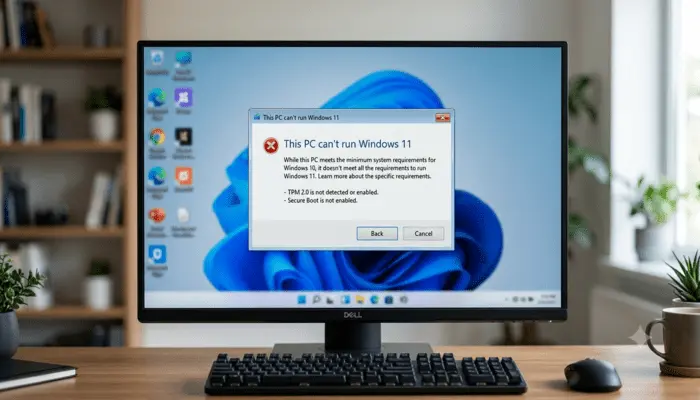
If Windows 11 Updates Not Installing on Unsupported PC, you are not alone — and this is not a random glitch.”. Everything seemed fine at first. Then Windows Update stopped delivering updates — or it delivers some but skips the big feature updates entirely.
This is not a bug. This is Microsoft’s intentional policy. But that does not mean you are stuck.
This guide explains exactly what happens with updates on unsupported hardware, which updates you still get, which ones you do not, and how to manually install the ones that are being blocked.
What Microsoft Actually Says About Updates on Unsupported PCs
When you bypass the hardware check and install Windows 11 on an unsupported CPU or a PC without TPM 2.0, Microsoft’s official position is clear:
“Your PC will no longer be supported and won’t be entitled to receive updates. Damages to your PC due to lack of compatibility aren’t covered under the manufacturer warranty.”
That sounds alarming, but the real situation is more nuanced. Here is what actually happens based on real user reports from Reddit and Microsoft’s own support forums:
- Monthly security updates (Patch Tuesday): These continue to arrive normally for most users on unsupported hardware. You are not completely cut off from security patches.
- Major feature updates (23H2, 24H2, 25H2): These are blocked. Windows Update will not offer them automatically on unsupported PCs.
- Driver updates: These may or may not install depending on your hardware combination.
The bottom line is that you are on a supported branch for monthly updates, but you will have to manually handle major version upgrades yourself.
Why Windows 11 Updates Are Not Installing on Unsupported PCs
Before jumping to fixes, it helps to understand what is actually blocking your updates. There are three separate reasons this can happen, and each one has a different fix.
Reason 1: Feature Updates Are Intentionally Blocked
Microsoft uses a hardware allowlist. If your CPU is not on that list, the Windows Update service is instructed not to offer major version upgrades. This is not a glitch — it is by design. Your PC will stay on whatever version of Windows 11 you installed until you manually force an upgrade.
Reason 2: TPM and Secure Boot Checks Are Failing
Some updates — particularly cumulative updates — check for TPM 2.0 and Secure Boot during installation. If your bypass method did not properly spoof these requirements, the update will fail partway through and roll back.
Reason 3: The Update Depends on a Previous Update That Did Not Install
Windows updates are chained. If one update fails silently, later updates that depend on it will also fail. This creates a backlog that is frustrating to diagnose because the error messages are not always clear about which update in the chain is the real problem.
Fix 1: Check Which Version of Windows 11 You Are Running
Before doing anything else, check your current version. Press Windows + R, type winver, and press Enter.
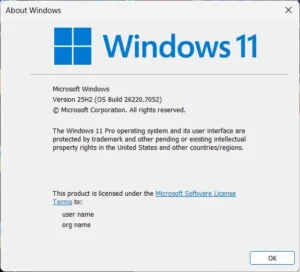
If you are on 22H2 or earlier, you are significantly behind. Feature updates after that point will not come automatically. You need to use the manual method in Fix 3 below.
Fix 2: Run the Windows Update Troubleshooter
If you are having trouble with monthly security updates — not feature updates — start here. This fixes corruption in the Windows Update components and clears the update cache.
- Open Settings and go to System.
- Click Troubleshoot, then Other troubleshooters.
- Find Windows Update and click Run.
- Wait for the troubleshooter to finish, then restart your PC and try Windows Update again.
If the troubleshooter finds and fixes a problem, run Windows Update immediately after restarting. If it says no issues were found but updates still fail, move to Fix 3.
Fix 3: Manually Install Feature Updates Using the ISO Method
This is the most reliable way to get major feature updates on an unsupported PC. It bypasses the Windows Update delivery system entirely and installs the update directly from Microsoft’s official ISO file.
This is the same approach used to install Windows 11 on unsupported hardware in the first place — you are essentially repeating that process to move to a newer version.
Step 1: Download the Windows 11 ISO
Go to Microsoft’s official Windows 11 download page. Under “Download Windows 11 Disk Image (ISO) for x64 devices,” select the latest version and download it. The file is around 5-6 GB.
Step 2: Disconnect From the Internet
This step is important. Disconnect your PC from the internet before running the setup. Either unplug the ethernet cable or turn off Wi-Fi. This prevents the installer from calling home and checking your hardware eligibility mid-installation.
Step 3: Mount the ISO and Run Setup Using the Server Method
- Double-click the ISO file you downloaded. Windows will mount it as a virtual drive and assign it a drive letter (for example, D: or E:).
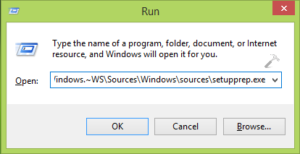
- Press Windows + R to open the Run dialog.
- Type the following command, replacing X with the actual drive letter of your mounted ISO:
X:\sources\setupprep.exe /product server- Press Enter. The Windows 11 setup will launch without the hardware compatibility check.
- Follow the on-screen prompts. Choose to keep your files and apps when asked.
- Let the installation complete. Your PC will restart several times.
- Once you are back at the desktop, reconnect to the internet and run Windows Update normally to get the latest security patches for the new version.
This method has been confirmed by multiple users on Reddit and works on PCs with unsupported CPUs including Intel 7th Gen and older processors.
Fix 4: Use the Windows 11 Update Assistant
Some users have reported that the Windows 11 Installation Assistant works even when Windows Update does not offer the upgrade. It is worth trying before resorting to the full ISO method.
- Visit the Microsoft Windows 11 download page.
- Under “Windows 11 Installation Assistant,” click Download Now.
- Run the tool and follow the prompts.
If it detects your hardware as incompatible and refuses to proceed, switch to Fix 3 instead.
Fix 5: Reset Windows Update Components Manually
If monthly security updates are failing — not feature updates — the problem may be corrupted Windows Update components. Running these commands in Command Prompt resets everything cleanly.
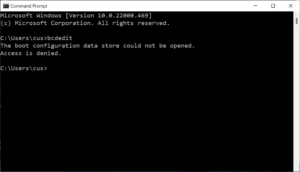
Open Command Prompt as administrator. Right-click the Start button and select Terminal (Admin) or Command Prompt (Admin). Run these commands one at a time:
net stop wuauserv
net stop cryptSvc
net stop bits
net stop msiserver
ren C:\Windows\SoftwareDistribution SoftwareDistribution.old
ren C:\Windows\System32\catroot2 catroot2.oldnet start wuauserv
net start cryptSvc
net start bits
net start msiserverRestart your PC after running these commands, then try Windows Update again.
What Happens If You Skip Major Feature Updates Entirely?
This is a question many users on unsupported hardware face. If you stay on an older version of Windows 11 — say 22H2 — you will eventually lose monthly security patches for that specific version as Microsoft ends support for it.
Microsoft typically supports each version of Windows 11 for 18 to 24 months after release. After that, if you have not moved to the newer version, even your monthly security updates will stop.
This means the manual update method in Fix 3 is not just a one-time thing — it is something you will need to do periodically to stay on a supported branch and keep receiving security patches.
Should You Worry About Performance After Updating?
Some users on unsupported hardware report performance issues after major updates. This is because newer versions of Windows 11 may enable security features — like Memory Integrity (HVCI) — that older CPUs handle less efficiently.
If your PC feels slower after updating, check out the guide on Windows 11 running slow after an update — the fixes there apply to unsupported hardware as well.
You may also want to check whether Memory Integrity is enabled and causing a slowdown. Go to Windows Security > Device Security > Core isolation details. On older CPUs without MBEC support, turning this off can noticeably improve performance — though it reduces a specific layer of security protection.
Other Issues to Watch After Updating
Users on unsupported hardware commonly run into a few other problems after getting feature updates working. These have their own dedicated fixes:
- If your screen goes black after an update restarts, see the guide on fixing Windows 11 black screen after update.
- If your Wi-Fi drops after updating, the Windows 11 Wi-Fi disconnecting after update guide covers the most common causes on older hardware.
Frequently Asked Questions
Will Microsoft eventually block all updates on unsupported PCs?
Microsoft has not announced a hard cutoff date for security updates on unsupported hardware, but they have been clear that they make no guarantees. The safest assumption is that monthly patches will continue for now, but this could change at any point without notice.
Is it safe to keep using Windows 11 on unsupported hardware long-term?
It depends on what you are doing with the PC. For general browsing and basic tasks, it is workable — especially if you stay current with manual updates. For anything involving sensitive data or business use, the lack of official support and possible missed security patches is a real concern.
My update says “This PC doesn’t meet the minimum system requirements.” What do I do?
This is the standard watermark and warning Microsoft adds to unsupported installations. The ISO method in Fix 3 bypasses this check during the feature update installation. The warning message itself does not stop your PC from functioning.
Can I use third-party tools like Patch My PC to get updates?
Third-party tools like Patch My PC are designed for third-party application updates, not Windows OS updates. They will not help with blocked Windows feature updates. Stick to the ISO method described in Fix 3 for OS-level updates.
Will the update through the ISO method delete my files?
No, as long as you choose to keep your files and apps during the setup process. The installer gives you this option explicitly. That said, always back up important files before any major update — this applies to supported hardware too.
Summary
Windows 11 updates not installing on unsupported PCs is a deliberate policy, not a glitch. Monthly security patches generally continue, but major feature updates like 24H2 will not appear in Windows Update automatically.
The most reliable fix is the ISO method using the /product server command — it bypasses the hardware check entirely and works for most unsupported CPU configurations. Run it once now to get to the latest version, then repeat it whenever a new major version drops.
If you have not already set up Windows 11 on your unsupported PC, see the full guide on how to install Windows 11 on an unsupported CPU for the complete walkthrough from scratch.