
Your WiFi was working perfectly. You installed a Windows 11 update — routine, automatic, nothing unusual. Then everything changed. The connection drops every few minutes. You reconnect. It drops again. Your phone works fine on the same network. Your tablet holds its connection without a problem. But your Windows 11 PC keeps falling off the network like clockwork.
This is not a coincidence and it is not your router. Windows 11 updates have repeatedly broken WiFi connections for thousands of users across Dell laptops, HP machines, custom desktops, Intel adapters, MediaTek cards, and Realtek chips. One user updated two completely different laptops with different WiFi adapters to the exact same build — and both stopped connecting to their router immediately after. That is not a hardware problem. That is a Windows problem.
The good news is this is almost always fixable without reinstalling Windows. The fix depends on which cause is affecting your specific system. This guide covers all of them — starting with what fixes the problem for most people first.
Quick Summary
- Windows updates frequently replace your WiFi driver with a generic one that causes disconnections
- Power management silently turns off your WiFi adapter — the second most common cause
- The fix that works for most people is downloading drivers directly from the manufacturer website
- Changing wireless mode in adapter advanced settings has fixed this instantly for many users
- Network command resets fix connection issues when the adapter itself is fine
- In one documented case, Google Chrome was identified as the root conflict — not Windows itself
Why Does a Windows 11 Update Break WiFi?
Understanding what is actually happening helps you pick the right fix faster. There are three main reasons an update causes WiFi disconnections:
Driver conflict: Windows updates sometimes install generic WiFi drivers that override your manufacturer’s driver. The generic driver does not fully support your specific adapter’s features — particularly around frequency band management and power states — causing repeated drops. This is the most reported cause across every forum.
Power management reset: Updates frequently reset power settings to defaults. One of those defaults allows Windows to turn off your WiFi adapter to save power when it considers it idle — even during active use. The connection drops, reconnects briefly, drops again. It feels random but follows a pattern.
Network stack corruption: Some updates corrupt the Winsock catalog or DNS configuration. Your adapter is physically fine but Windows cannot communicate through it properly. Commands can fix this in minutes.
“I updated two completely different laptops to the same Windows 11 build. Different brands, different WiFi adapters. Both stopped connecting after the exact same update. My phones and smart home devices worked fine. This had to be something Microsoft changed in the update.”
— Real user report, Reddit r/WindowsHelp
Fix 1 — Download WiFi Drivers Directly From the Manufacturer
This is the fix that worked for the most people. One user with an Intel Dual Band Wireless-AC 8260 had tried everything — uninstalling drivers dozens of times, restarting the router, full network resets. Nothing worked. They went to Intel’s website, downloaded the manufacturer driver, installed it, and the WiFi worked immediately.
“Finally, I went to the Intel website and downloaded the latest driver. It was from 2023 so go figure — it should have been in the Windows 11 install but it wasn’t. I installed it and the Wi-Fi worked immediately. Problem solved.”
— Real user fix, Reddit r/WindowsHelp
Step 1 — Find Your WiFi Adapter Name
- Press Windows key + X → click Device Manager
- Expand Network adapters
- Find your WiFi adapter — it will say Intel, Realtek, MediaTek, Broadcom, Qualcomm, or Atheros
- Write down the exact name — for example “Intel Wi-Fi 6 AX201” or “Realtek RTL8821CE”
Step 2 — Download From the Right Website
- Intel adapter: Go to Intel Driver Support Assistant — it detects your adapter automatically
- Realtek adapter: Go to your laptop manufacturer’s support site and search your model number
- MediaTek adapter: Go to your laptop manufacturer’s site (HP, Dell, Lenovo, Asus) — search your model
- Qualcomm/Atheros: Same — laptop manufacturer’s support page
- Install the driver and restart your PC
Fix 2 — Stop Windows From Turning Off Your WiFi Adapter
Updates reset power management settings to defaults. One of those defaults allows Windows to switch off your WiFi adapter to save power — even while you are actively using it. This causes the exact pattern most people describe: connection works, suddenly drops, reconnects briefly, drops again.
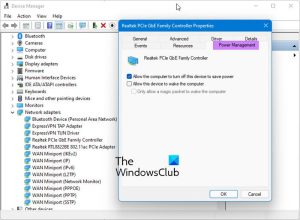
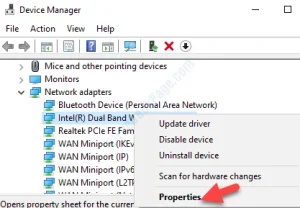
- Press Windows key + X → click Device Manager
- Expand Network adapters
- Right-click your WiFi adapter → click Properties
- Click the Power Management tab
- Uncheck “Allow the computer to turn off this device to save power”
- Click OK
- Restart your PC and test
Fix 3 — Change Wireless Mode in Advanced Adapter Settings
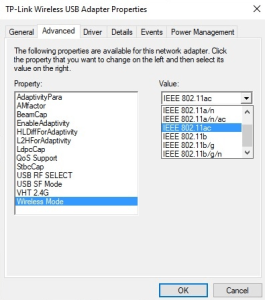
This fix surprised many users because it is not obvious. One user had tried updating drivers multiple times, adjusting frequencies between 2.4GHz and 5GHz, and nothing worked. Then they changed the wireless mode setting from 802.11AX to 802.11AC in advanced adapter properties — and immediately got a full stable connection.
“I changed the value from 4. 802.11AX to 3. 802.11AC in the adapter’s advanced settings. This gave me full bars immediately. I think it’s due to my router not properly supporting AX mode after the update changed something in how Windows negotiates the connection.”
— Real user fix, Reddit r/WindowsHelp
- Press Windows key + X → Device Manager
- Expand Network adapters
- Right-click your WiFi adapter → Properties
- Click the Advanced tab
- In the Property list, find “802.11n/ac/ax Wireless Mode” or “Wireless Mode”
- Change the value from the highest setting (AX/WiFi 6) down one level to AC/WiFi 5
- Click OK and test your connection
Fix 4 — Set Power Plan to Maximum Performance
This goes deeper than Fix 2. While Fix 2 prevents the adapter from being turned off, Fix 4 changes the overall power plan so Windows stops throttling your wireless adapter’s performance during low-activity moments. Together these two fixes cover all power-related disconnection causes.
- Press Windows key and search Control Panel → open it
- Set View by to Large icons
- Click Power Options
- Click Change plan settings next to your active plan
- Click Change advanced power settings
- Expand Wireless Adapter Settings
- Expand Power Saving Mode
- Change the value to Maximum Performance
- If you have a laptop you will see Plugged in and On battery — set both to Maximum Performance
- Click Apply then OK

Power management settings are one of the most overlooked causes of WiFi disconnections after Windows updates
Fix 5 — Reset Network Stack With Commands
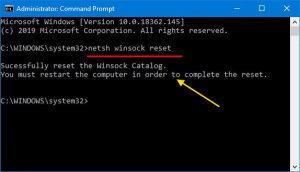
When your WiFi adapter is physically working but the connection keeps dropping or you cannot reach websites even when connected — the issue is often corrupted network configuration data. These commands reset the Winsock catalog, flush the DNS cache, and renew your IP address. They take about 3 minutes and have fixed this problem for many users when driver fixes did not work.
- Press Windows key, type cmd, right-click Command Prompt → Run as administrator
- Type each command below and press Enter after each one. Wait for it to complete before typing the next.
- netsh winsock reset
- netsh int ip reset
- ipconfig /flushdns
- ipconfig /release
- ipconfig /renew
- Close Command Prompt and restart your PC
Fix 6 — Change Network Profile From Public to Private
When Windows detects a network as “Public” it applies stricter firewall rules and more aggressive connection management. After an update, your home WiFi network may have been switched from Private to Public — causing intermittent drops as Windows restricts network activity.
- Press Windows key → open Settings
- Go to Network and Internet → click WiFi
- Click on your connected WiFi network name
- Under Network profile type — check if it says Public
- If Public — change it to Private
- Test your connection — no restart needed
Fix 7 — Restart the WLAN AutoConfig Service
The WLAN AutoConfig service is the Windows background service that manages all wireless connections. If this service stops running or gets stuck after an update — your WiFi will disconnect randomly and reconnecting will sometimes require a full restart. Restarting this service takes 30 seconds and costs nothing to try.
- Press Windows key, type Services, open the Services app
- Scroll down and find WLAN AutoConfig
- Right-click it → click Restart
- If it shows Stopped instead of Running — right-click → click Start
- Also check that its Startup type is set to Automatic — right-click → Properties to check this
Fix 8 — Switch to Custom DNS Servers
Sometimes your WiFi shows as connected but internet does not work — or pages load extremely slowly before the connection drops entirely. This is often a DNS issue where Windows cannot resolve domain names properly after the update changed network configuration. Switching to Google or Cloudflare DNS bypasses this completely.
- Go to Settings → Network and Internet → WiFi
- Click your connected network name
- Find DNS server assignment → click Edit
- Change from Automatic to Manual
- Turn on IPv4
- Preferred DNS: 8.8.8.8 (Google) or 1.1.1.1 (Cloudflare)
- Alternate DNS: 8.8.4.4 (Google) or 1.0.0.1 (Cloudflare)
- Click Save

Custom DNS servers bypass post-update DNS configuration issues without any risk to your system
Fix 9 — Uninstall and Reinstall the WiFi Adapter
If downloading fresh drivers did not work — sometimes the issue is not the driver version but a corrupted driver installation left behind by the update. Completely removing the adapter and its driver from the system and letting Windows reinstall from scratch often fixes this.
- Open Device Manager
- Expand Network adapters
- Right-click your WiFi adapter → Uninstall device
- Check the box “Attempt to remove the driver for this device”
- Click Uninstall
- Restart your PC — Windows will automatically reinstall the adapter
- After restart, connect to your WiFi and test stability
Special Cases That Need Different Fixes
WiFi Disconnects Only After Sleep or Hibernate
This is almost always the power management issue from Fix 2. But also check this: go to Device Manager → Network adapters → right-click WiFi adapter → Properties → Advanced tab. Find “Roaming Aggressiveness” and set it to Lowest. This stops Windows from aggressively hunting for better networks during low-activity periods — which can cause brief disconnections that appear to happen after sleep.
5GHz WiFi Keeps Disconnecting But 2.4GHz Works Fine
This is specifically the wireless mode conflict described in Fix 3. Your update changed how Windows negotiates the 5GHz 802.11AX connection with your router. Go to Fix 3 and change the wireless mode from AX down to AC. Also try switching your router’s 5GHz channel — channels 36, 40, 44, and 48 are generally most stable for this issue.
WiFi Keeps Disconnecting and Asking for Password Again
This means Windows is treating your network as a new/unknown network after each reconnection — which suggests the network profile got corrupted. Go to Settings → Network and Internet → WiFi → Manage known networks. Find your home network and click Forget. Then reconnect from scratch and enter your password once. Also apply Fix 6 to make sure the profile is set to Private.
Nothing Works — One Unusual Cause Worth Checking
“After trying every solution — updating drivers, uninstalling hundreds of times, network reset, Windows reset — I systematically uninstalled programs one by one. To my surprise, Google Chrome was the root cause. Uninstalling Chrome resolved the WiFi disconnection completely. It appears to be a conflict between Windows 11 updates and Chrome.”
— Real user discovery, Microsoft Community Forums
If you have exhausted every fix above — try temporarily uninstalling a recently updated third-party application, particularly browsers or VPN software. One documented case identified Google Chrome as the conflict. Another user identified NordVPN as contributing to instability. These are edge cases but worth trying before considering a full Windows reset.
What Actually Worked — Honest Summary
| Fix | Result | Best For |
|---|---|---|
| Download driver from manufacturer website | ✅ Works | Most users — fixes driver conflict from update |
| Disable power management on WiFi adapter | ✅ Works | Periodic drops — adapter being turned off |
| Change wireless mode from AX to AC | ✅ Works | 5GHz instability on WiFi 6 capable adapters |
| Set power plan to Maximum Performance | ✅ Works | Drops during idle periods or light use |
| Netsh winsock reset + DNS flush commands | ✅ Works | Connected but no internet or slow browsing |
| Change network profile to Private | ✅ Works | Drops starting right after update or restart |
| Restart WLAN AutoConfig service | ✅ Works | Service stopped or stuck after update |
| Custom DNS (8.8.8.8 / 1.1.1.1) | ✅ Works | Connected but pages not loading properly |
| Uninstall and reinstall WiFi adapter | ✅ Works | Corrupted driver installation from update |
| Windows built-in troubleshooter | ⚠️ Sometimes | Reconnects you temporarily but rarely fixes root cause |
| Restarting the router | ❌ Rarely | Not the router’s fault — other devices work fine |
Related Guides on TechBasics101
The Bottom Line
WiFi disconnecting after a Windows 11 update is frustrating — but it is almost always a driver or power management issue, not a hardware failure. Start with Fix 1 (downloading the manufacturer driver directly) — it solves the problem for most people. If that does not work, Fix 2 and Fix 3 together cover the next most common causes. Work through the list in order and you will find your fix.
Frequently Asked Questions
Written by Arslan Ahmad · TechBasics101.com · May 2026
Every fix in this guide is based on real user reports from Reddit, Microsoft Community Forums, and YouTube — not generic troubleshooting theory.