
You updated Windows 11. Now your screen is black. Maybe there is a cursor sitting there blinking at you doing nothing. Maybe there is complete darkness — no cursor, no logo, nothing. Your files are on that machine. Your work is on that machine. And Windows is giving you absolutely nothing in return.
You are not alone — and this is genuinely not your fault. Specific Windows 11 updates including KB5079473 and KB5083769 caused widespread black screen reports across Reddit, Microsoft’s own support forums, and tech communities worldwide. People with brand new laptops. People with powerful desktops. Even a 75-year-old woman named Evelyn who just needed her documents for an overseas trip faced this exact panic.
The fixes exist. But they depend entirely on which type of black screen you are seeing. Most guides throw ten fixes at you randomly and leave you more confused than when you started. This guide helps you identify your exact situation first — then takes you straight to the fix that works for it.
Quick Summary
-
-
- There are three different black screen situations — each needs a completely different fix
- Updates KB5079473 and KB5083769 caused widespread reports in 2026
- Black screen with cursor = explorer.exe crashed = fixed in 2 minutes
- Black screen during update = do not panic and do not force shutdown immediately
- Black screen on boot = GPU driver or system file issue = needs Recovery Environment
- Most people are fixed by the first or second fix — you probably will not need the advanced ones
-
First — Which Black Screen Are You Seeing?
This is the most important question. The fix for each situation is completely different. Spending 30 seconds here saves you from trying fixes that will never work for your specific problem.
Situation A
Screen went black WHILE the update was installing
The update was running — you saw a percentage or the spinning circle — then the screen went black. Fans are still running. PC is still on. It just stopped showing anything.
→ Go to Fix 1
Situation B — Easiest Fix
You logged in successfully but got a black screen WITH a cursor
You reached the login screen, entered your password correctly, but instead of your desktop appearing — just a black screen with a mouse cursor you can move around. No taskbar. No icons. No nothing.
→ Go to Fix 2 — this is the easiest fix on this entire page
Situation C
Black screen ON BOOT — before the login screen even appears
You press the power button. The manufacturer logo might flash briefly. Then black. You never even reach the login screen. Sometimes the backlight is on but nothing is displaying.
→ Go to Fix 3

Identifying which type of black screen you have is the most important first step
Fix 1 — Black Screen During the Update
This is the situation that causes the most unnecessary panic — and the most unnecessary damage. When the screen goes black during a Windows update, most people immediately hold the power button to force it off. For many people, that is the worst thing to do. The update may still be running in the background even though the screen looks dead.
Step 1 — The Caps Lock Test (Do This Before Anything Else)
- Press the Caps Lock key on your keyboard
- Look at the Caps Lock indicator light on your keyboard
- If the light turns on and off when you press it — your machine is still running. The update is still installing in the background. Do not touch it.
- Also listen — can you hear the hard drive or fan activity? More confirmation it is still working.
- If the Caps Lock light does not respond at all — the machine is genuinely frozen. Move to Step 2.
The Real Story — What a Real User Did
“I installed a security update and restarted. I saw 30% on the progress screen then it went black. It stayed black for 30 minutes. What I did: I waited 2-3 hours to finally have the nerve to shut down. Before shutting down I made sure it was unresponsive — caps lock light not turning on, mouse not receiving power, couldn’t hear any noise. Then I held power for 15 seconds. Waited 30 seconds. Pressed power. It resumed updating from 30% exactly as it normally would.”
— Real user, Reddit r/WindowsHelp — Update KB5079473
Step 2 — If Genuinely Frozen — The Safe Way to Force Shutdown
- Confirm the machine is genuinely frozen — Caps Lock light does not respond, no drive sounds
- Hold the power button for 10-15 seconds until it completely shuts off
- Wait a full 30 seconds before pressing power again — do not rush this
- Press the power button to turn it back on
- Windows will likely resume the update from where it stopped — this is normal
- Leave it completely alone and let it finish
Step 3 — If This Keeps Happening With Every Update
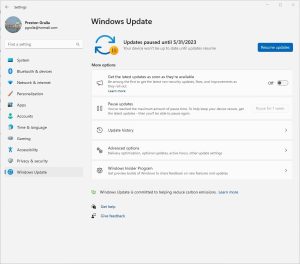
- After successfully booting, open Settings → Windows Update → Advanced options
- Set Pause updates to 4 weeks
- To remove the specific update: press Windows + R, type cmd, right-click → Run as administrator
- Type: wusa /uninstall /kb:5079473 and press Enter
- Restart after uninstall completes
Fix 2 — Black Screen With Cursor After Login (Easiest Fix — 2 Minutes)
If you can see your mouse cursor and move it around — this is actually good news. Your PC is not broken. What happened is that explorer.exe — the process that creates your desktop, taskbar, and Start menu — crashed when Windows tried to start it after the update. The fix takes under 2 minutes.
“Press Alt+Ctrl+Delete keys at the same time. When the new screen opens select Task Manager. Select New Task. Type explorer.exe. Your Windows will start.”
— Real user fix, Quora
The 2-Minute Fix — Restart Explorer.exe
-
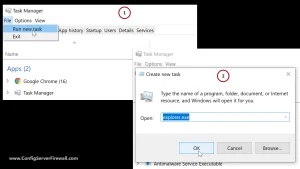
- Press Ctrl + Shift + Esc together — Task Manager opens even on a black screen
- In Task Manager, click File at the top left
- Click Run new task
- In the box that appears, type explorer.exe
- Press Enter or click OK
- Your desktop, taskbar, and icons should reappear within seconds
Quick Keyboard Shortcut to Try First
Before going to Task Manager, try this shortcut — it sometimes fixes the black screen in one keystroke:
- Press Windows key + Ctrl + Shift + B all at once
- The screen will briefly flicker or go dark for a second
- This resets the graphics driver instantly
- If your desktop reappears — you are done
If Ctrl + Shift + Esc Did Not Open Task Manager
- Try Ctrl + Alt + Delete instead
- A security screen should appear with options
- Select Task Manager from the list
- Then follow the explorer.exe steps above

Task Manager can be opened even on a black screen — it does not depend on explorer.exe to work
Fix 3 — Black Screen on Boot Before Login
This is the scariest situation because it happens before you even reach the login screen. The good news is that in the vast majority of cases this is still a software problem — not hardware. The process requires accessing Windows Recovery Environment, which sounds technical but is straightforward if you follow the steps calmly.
Quick Check — Disconnect Everything External First
- Turn off your PC completely
- Unplug everything external — USB drives, external hard drives, printers, extra monitors, USB hubs, webcams
- Leave only your keyboard, mouse, and main display connected
- Turn the PC back on and see if it boots normally
Getting Into Windows Recovery Environment
If disconnecting externals did not work, you need to access the Windows Recovery Environment. Here is how to get there without any USB drives or technical knowledge.
- Press the power button to turn on your PC
- As soon as you see the manufacturer logo — hold the power button until it turns off
- Press power again to turn it back on
- As soon as the logo appears — hold power again to turn it off
- Repeat this 3 times total
- On the fourth attempt — do NOT press power. Let it boot on its own.
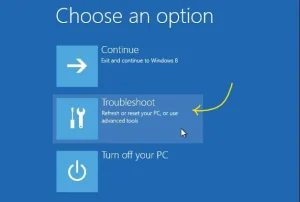
- Windows will automatically show the Recovery screen — a blue screen saying “Automatic Repair” or “Choose an option”
- Click Advanced options → Troubleshoot → Advanced options
Option A — Startup Repair (Try This First)
- Advanced options → Startup Repair
- Windows diagnoses and attempts to fix boot problems automatically
- Takes 5-15 minutes — leave it completely alone
- PC restarts automatically when done
- If it says “Startup Repair could not fix” — move to Option B
Option B — System Restore (Safest — Keeps All Your Files)
“The latest Windows update is causing problems. You have to do a restore from a restore point. After you get back to your desktop, go into Windows Update and pause updates for 2 weeks. Hopefully Microsoft learns how to write code by then.”
— Real user fix, Reddit r/pcmasterrace
- Advanced options → System Restore
- Select your user account if asked and enter your password
- Click Next
- You will see a list of restore points with dates
- Choose a restore point dated before the update was installed
- Click Scan for affected programs to see what will change
- Click Next → Finish
- PC restarts — this takes 10-20 minutes
Option C — Uninstall the Problem Update Directly
- Advanced options → Uninstall Updates
- Choose Uninstall latest quality update
- Confirm and let it complete
- PC restarts automatically
- After booting successfully — pause future updates in Windows Update settings
Option D — Scan for Corrupted System Files
- Advanced options → Command Prompt
- Type: sfc /scannow and press Enter — wait 10-15 minutes
- When done, type: DISM /Online /Cleanup-Image /RestoreHealth and press Enter
- Wait for this to complete — can take 20 minutes
- Type exit and press Enter
- Choose Continue to restart Windows normally
Fix 4 — NVIDIA GPU Users: Roll Back to Driver 566.36
If you have an NVIDIA graphics card and your screen goes black specifically when opening full-screen apps, switching windows, or minimizing — this is a known NVIDIA driver conflict with specific Windows 11 updates. Your main monitor goes black but a second monitor stays working. That is the giveaway.
“NVIDIA GPU? You need to roll back your drivers. There is a major ongoing issue right now. Driver 566.36 seems to be the safest bet. When installing make sure you click custom installation then perform clean installation to remove the bad driver versions.”
— Real user confirmed fix, Reddit r/PcBuildHelp
- Go to nvidia.com/drivers on another device or your phone
- Download driver version 566.36 — confirmed stable version
- Transfer to your PC via USB drive if needed
- Run the installer
- When installation options appear — click Custom Installation
- Check “Perform a clean installation” — this removes the conflicting driver completely
- Complete installation and restart
Special Cases That Need Different Fixes
Only One Monitor Goes Black — Second Monitor Still Works
This is a display output setting that the update reset — not a true black screen problem. Press Windows + P to cycle through display modes. Select “PC screen only” and your main monitor should come back. Updates sometimes reset multi-monitor configurations back to default.
Audio Stopped Working After the Black Screen Fix
Several users reported that after fixing the black screen, audio disappeared entirely. This is a secondary driver conflict from the same update. Go to Device Manager → Sound, video and game controllers → right-click your audio device → Update driver → Search automatically. If that does not work: Settings → System → Sound → Troubleshoot.
PC Absolutely Will Not Boot Even After Recovery Steps
If every recovery option fails, the update may have corrupted the boot configuration entirely. From the Recovery Environment Command Prompt, run these commands in order:
- bootrec /fixmbr then press Enter
- bootrec /fixboot then press Enter
- bootrec /rebuildbcd then press Enter
- Type exit and restart
Windows Keeps Pushing the Same Problem Update Back
Multiple users reported the frustrating loop of rolling back only for Windows to push the same update again on the next restart. To stop this cycle:
- After booting successfully: Settings → Windows Update → Advanced options
- Turn OFF “Get updates as soon as they’re available”
- Set Pause updates to the maximum (5 weeks)
- Check back after 4-5 weeks — Microsoft usually releases a fixed version by then
Most Windows 11 black screen problems after updates are software issues — not hardware failures
What Actually Worked — Based on Real User Reports
Here is an honest summary of what fixed the problem for real people — not what Microsoft’s troubleshooter suggests in theory.
| Fix | Result | Best For |
|---|---|---|
| Wait — Caps Lock test confirms still running | ✅ Works | Black screen during update — most common situation |
| Safe force shutdown then restart | ✅ Works | Confirmed frozen during update — resumes normally |
| Restart explorer.exe via Task Manager | ✅ Works | Black screen with cursor — fixes in 2 minutes |
| Windows + Ctrl + Shift + B shortcut | ✅ Works | GPU driver reset — fast first attempt |
| Disconnect external devices | ✅ Works | Boot black screen from external USB devices |
| System Restore via WinRE | ✅ Works | Boot black screen — safest option, files preserved |
| Uninstall update via WinRE | ✅ Works | Confirmed update-caused black screen on boot |
| NVIDIA driver rollback to 566.36 | ✅ Works | NVIDIA GPU fullscreen or window switch black screen |
| Generic Windows Troubleshooter | ❌ Rarely | Almost never identifies the actual cause — skip this |
| Reinstalling Windows immediately | ⚠️ Last resort | Only after everything above fails — unnecessary in most cases |
How to Stop This Happening After Future Updates
Create a restore point before every major update. Press the Windows key, search “Create a restore point,” click Create. Takes 2 minutes. Gives you a guaranteed safe point to return to if the next update causes problems.
Pause updates for 2-3 weeks after major releases. This is the single most effective prevention. Let other people discover the bugs first. Settings → Windows Update → Advanced options → Pause updates.
Never update GPU drivers through Windows Update. Go directly to NVIDIA, AMD, or Intel’s website. Windows Update installs generic versions that frequently conflict with Windows 11 updates.
Turn off “Get updates as soon as they’re available.” This toggle makes your PC one of the first to receive new updates — including buggy ones. Turning it off gives Microsoft time to fix problems before they reach you.
Related Guides on TechBasics101
The Bottom Line
A Windows 11 black screen after an update is terrifying in the moment — but in the vast majority of cases it is completely fixable without losing a single file. If you can see a cursor, restart explorer.exe and you are done in 2 minutes. If the screen went black during the update, do the Caps Lock test before touching anything. If you cannot boot at all, System Restore through Recovery Environment will almost certainly bring you back.
Frequently Asked Questions
Written by Arslan Ahmad · TechBasics101.com · May 2026
Every fix in this guide comes from real user reports — not generic troubleshooting theory.